
To create a Google Form, go to forms.google.com and sign in. Click Blank form, give it a title, and add your questions. Then click Publish. New forms don’t take answers until you publish them. Last, copy the responder link and send it to the people you want to hear from.
Tested on October 4, 2026, in Google Forms on a free Google account. The labels below are exactly what I saw on screen.
I’ve built thousands of forms for my clients and for myself. I also build OG Forms, a Google Forms alternative, so I’ll point it out once where it helps. Everything else here is plain Google Forms.
How do you create a Google Form?
You create a Google Form from the Forms home page. It only takes a few minutes. You’ll pick a blank form, name it, and add your first question. Google saves your work as you go, so you can’t lose it by closing the tab.
- Go to forms.google.com and sign in with your Google account.
- Under Start a new form, click Blank form. You can also pick a ready-made form, like Event Registration or Order Form.

- Click Untitled form at the top and type a title. I used “Team lunch RSVP”.
- Click Form description and add a line that tells people what the form is for.
- Click Untitled Question and type your first question.
- Type your first answer in Option 1. Google may offer more answers under Suggestions. Click Add all to use them.
- Turn on Required if everyone must answer this question.
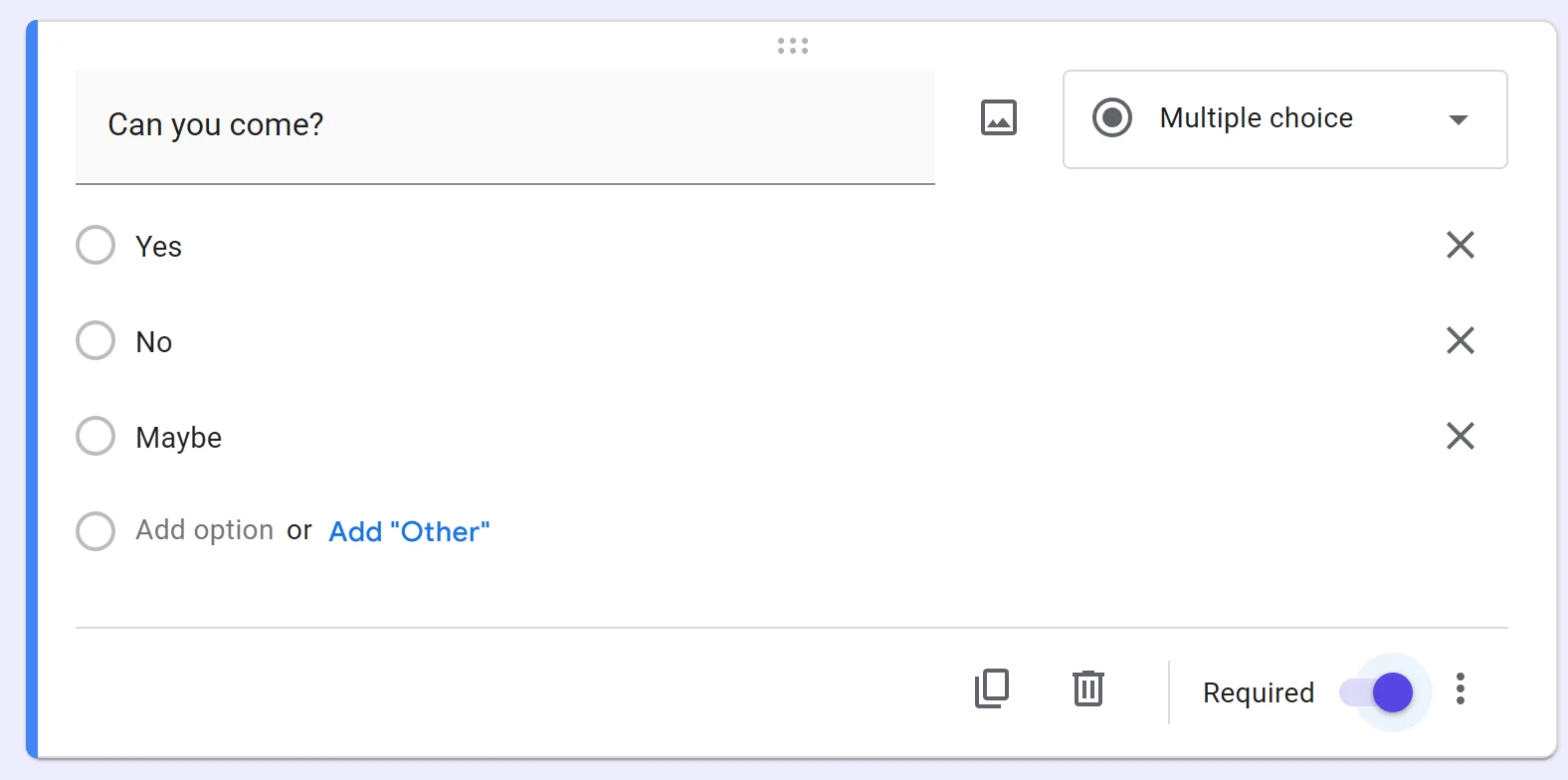
- To add another question, click Add question (the plus icon on the right side).
Watch the top of the page. It says All changes saved in Drive after each change. That’s Google saving your form for you.
What question types can you use?
Google Forms has 12 question types. You pick one from the menu at the top right of each question. Google may pick one for you based on your wording. When I typed “What’s your name?”, it switched to Short answer on its own.
Here are the types, as they appear in the menu:
| Type | Use it for |
|---|---|
| Short answer | A name, a number, one line of text |
| Paragraph | A longer answer, like feedback |
| Multiple choice | One answer from a list |
| Checkboxes | Several answers from a list |
| Drop-down | One answer from a long list |
| File upload | A photo or a document |
| Linear scale | A score on a scale |
| Rating | A quick rating |
| Multiple-choice grid | One answer per row in a grid |
| Tick box grid | Several answers per row in a grid |
| Date | A day on the calendar |
| Time | A time of day |
Google keeps its own short guide to choosing a question type. The next guide in this course covers each type in detail.
How do you publish a Google Form?
You publish a Google Form by clicking the purple Publish button at the top right. This step is new, and several guides that rank for this search still skip it. Until you publish, your form won’t take any answers. In preview, the Submit button is greyed out.
Before you publish, check your work. Click Preview (the eye icon). You’ll see the form the way people will. On a new form, the preview says Not published and This form isn’t accepting responses.
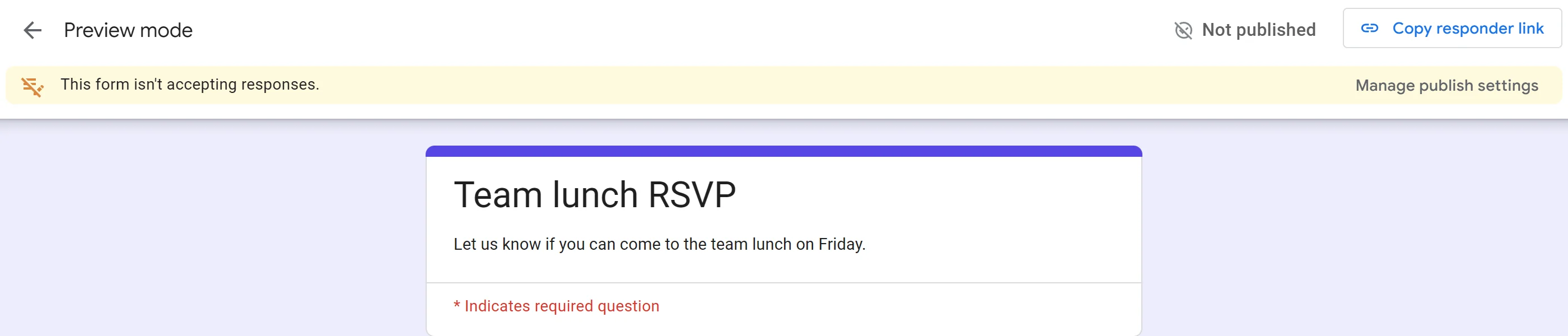
When you’re happy, publish it:
- Click Publish at the top right.
- Check who can answer under Responders. By default it’s Anyone with the link. Click Manage to change it.
- Click Publish in the box.
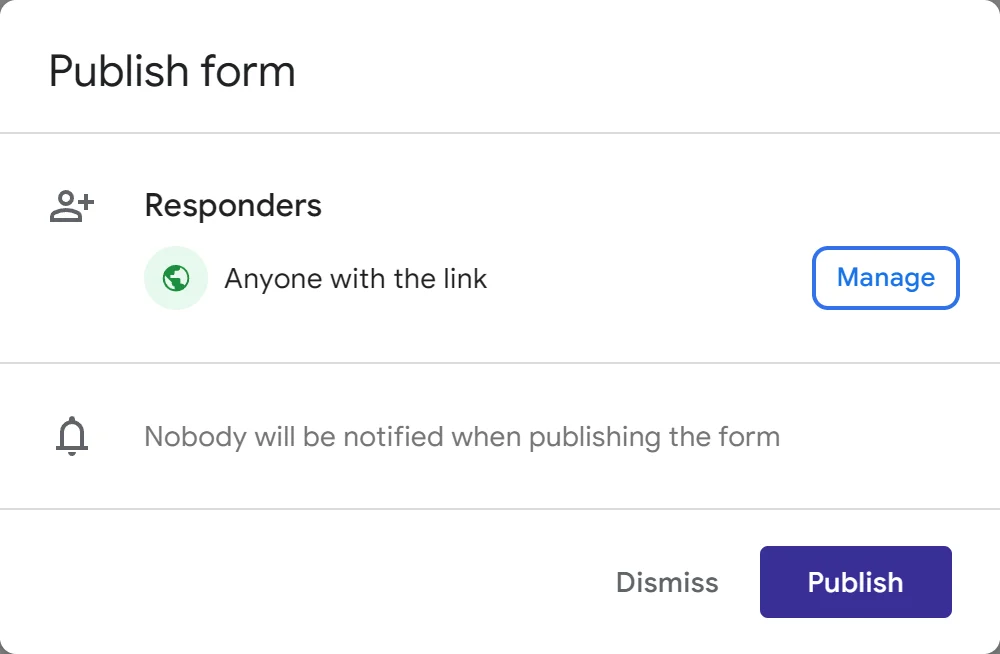
The box also says “Nobody will be notified when publishing the form.” So publishing doesn’t email anyone. You still need to send the link yourself. Google’s guide to publishing and sharing your form covers the other ways to send it, like email or putting it on a website.
After you publish, the button changes to Published.

Which link should you share?
Share the responder link. It lets people fill in your form, and nothing else. Right after you publish, Google opens a Copy responder link box for you. Tick Shorten URL to get a short forms.gle link, then click Copy.
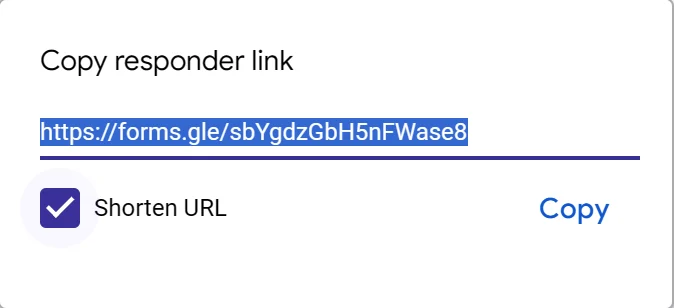
You can find this link again any time. Click the link icon at the top of the editor, or click Share and then Copy responder link.
Don’t send the address from your browser bar while you’re editing. That’s the editor link. A common mistake is sharing it by accident. People then land in edit mode instead of the form.
The Share box shows the two links side by side:
- Editor view is Restricted. Only people you add can open the editor.
- Responder view is Anyone with the link. Anyone with the responder link can fill in the form.
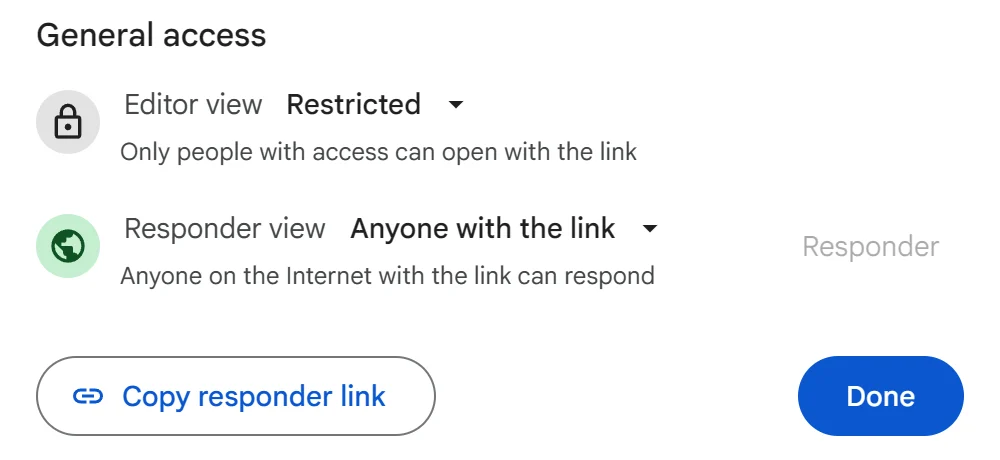
Only add someone as an editor if you trust them with everything. Google’s help page says it plainly: anyone you invite “can edit any part of your form, including responses and where they are saved” (Google Workspace help). If you do want a co-editor, Google shows how on its Share your form with collaborators page.
What does a published Google Form look like?
A published Google Form is a simple page with your title, your questions, and a Submit button. Here’s the exact form I built for this guide. It’s live, so go ahead and fill it in. You’ll see what the people you send it to will see.
Any answer you send goes to the test account I used for this guide.
Do people need a Google account to fill in your form?
No. People don’t need a Google account to fill in a Google Form. I opened my form in a signed-out browser and sent an answer with no sign-in at all. Google showed “Your response has been recorded.”
People who aren’t signed in will see one extra line under your title: Sign in to Google to save your progress. This is optional. If people sign in, Google saves their answers as a draft for 30 days, so they can finish later (Google’s autosave help). Still, some people think they must sign in and give up.
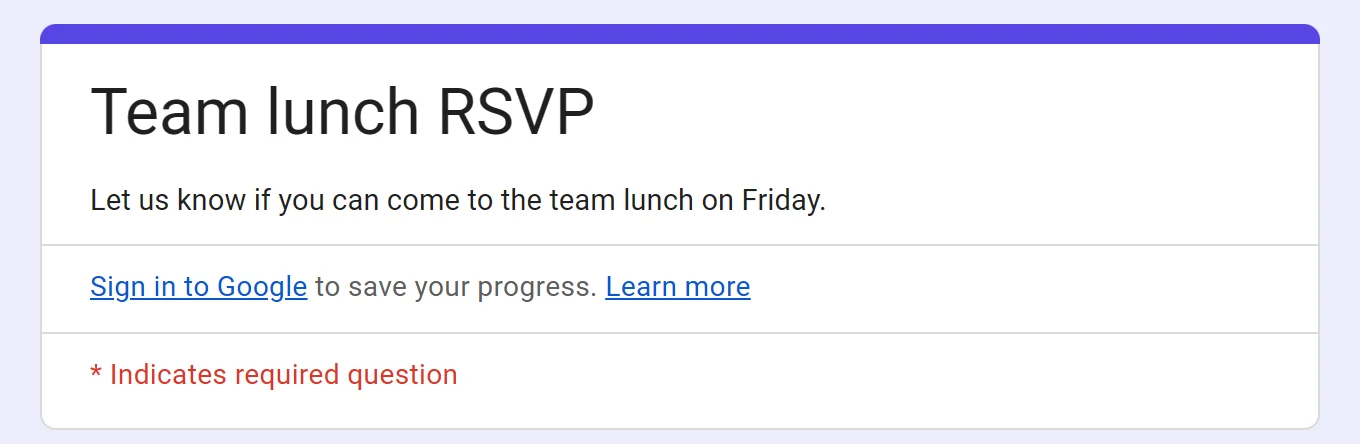
You can hide this line. Go to Settings, open Presentation, and turn on Disable auto-save for all respondents. I tried it, and the line was gone. The catch is written in red right under the switch.

So in Google Forms, you pick one: the sign-in line, or people losing a half-finished form. OG Forms (the tool I build) skips that choice. It never asks people to sign in, and it saves their answers on their own device until they submit. To see it, open any OG Forms link in a private window and start typing.
Some settings do force a sign-in. Go to Settings, then open Responses. Google marks Limit to 1 response with REQUIRES SIGN-IN. If you turn it on, everyone must sign in to Google before they can answer.
Can you create a Google Form on your phone?
Yes. Open forms.google.com in your phone’s web browser and sign in. The editor fits a small screen. The buttons to add questions move to the bottom. Publish becomes a paper plane icon at the top.
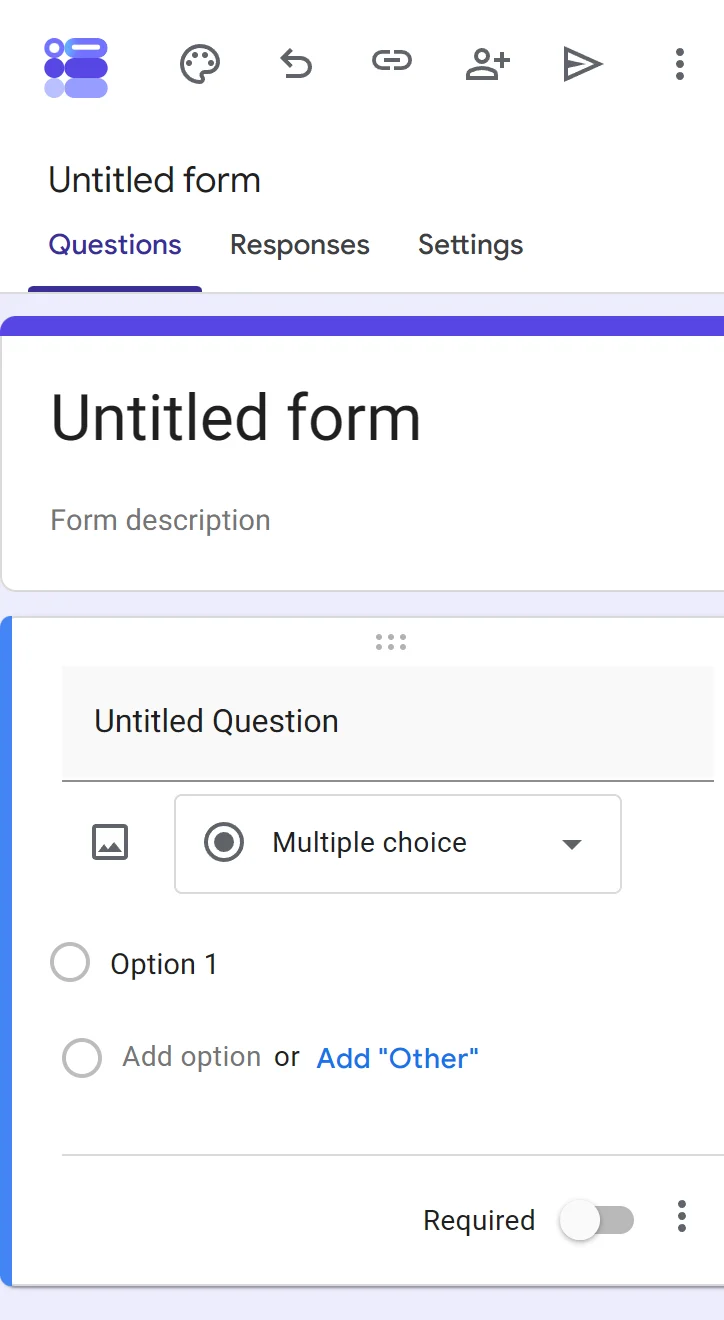
I tested this in Chrome’s phone view. Long forms are easier to build on a computer, where you can see more at once.
Where is your Google Form saved?
Your form is saved in Google Drive, in the account you signed in with. Google saves every change on its own. You’ll see All changes saved in Drive at the top of the editor. To find your form later, go back to forms.google.com. Your forms are listed under Recent forms.
You can also start a form from Google Sheets or Google Drive. Google explains both on its How to use Google Forms page.
What to do when something goes wrong
These are the problems people ask about most, and how to fix each one.
| What you see | Why it happens | How to fix it |
|---|---|---|
| “This form isn’t accepting responses.” | The form isn’t published yet | Click Publish |
| People can edit your form | You sent the editor link | Send the responder link instead, and remove anyone you added by mistake under Share |
| People are asked to sign in | Limit to 1 response is on | Turn it off in Settings, under Responses |
| People see “Sign in to Google to save your progress” | Google shows this to everyone who isn’t signed in | Tell people they can skip it, or turn on Disable auto-save for all respondents under Settings, then Presentation |
| You can’t find your form | It’s in the Google account you used | Sign in to that account and go to forms.google.com |
If someone can’t submit your form, Google’s page on fixing common errors while responding covers the usual causes, like a required question left blank.
FAQ
Is Google Forms free?
Yes. Google Forms is free with a Google account. I made every form in this guide on a free Gmail account.
Do I need Gmail to create a Google Form?
You need a Google account to create a form. The people who fill it in don’t need one, unless you turn on a setting that requires sign-in, like Limit to 1 response.
Can I start from a template?
Yes. The Forms home page shows a few templates next to Blank form. Click Template gallery at the top right to see more.
Can AI create a Google Form for me?
Not in the free account I tested. I didn’t see an option to build a form from a prompt or a document. You add the questions yourself.
What’s next
You’ve made your first form. Next in this course: Google Forms question types, explained.