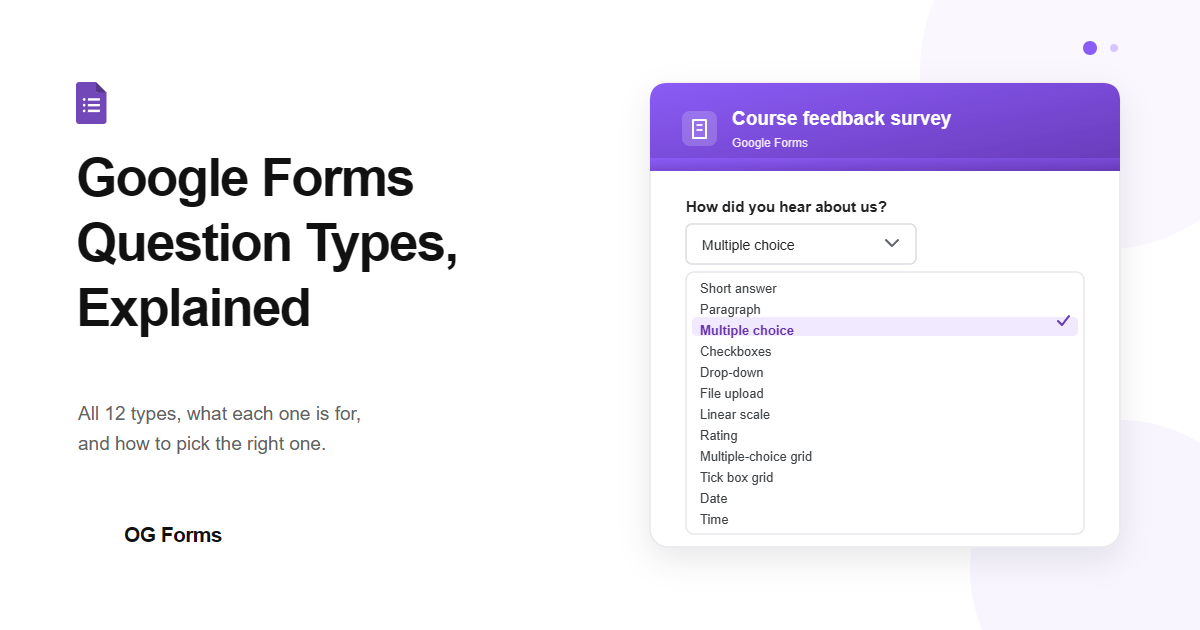
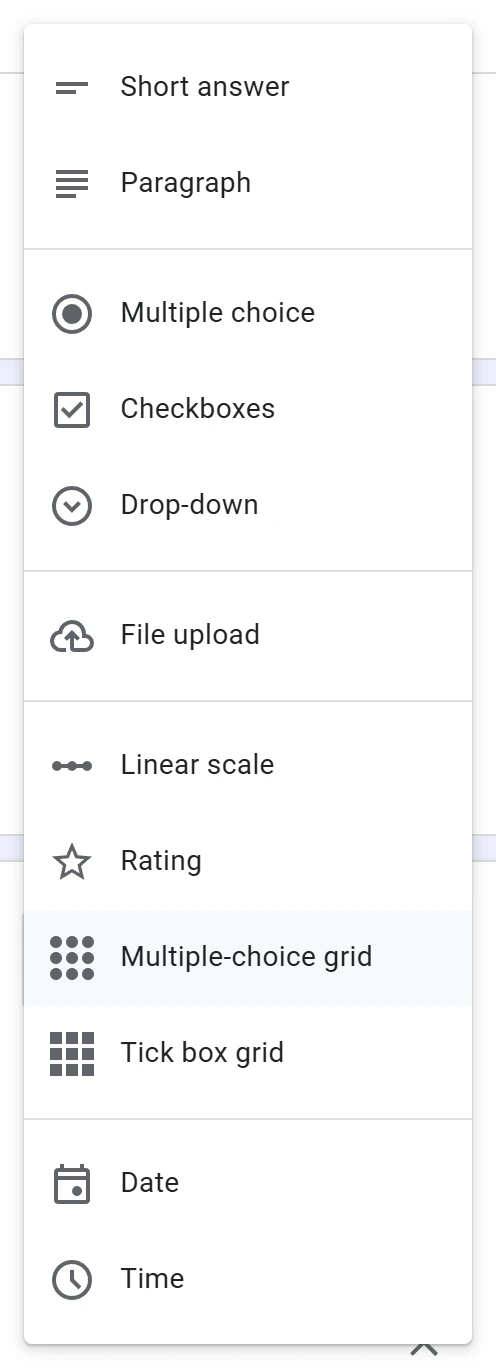
Google Forms has 12 question types, chosen from the menu to the right of each question: Short answer, Paragraph, Multiple choice, Checkboxes, Drop-down, File upload, Linear scale, Rating, Multiple-choice grid, Tick box grid, Date and Time. Every new question starts as Multiple choice, so you nearly always change it.
I also build OG Forms, a Google Forms alternative, so I will say plainly at the end where it fits and where it does not.
Tested on 17 October 2026. I built a form in Google Forms on a free Google account, added a question of every type, then switched one question between five types to see what survived. Every name below is copied off the editor. This account is set to English (UK), so the menu reads Drop-down, Multiple-choice grid and Tick box grid. Google’s own guide to choosing a question type lists the same 12 items as Dropdown, Multiple choice grid and Checkbox grid. Same list, three different spellings, which is why the name you read here can look wrong next to Google’s help.
What are the 12 question types in Google Forms?
There are 12, and each one collects a different shape of answer. Two take text, three take a choice, one takes a file, two take a number on a scale, two are grids, and two are a date or a time.
| Type | What it collects | Use it for |
|---|---|---|
| Short answer | One line of text | A name, an email, a phone number, a one line reply |
| Paragraph | Several lines of text | Feedback, comments, an explanation |
| Multiple choice | One answer from your list | Picking one option from a short list |
| Checkboxes | Any number of answers from your list | “Which of these apply?” |
| Drop-down | One answer, hidden until clicked | One option from a long list |
| File upload | A file the person sends you | A photo, a PDF, a document |
| Linear scale | A number on a scale you set | “How likely are you to recommend us?” |
| Rating | A score on a row of stars or hearts | A quick score for one thing |
| Multiple-choice grid | One answer per row | Asking the same question about several things |
| Tick box grid | Several answers per row | “Which of these apply to each of these?” |
| Date | A day | A booking, a deadline, a birthday |
| Time | A time of day | A slot, an appointment |
The menu is one list, split by four thin dividers, and nothing on it tells you what the types do. That is the whole reason this page exists. Here is the list as it appears on screen:
How do you change a question’s type?
Click the box on the right of the question title. It shows the current type, and the menu shows all 12. Pick one and it swaps on the spot. The question text stays. Your options stay too, but only while you move between Multiple choice, Checkboxes and Drop-down.
- Open your form in Google Forms.
- Click the question you want to change.
- Click the box to the right of the title. On a new question it says Multiple choice.
- Pick the type you want from the list.
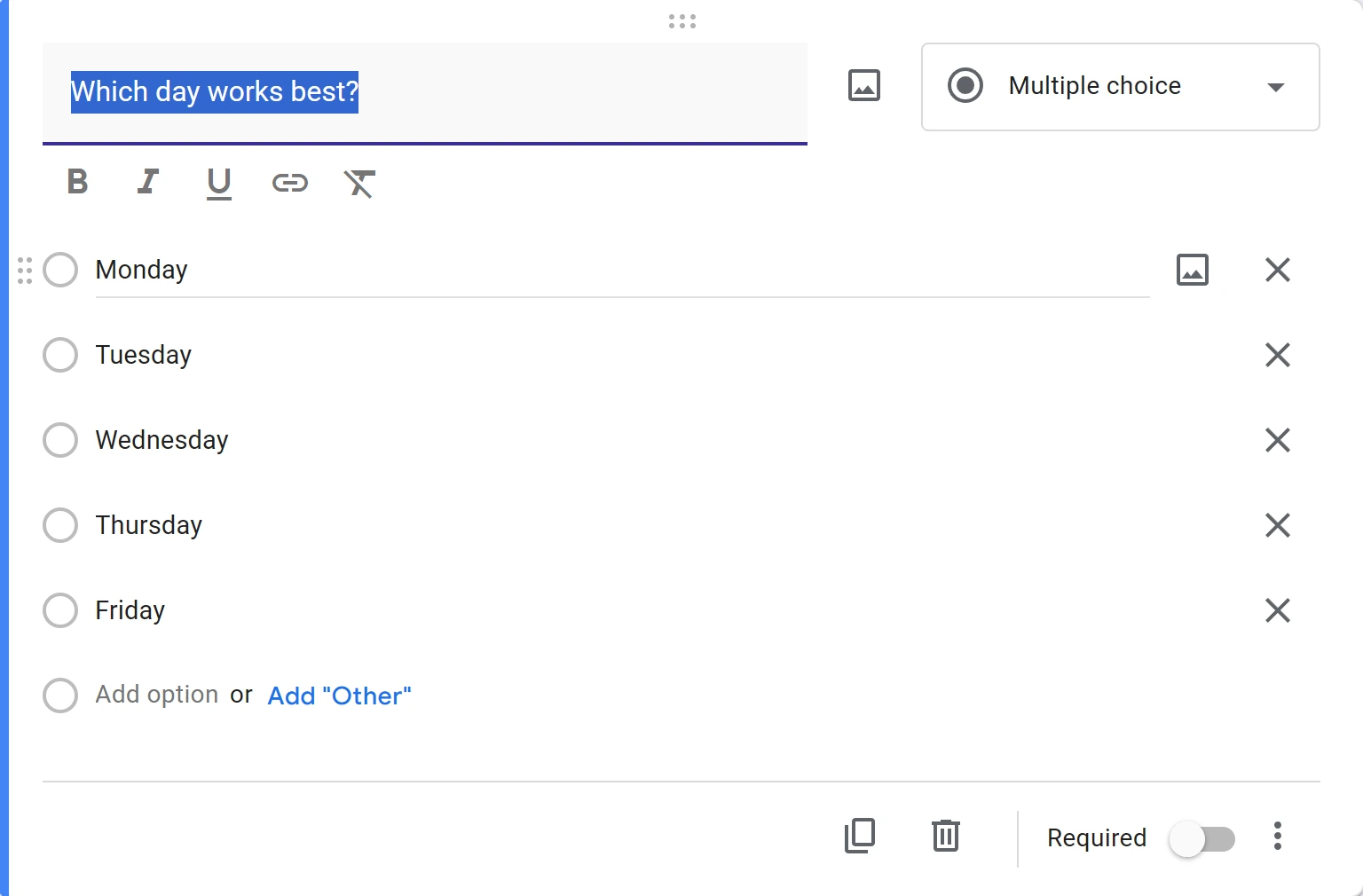
Two things surprise people here. A brand new question is not blank: it starts as Multiple choice with one row, Option 1. And the type box lives on the question row, not in the toolbar. The toolbar is where you add questions, images and sections, not where you choose a type.
If your form is still empty, start with how to create a Google Form and come back here once a question is on the page.
What happens to your options when you change the type?
The three choice types share one list of options. Move a question between them and everything you typed comes with it. Move it to anything else and the list is thrown away. I tested this on a question with three options:
| Change | Your options |
|---|---|
| Multiple choice to Checkboxes | Kept, all three |
| Checkboxes to Drop-down | Kept, all three |
| Drop-down to Short answer | Gone |
| Short answer back to Multiple choice | One blank Option 1 |
So if you have already typed a long list, change the type before you type it, or expect to type it again. Switching back does not bring the options back.
Which question type should you use?
Match the type to the answer you need back, not to how the question sounds. One answer means a type that allows one. Sorting the answers later means a type that gives you a clean value. And ask for less than you want: every extra question is another reason to close the tab.
- A name, an email or a phone number: Short answer.
- An opinion or a story: Paragraph. People write more when the box is bigger.
- One option from about six or fewer: Multiple choice. Everything is visible, so nobody has to click to find out what the choices are.
- One option from a long list: Drop-down. Twenty radio buttons push the rest of your form off the screen.
- More than one option: Checkboxes.
- A photo or a document: File upload.
- A number that means something: Linear scale. Good for “how much do you agree” and “how likely are you to recommend us”.
- A quick score: Rating. Lighter than a scale when you only want one number.
- The same question about several things: a grid. Multiple-choice grid when someone picks one answer per row, Tick box grid when they can pick several.
- A day or a time: Date or Time, so the answers arrive in a format you can sort.
Why is there no ranking question in Google Forms?
Google has never added one. The menu has exactly 12 items and none of them puts a list in order. There is no ranking type, no drag to reorder, and no ranked choice voting. The nearest thing is a Multiple-choice grid, with the items you want ranked as rows and the ranks as columns.
- Add a question and change its type to Multiple-choice grid.
- Put the things being ranked in the rows. One row for each.
- Put the ranks in the columns: 1, 2, 3, 4 and so on, up to the number of items.
- At the bottom right of the question, turn on Require a response in each row. This stops someone ranking three things out of five.
- Click More options and turn on Limit to one response per column. This stops two items from both being ranked first.
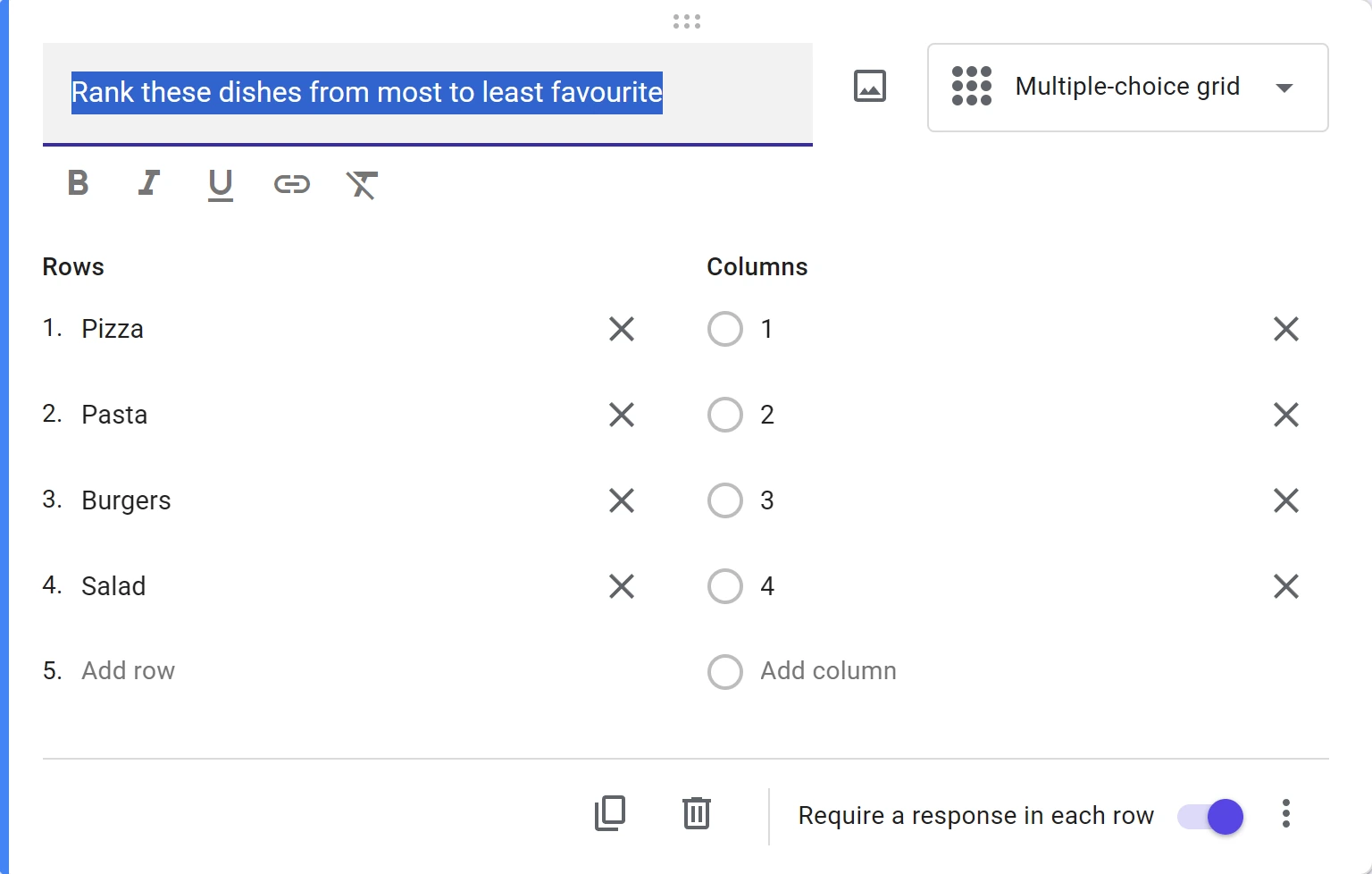
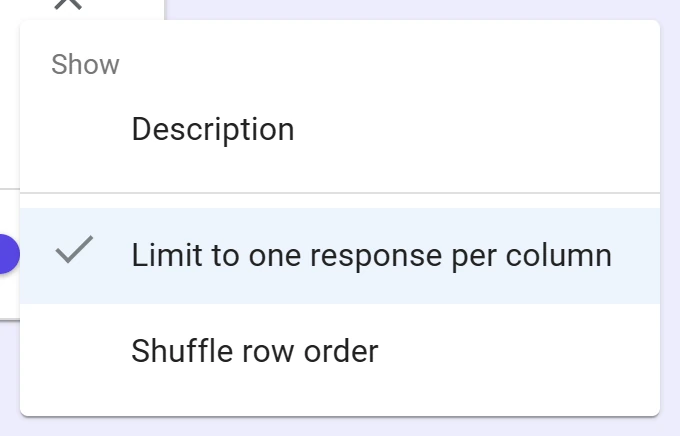
With both settings on, the grid behaves like a ranking: every row has to be answered, and each column can only be used once. It works, and it has three real limits.
- It gets wide fast. Ranking 11 things means 11 columns, and the question stops fitting on the screen.
- It is hard on a phone. A wide grid has to be swiped sideways, and most people answer forms on a phone.
- It cannot rank pictures. Rows and columns hold text. If people need to order photos, the grid cannot do it.
Which types stop you embedding a form in an email?
Four things, and only two of them are question types. Google’s page on publishing and sharing a form says you cannot embed a form in an email when it contains a file upload question, a rating question, an image in a question or an option, or a secured quiz. Put any of those in and you send a link instead of the form itself.
The same page carries a second rule that catches people out: a form has to be published before a link to it works. Open the link too early and the browser says We’re sorry. This document is not published. The button is at the top right of the editor, and it reads Publish.
Where Google Forms stops, and what to do instead
Google Forms gives you 12 types and stops there. There is no ranking type, no way to ask someone to put pictures in order, no signature field and no address field. If your question does not fit one of the 12, the form is the wrong tool, and no amount of clever question writing fixes it.
We build OG Forms, so weigh this part knowing that. Its field list has a Ranking field, along with signatures, matrices and sliders, and file uploads that do not need a Google sign-in. If ranking is what sent you looking, that is the difference you would notice first. You can check each field against what you actually need on the features page before you move anything.
If a grid and two settings solve your problem, use the grid. It costs nothing and it works.
What if something goes wrong?
| What you see | Why it happens | How to fix it |
|---|---|---|
| You cannot find a ranking question | Google Forms has no ranking type | Use a Multiple-choice grid, with items as rows and ranks as columns |
| Two items both get ranked first | A grid allows the same column twice by default | Turn on Limit to one response per column, inside More options |
| Someone ranks three of your five items | A grid does not force a row answer by default | Turn on Require a response in each row |
| Your grid is unusable on a phone | Every rank is a column, so the question grows sideways | Rank fewer items, or split the ranking across two questions |
| People cannot be sent the form itself | It has a file upload or a rating question, an image, or it is a secured quiz | Send the link instead of embedding it |
| The link says the document is not published | The form has not been published yet | Click Publish at the top right of the editor, then send the link again |
| A new question is not the type you expected | New questions start as Multiple choice | Change it from the type box on the question |
| You changed the type and lost your options | Options only carry between Multiple choice, Checkboxes and Drop-down | Type them again, or change the type back before you edit anything else |
FAQ
How many question types does Google Forms have?
12. Short answer, Paragraph, Multiple choice, Checkboxes, Drop-down, File upload, Linear scale, Rating, Multiple-choice grid, Tick box grid, Date and Time. Google’s help page lists the same 12 under slightly different names.
What is the difference between Multiple choice and Checkboxes?
Multiple choice allows one answer. Checkboxes allows any number. If someone ticking two boxes would break your spreadsheet, use Multiple choice.
What is the difference between Short answer and Paragraph?
Short answer gives one line. Paragraph gives a larger box and as much room as the person needs. Use Paragraph for anything you want a sentence or more about.
What is the difference between Multiple-choice grid and Tick box grid?
A Multiple-choice grid allows one answer per row. A Tick box grid allows several per row. Both ask the same thing about a whole list in one question.
Does Google Forms have a ranking question?
No. There is no ranking type and no drag to reorder. Use a Multiple-choice grid with the items as rows and the ranks as columns, then turn on Require a response in each row and Limit to one response per column.
Do people need a Google account to answer?
No. Once a form is published, and set so that anyone with the link can respond, people can answer it without signing in.
Can you make a quiz in Google Forms?
Yes. Turn on Make this a quiz in Settings, and you can set correct answers and points for each question.
What’s next
You now know which type to reach for. Next in this course: How to add sections in Google Forms, which covers long forms and how to break them up. Until that is live, how to create a Google Form covers building and publishing, and the rest of the course is on the Google Forms guides page.