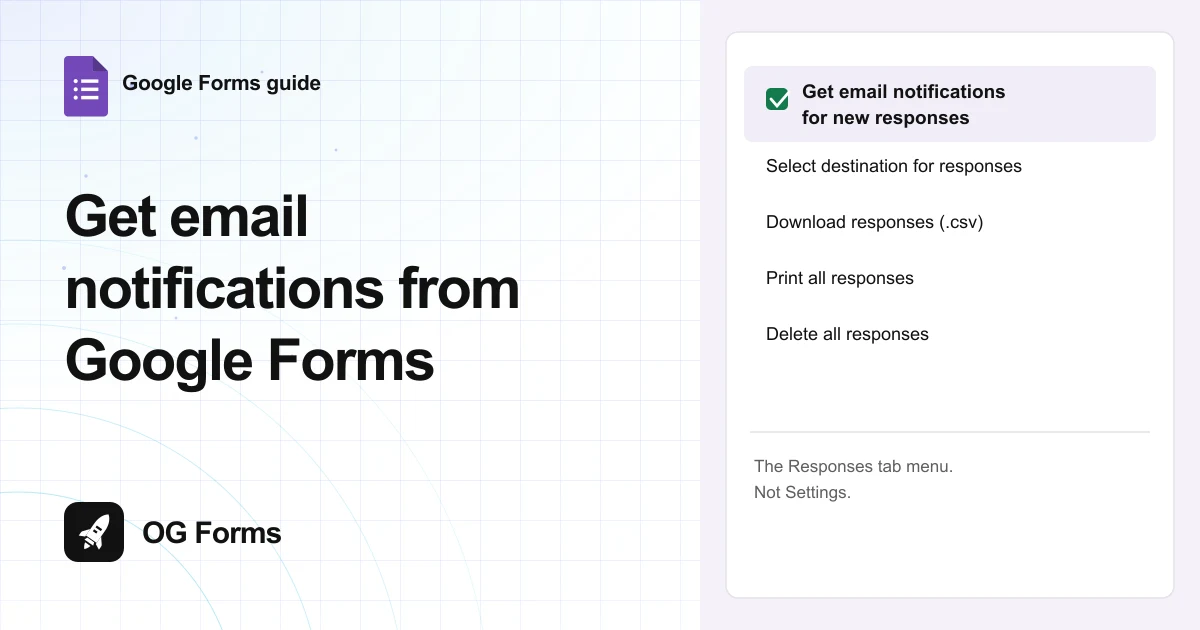
Open the Responses tab, click More options for responses, and tick Get email notifications for new responses. There is no notification setting in Settings, which is why people miss it.
Google Forms does send email when someone answers. It is a checkbox, not a settings screen.
I turned it on in Google Forms in November 2026 and watched the menu change state. This is a two click job.
There is a second email you may want as well: a copy to the person who filled the form in. That one lives in Settings instead.
Both are below, with the exact labels.
Step 1: Turn on notifications for new responses
The switch is on the Responses tab, in the menu beside the view tabs.
- Open your form and click Responses.
- Click More options for responses, the three dots at the right of the row.
- Tick Get email notifications for new responses.
- Open the menu again to check it stayed ticked.
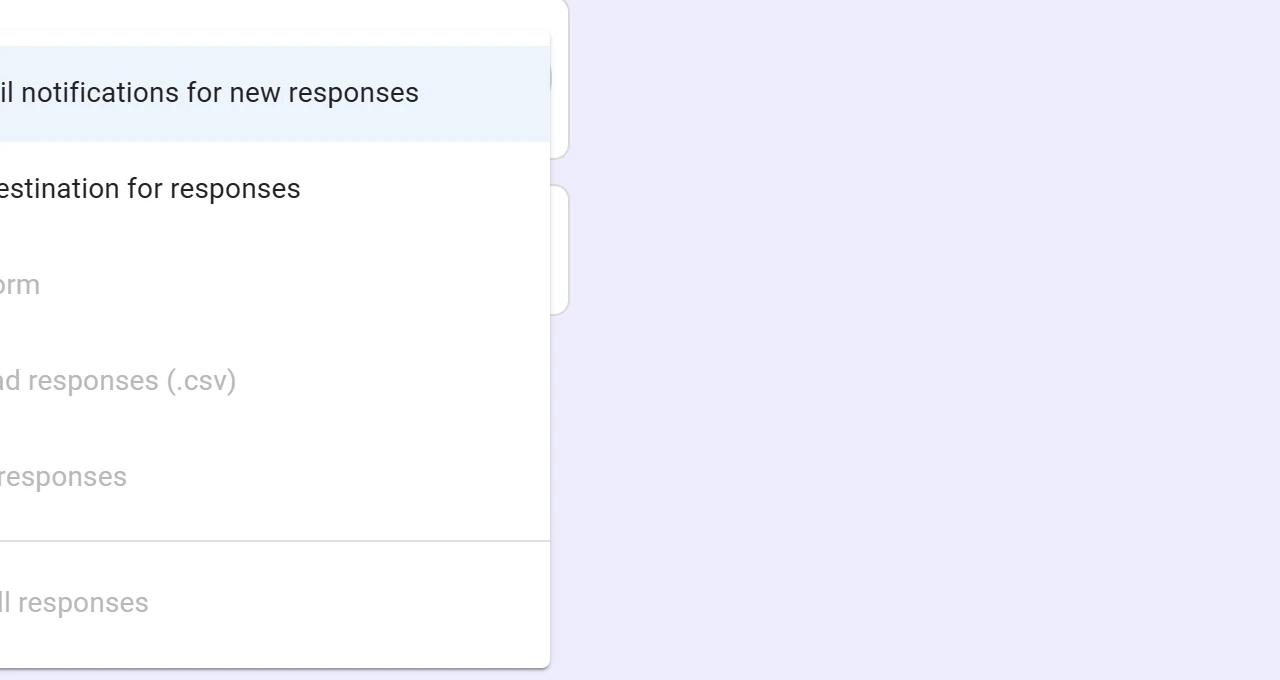
The menu closes as soon as you tick it, and the checkbox is the only control. There is no frequency here, and nowhere to say which answers matter.
You might want to leave a test response before you rely on it. The menu never names the address it sends to, so a test answer is the only way to be sure it lands where you think.
Step 2: Send the responder their own copy
This is the other email people mean, and it is in Settings rather than Responses.
- Click Settings, then scroll to the Responses section.
- Find Send responders a copy of their response.
- Choose Off, When requested or Always.
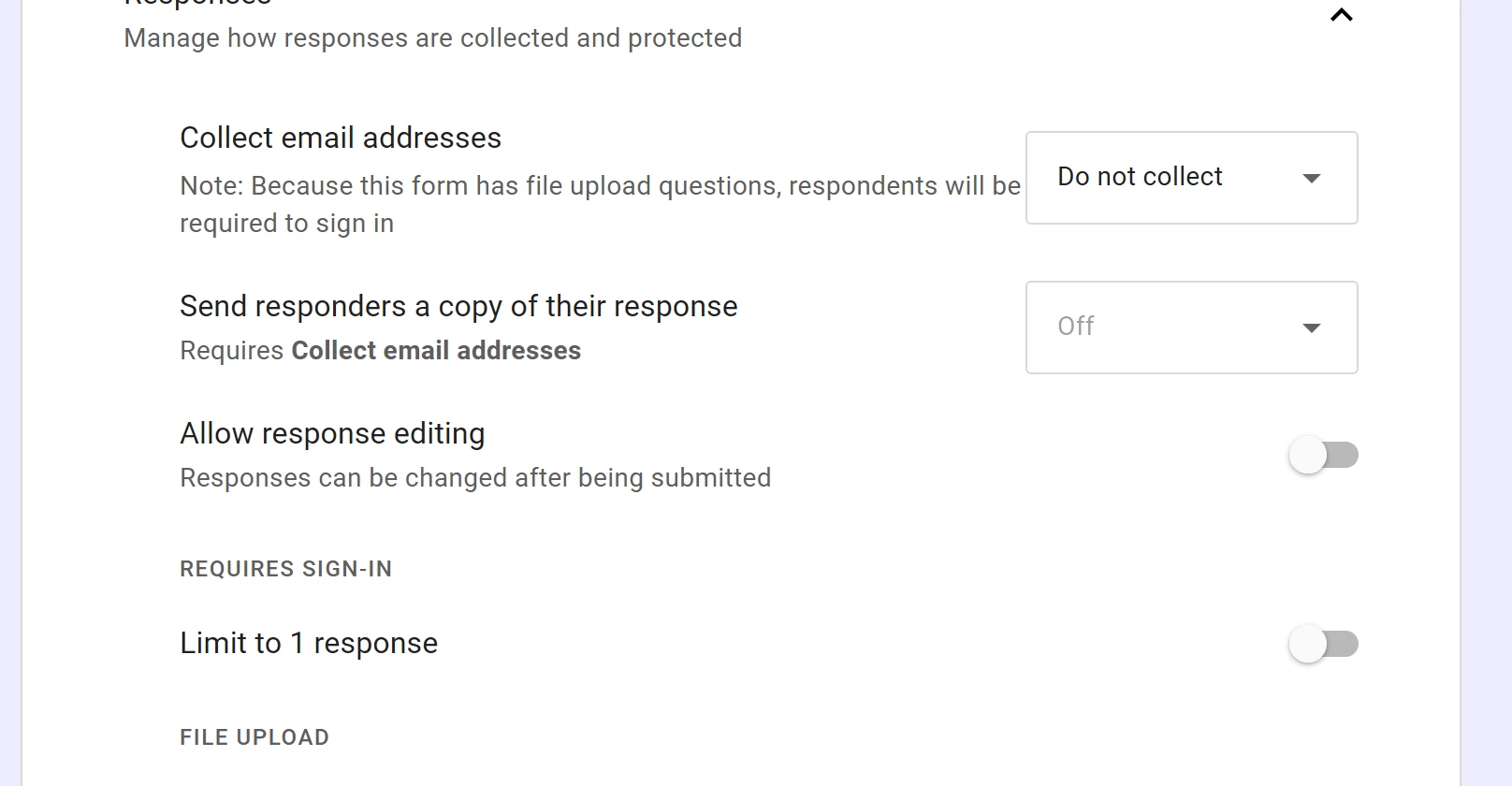
The row carries a note: it requires Collect email addresses. Set that first or the options do nothing.
Always is the right choice for a receipt people expect. When requested adds a checkbox to the form and lets them decide.
Why am I not getting the emails?
Four causes, in the order worth checking.
| What you see | Why | Fix |
|---|---|---|
| No email at all | The tick is on a different form, or was never saved | Open the same form, Responses, More options, and check the box |
| Nothing in the inbox, but spam looks odd | The notification went to spam | Search for Google Forms in spam and mark it not spam |
| The responder never got a copy | Send responders a copy is still Off | Set it in Settings, and turn on Collect email addresses first |
| You want the answers, not an email | Email is the wrong pipe for that | Use Link to Sheets on the Responses tab |
What the notification cannot do
- No address shown. The menu does not say where it sends, so you test it rather than assume it.
- No rules. It is one tick for all new responses, not a filter on the answers inside them.
- No copy to the responder from here. That is the Settings row in step 2, and it is a separate switch.
We build OG Forms, so weigh this part with that in mind.
If routing answers by their content matters, compare the automation options before you build on email. The features page covers what is where.
For a notification that someone answered, Google Forms does the job, and it is free.
FAQ
Where is the email notification setting in Google Forms?
On the Responses tab, inside More options for responses. It is not in Settings, which is the usual place people look.
Which address gets the notification?
The menu does not say, and the page shows no field to change it.
Send one test response and check the account that owns the form before you send it to a real audience.
Can the person filling the form get an email too?
Yes. Turn on Send responders a copy of their response in Settings, after turning on Collect email addresses.
What’s next
If you are building the confirmation email itself, how to add file uploads covers the forms that need email collection most.
If the answers need to land in a spreadsheet instead, Link to Sheets sits on the same Responses row as the notification.