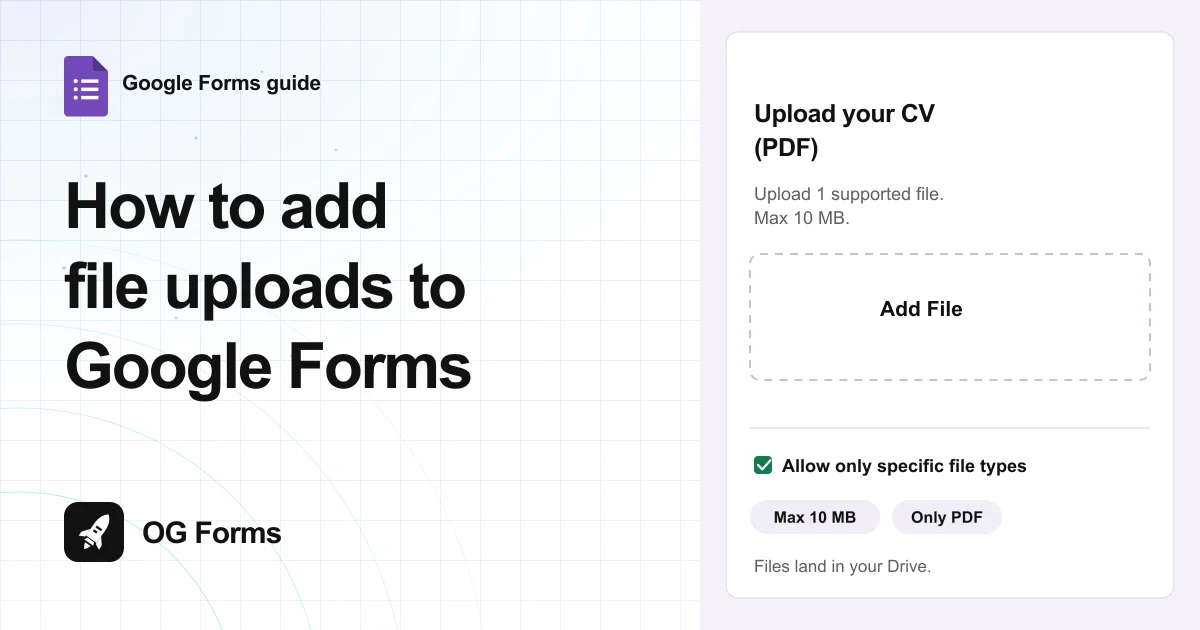
Switch a question to File upload and click Continue on the notice. Files land in your Google Drive, and everyone who uploads has to sign in to a Google account.
Google Forms can collect a CV, a signed contract or a photo. It is one question type, and it is hidden in the type list.
I tested this in Google Forms in November 2026 on a free account. Every limit below is what the editor showed me.
The catch comes first, because it decides whether this works for you. Google will not let anyone upload without a Google account.
If your respondents are customers who should not need one, a Google Forms alternative is the honest answer. Everything else here works in Google Forms today.
Step 1: Switch a question to File upload
File upload is a question type, not a setting. You change an existing question into one.
- Open your form and click the question you want to hold the file.
- Open the Question type dropdown at the top right of the question.
- Choose File upload.
- Click Continue on the notice that appears.
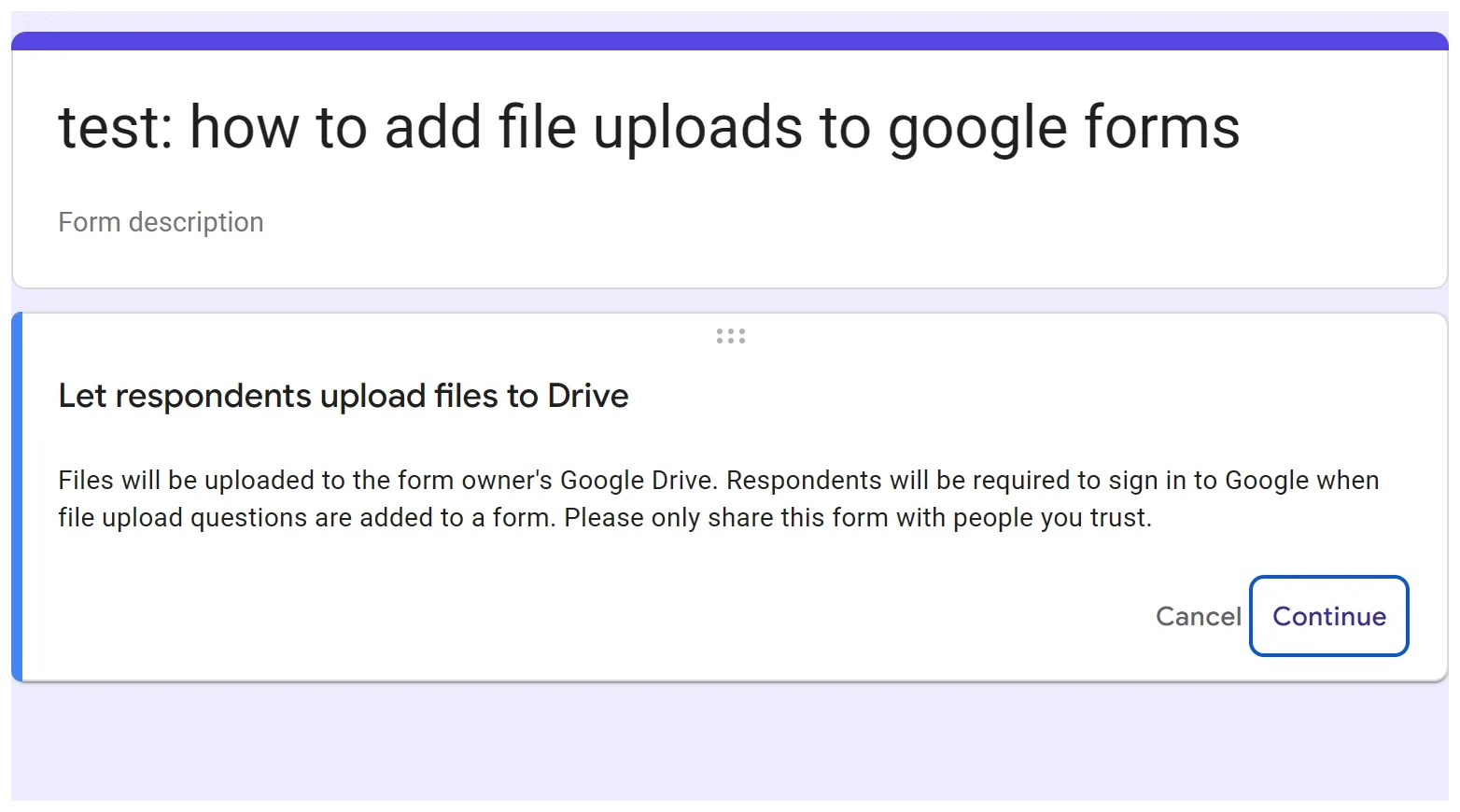
That notice is the important part. Files are uploaded to your Drive, respondents must be signed in to a Google account, and Google asks you to share the form only with people you trust.
Step 2: Set what people can send
Three controls decide what arrives in your Drive. Set them before you send the link, because the defaults are generous.
- Turn on Allow only specific file types and tick the formats you want.
- Set Maximum number of files to 1, 5 or 10.
- Set Maximum file size to 1 MB, 10 MB, 100 MB, 1 GB or 10 GB.
- Turn on Required if people must attach something.
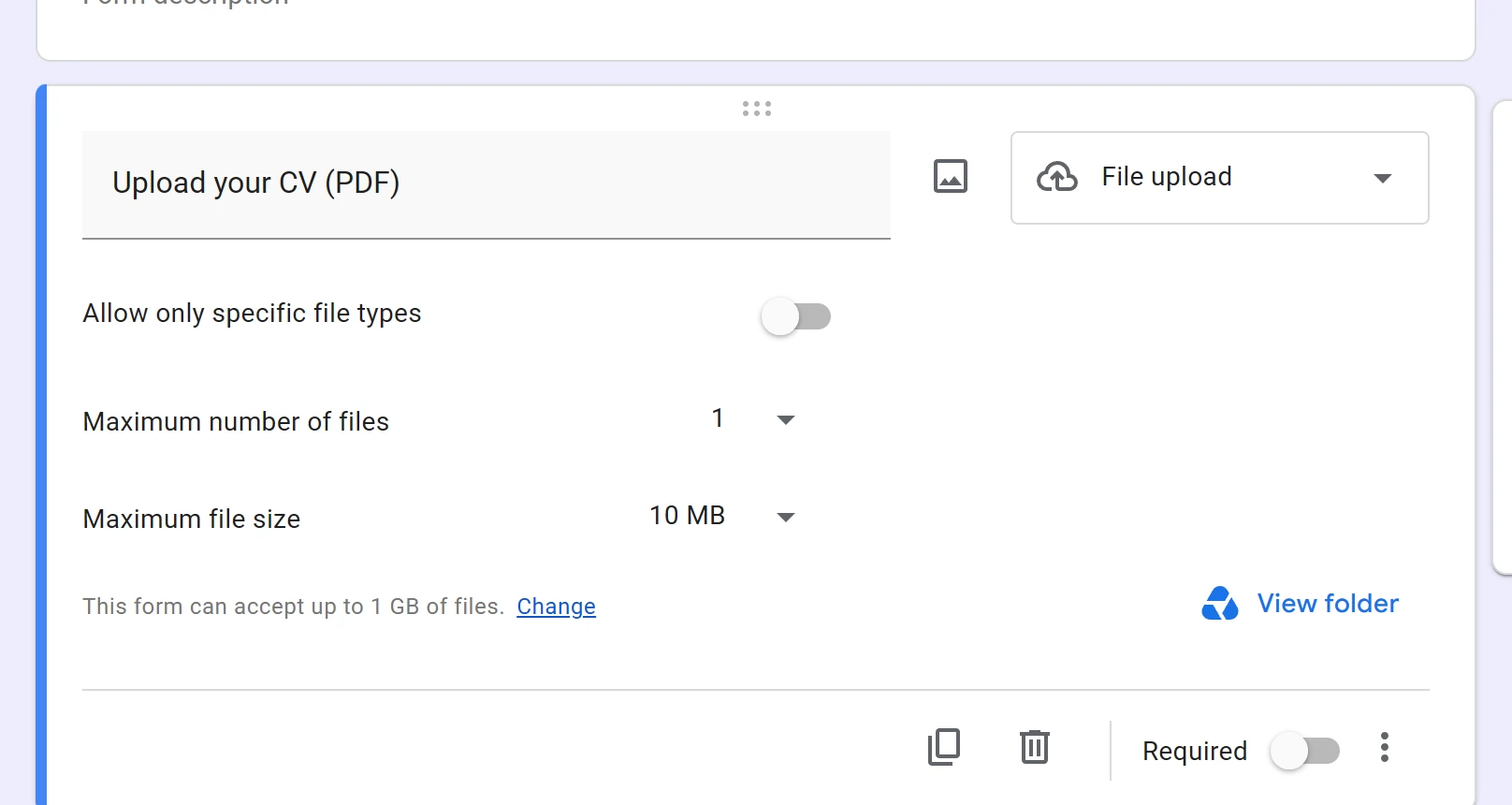
The default is one file at up to 10 MB. Leave it and someone will send you a 9 MB phone photo of a contract.
You might want to allow only PDF for documents. It is the difference between a folder you can open and a folder of screenshots. Google’s help page on form question types lists the same options.
Step 3: Check where the files go and how much room you have
Under the size options, the card tells you the storage this form can use.
- Read the line that starts This form can accept up to.
- Click View folder to open the Drive folder the uploads land in.
- Click Change if you need more room.
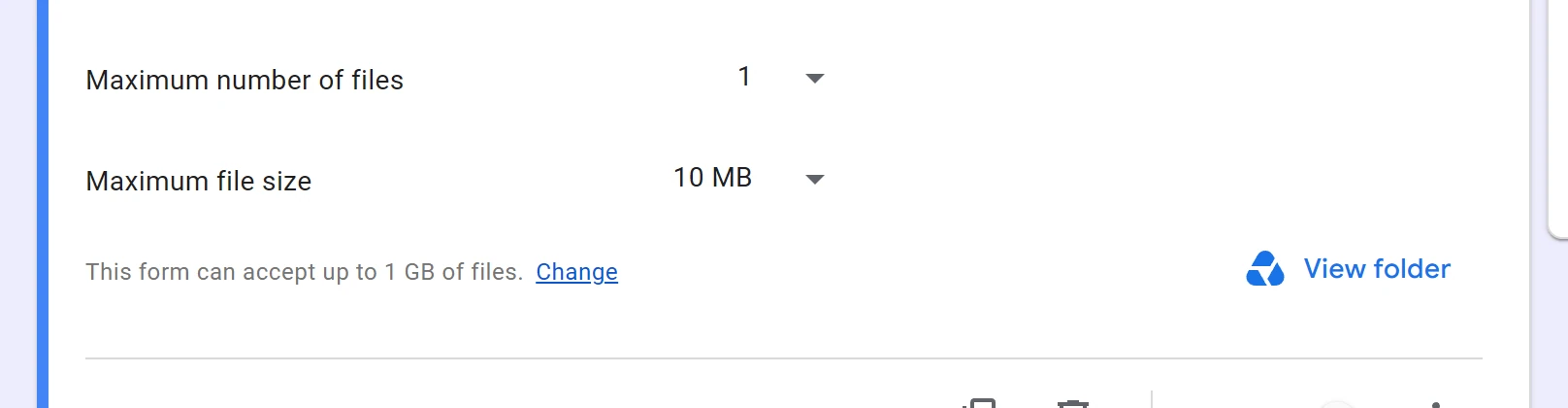
On a free account that line reads 1 GB. Once the form fills up, uploads stop, and the person filling it in sees the error rather than you.
Step 4: Publish it and warn your respondents
Publish like any other form, then tell people what they will see.
- Click Publish, then Publish in the dialog.
- Send the link to people who have a Google account.
- Tell them the form records the name, email and photo on their account.
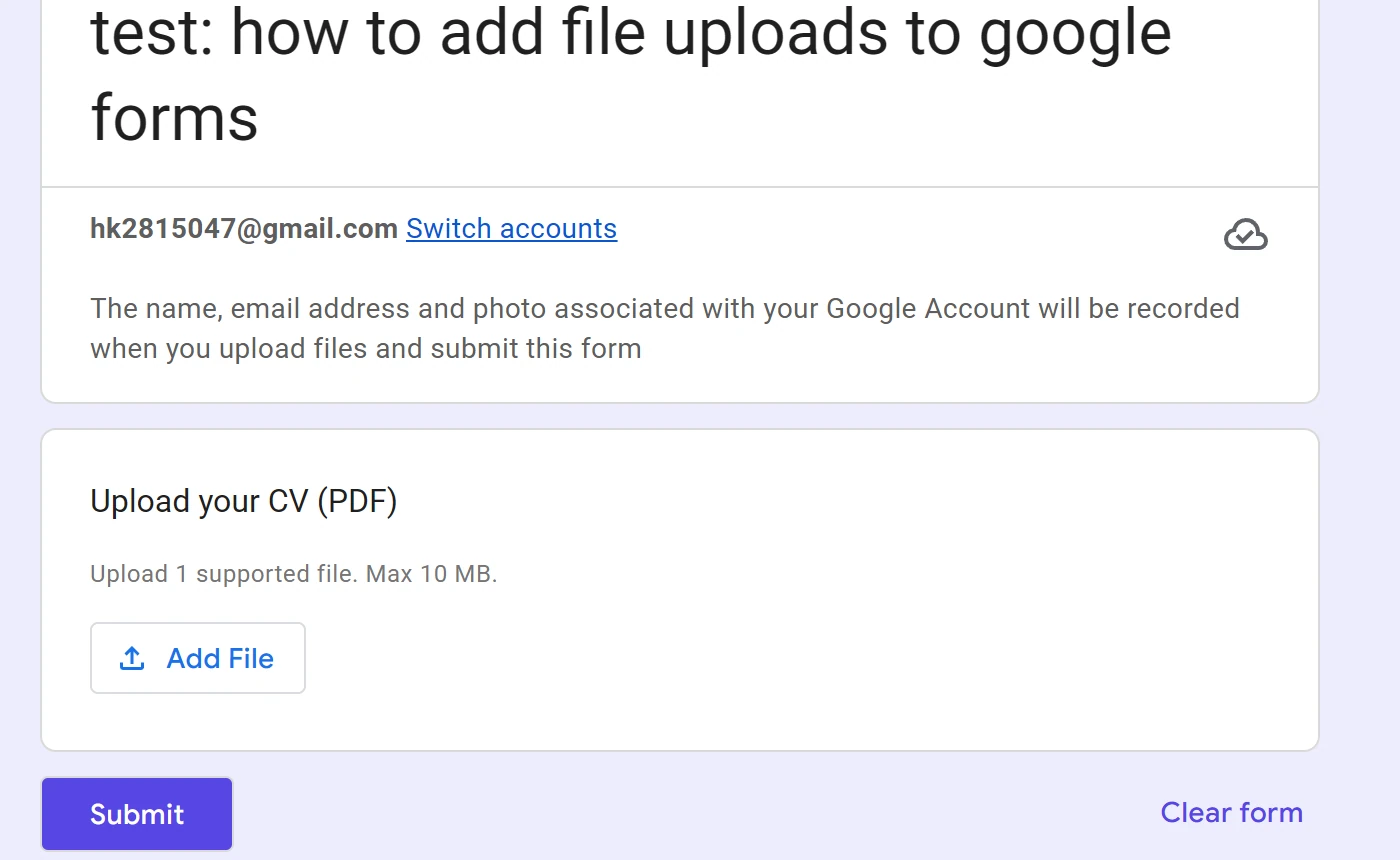
The line above the question is not optional. Google shows it on every form with a file upload, and it names the account data it records.
Why is file upload not in the type list?
The option is missing when the account cannot store the files. It is an account problem, not a form problem.
| What you see | Why | Fix |
|---|---|---|
| No File upload in the type menu | The account cannot store uploads, or an administrator turned them off | Try a personal Google account, or ask your admin |
| Respondents say they cannot upload | They are not signed in to a Google account | Send it to people who have one, or collect a link instead |
| Uploads stop halfway through a project | The form has hit its storage limit | Free the space, or click Change in the question settings |
| A file is rejected | It breaks the type or size rule you set | Check the three options on the question |
| You cannot find the files | They are in your Drive, not in the form | Open the question settings and click View folder |
What file uploads cannot do
- No upload without a Google account. Google states it in the prompt, so a customer without one cannot send you a file.
- One gigabyte per form. That is the whole allowance on a free account, shared across every upload the form ever takes.
- No folder per respondent. Every file lands in one folder, named by Drive, so you sort them yourself.
We build OG Forms, so weigh this part with that in mind.
Its file storage is capped the same way, at 50 MB on the free plan and 1 GB on Pro, so it is not the place for a video either. The features page covers the rest.
If a CV and a contract are what you collect, Google Forms does this fine, and it is free.
FAQ
Can someone upload a file without signing in?
No. Google says so in the prompt when you add the question, and there is no setting to turn it off.
A form that needs anonymous uploads needs a different tool.
How big can an upload be?
You choose per question: 1 MB, 10 MB, 100 MB, 1 GB or 10 GB, with 10 MB as the default.
The form’s overall allowance is separate, and on a free account it is 1 GB.
Where do the uploaded files go?
Into your Google Drive, in a folder you can open from the question settings with View folder.
They do not appear inside the form itself.
What’s next
If you are collecting documents for a role, how to create a Google Form covers the questions around it.
If the form is already built and you want a copy to reuse, the next guide covers Google Forms question types and what each one is for.