See Google Forms responses in the Responses tab, which holds a Summary view, a Question view and one response at a time in Individual. Download them from the three dot menu on that tab: Download responses (.csv) arrives as a zip file holding one CSV.
The Responses tab is the only place the answers live inside Google Forms. Everything else, a spreadsheet, a PDF, a CSV, is an export from that one tab.
The export has one wrinkle nobody mentions: the menu says CSV and the browser saves a zip. Inside is the CSV, and its timestamp column is written in a format Excel refuses to read as a date.
I read and downloaded the responses of a test form with two answers in November 2026, and the CSV below is copied from that download.
If reading answers is the whole reason you are still in Google Forms, a Google Forms alternative is the honest route, because asking questions of your own answers is where this stops.
Step 1: Open the Responses tab
The tab tells you how many answers you have before you click anything.
- Open the form in the editor.
- Click Responses at the top. A number badge sits beside the tab name once answers arrive.
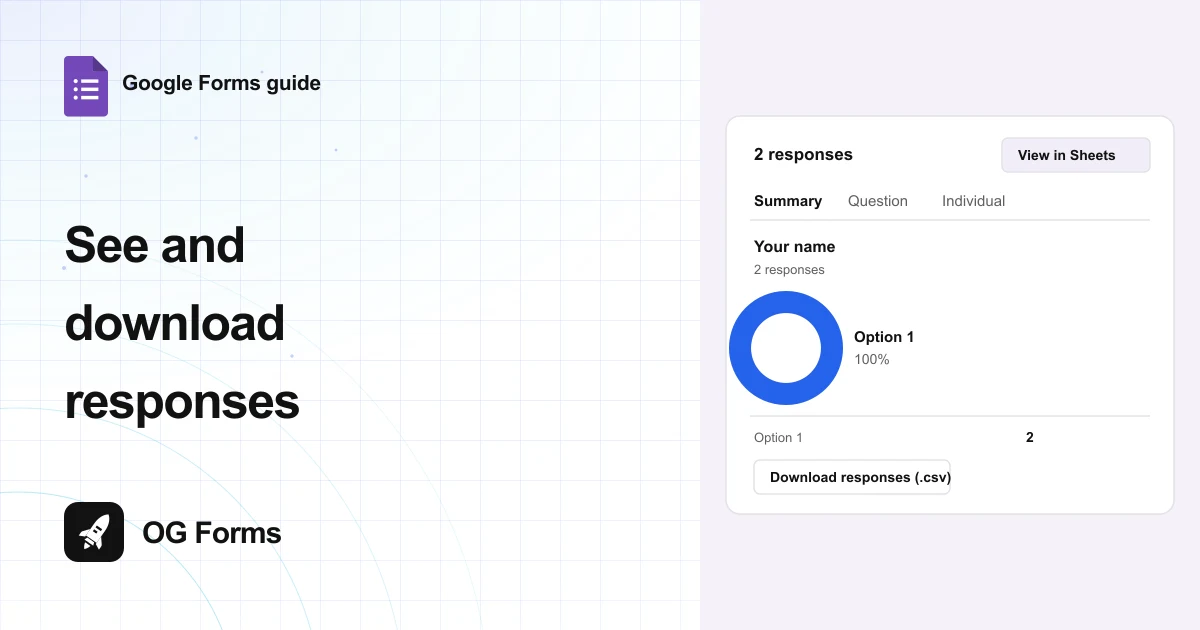
- Read the count line, for example 2 responses, at the top left of the panel.
- Find the three views under it: Summary, Question, Individual.
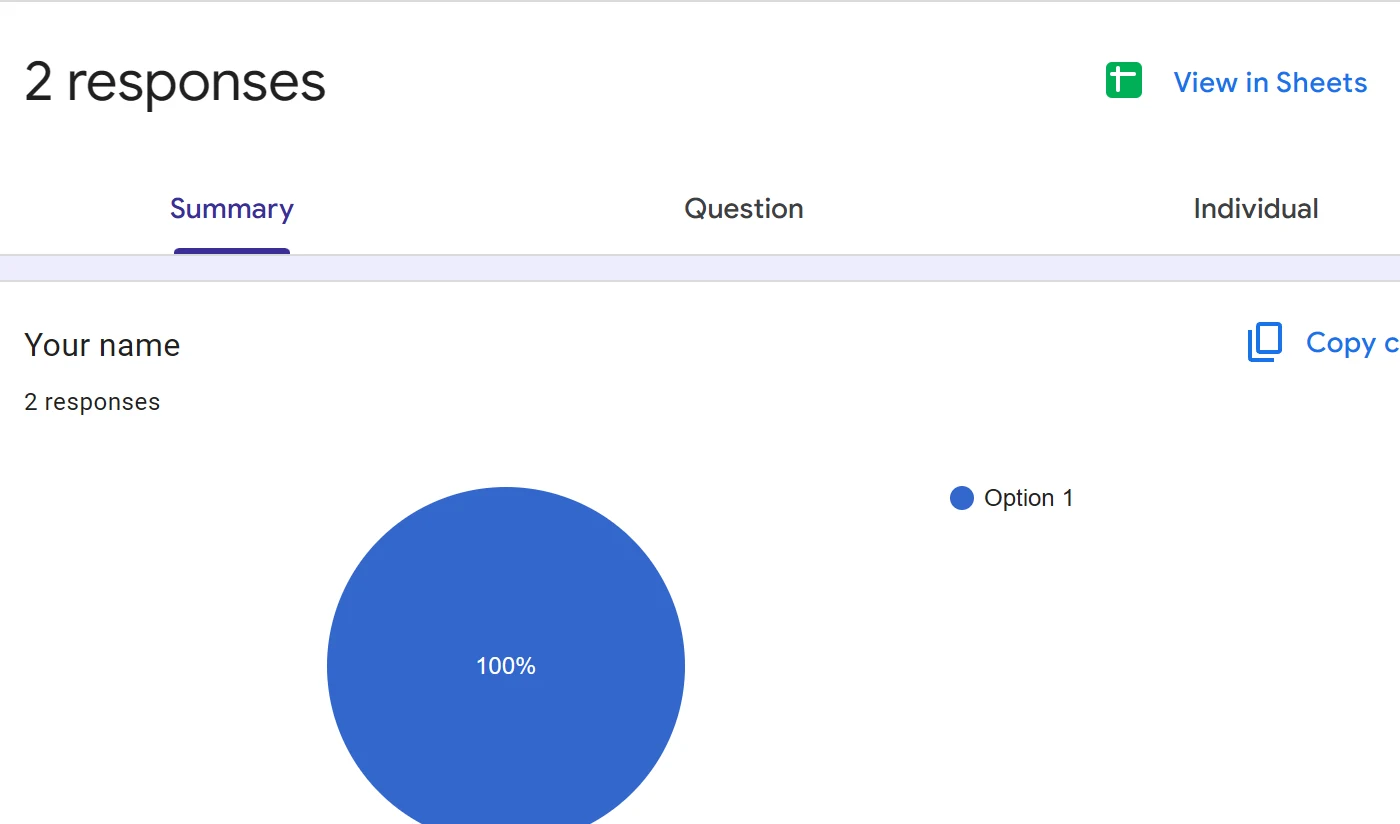
The Summary view only appears once a form has at least one response. An empty form shows the tab with no views inside it, which is why people think the tab is broken.
Step 2: Read the summary
Summary answers the question you usually have first: what did people pick?
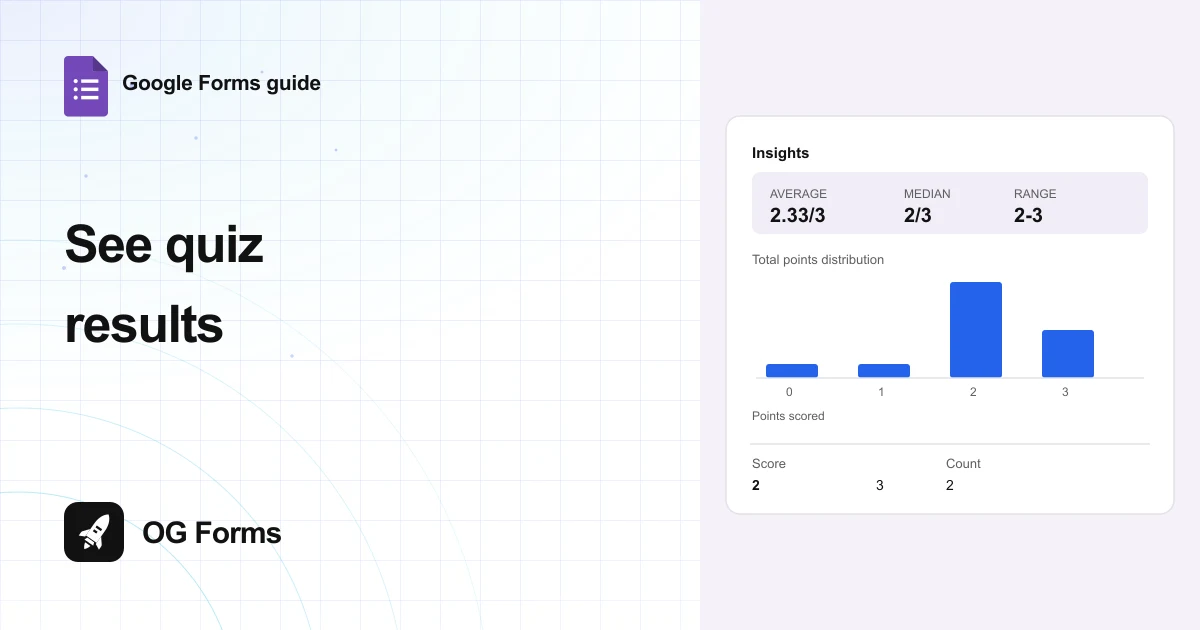
- Read each question block, which counts its answers under the title.
- Look at the chart, and the percentage list under it.
- Click Copy chart above a chart to paste it into Docs, Slides or a drawing.
- Scroll to the table under the chart for the raw counts.
Copy chart is the fastest way to put a result in a deck without exporting anything. The pasted chart stays linked while you keep edit access to both files.
Step 3: Read one response at a time
Individual is where you read a single person's answers, which is what most people actually want.
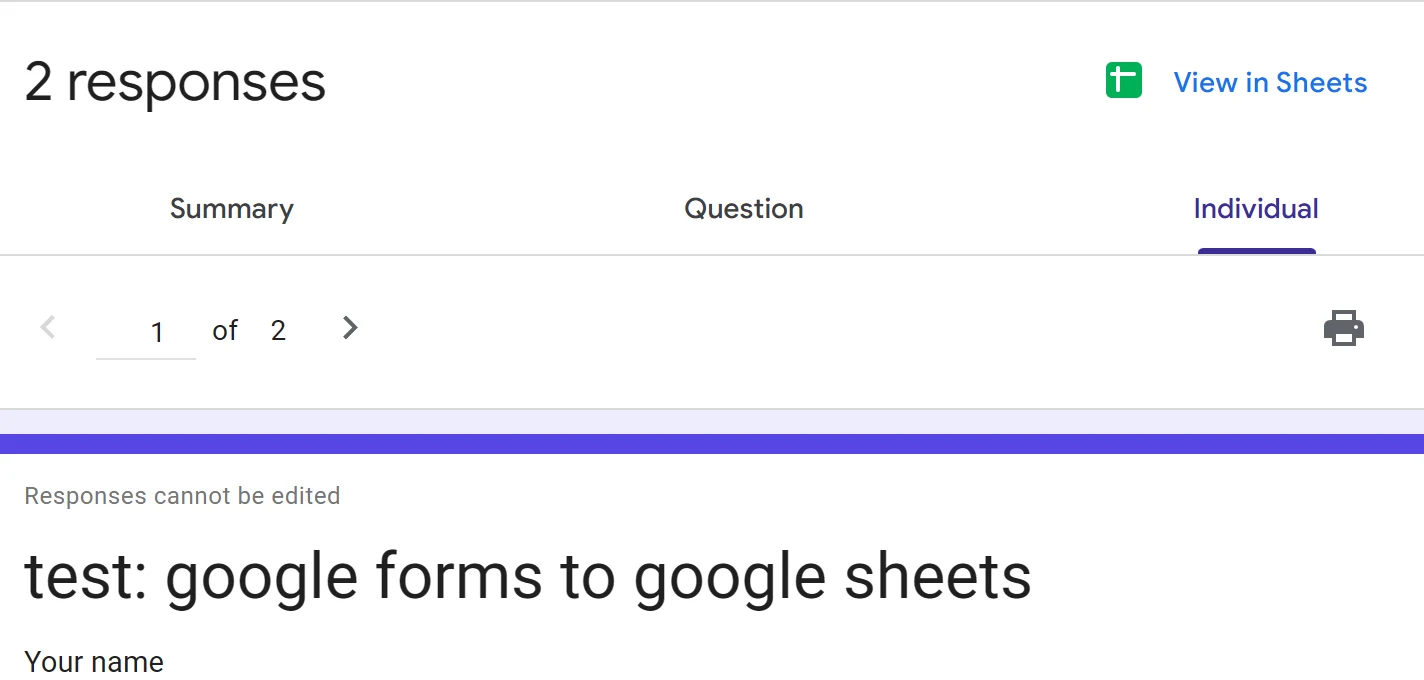
- Click Individual.
- Use the arrows beside the count to step through the responses, or open the list to jump to one.
- Read the answers against the questions, with Submitted and a date at the bottom.
- Accept that you cannot change anything here: the card says Responses cannot be edited.
The Question view sits between the two. It lists every answer to one question at a time, and pages through them when there are more than fit on a screen.
Step 4: Download the responses as a CSV
This is the only download in the product, and it is two clicks deep.
- Stay on the Responses tab.
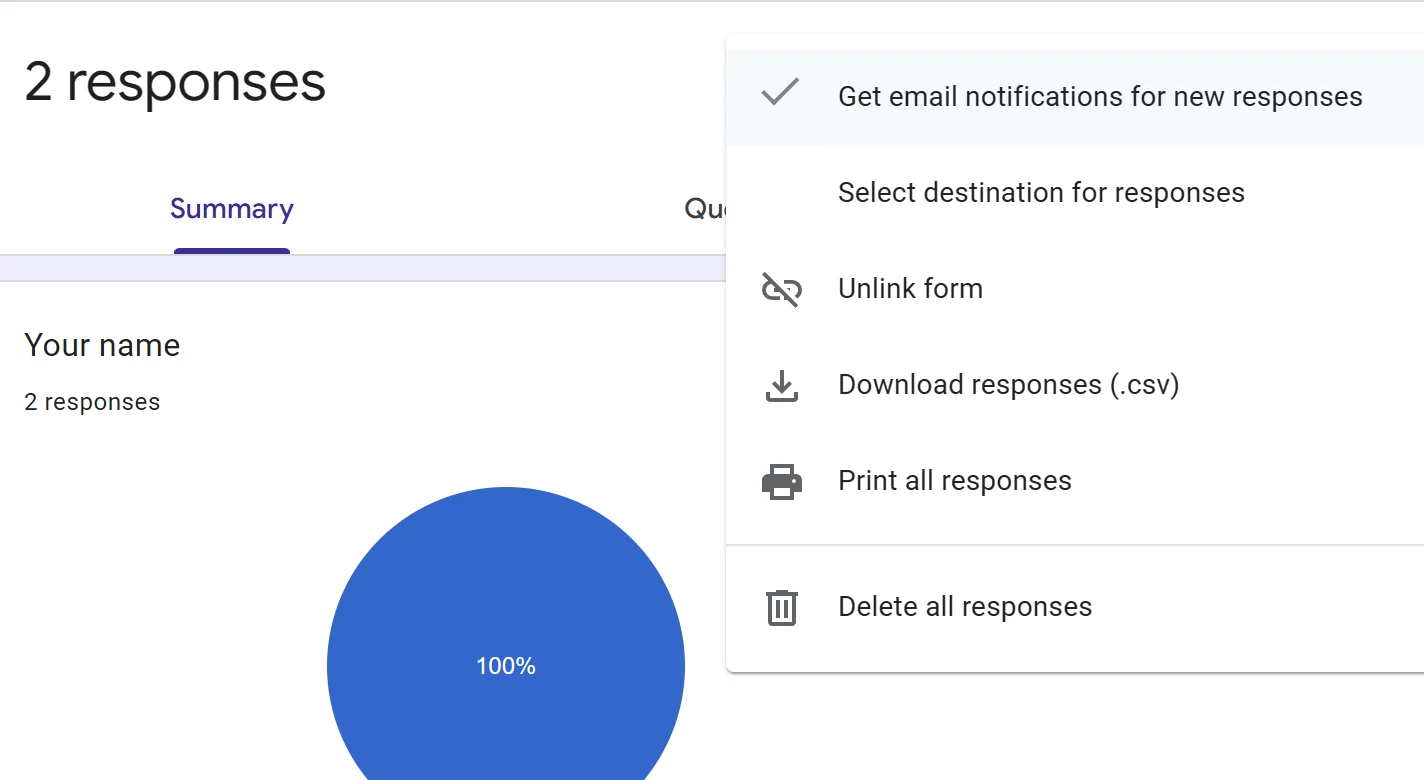
- Click the three dot menu at the right of the panel, not the one in the form header.
- Choose Download responses (.csv).
- Open your downloads folder. The file arrives as a zip, for example Untitled form.csv.zip.
- Unzip it. Inside is one CSV named after the form, for example Untitled form.csv.
The CSV from my two responses looks exactly like this, header row included:
| Timestamp | Your name |
|---|---|
| 2026/11/12 1:48:26 pm GMT+5:30 | Option 1 |
| 2026/11/12 2:46:41 pm GMT+5:30 | Option 1 |
Two things trip people up here. The date is written year, month, day with a 12 hour clock and a timezone suffix, which is not a date Excel will recognise on its own.
And the rows are not sorted for you. Google's own help page says downloaded responses are not sorted by timestamp, and that you should sort them in Google Sheets after importing.
Step 5: Get the answers into Excel or a PDF
Neither format has its own button. Both are one step from what you already have.
- For Excel, unzip the download and open the CSV in Excel or Numbers. Use the import wizard, and set the date column to text or a date format you choose.
- For a live spreadsheet, click View in Sheets, or Link to Sheets on a form that is not linked yet.
- For a PDF, open the three dot menu and choose Print all responses, then pick Save as PDF in the print dialog.
Print all responses opens your browser's print preview rather than a Google page, so the PDF comes from your own print settings. Check the page count before you save a hundred answers.
Where are Google Forms responses stored?
In two places, and you own both of them.
- The Responses tab inside the form, which is where they arrive.
- The linked Google Sheet, if you linked one, which is a separate file with its own sharing.
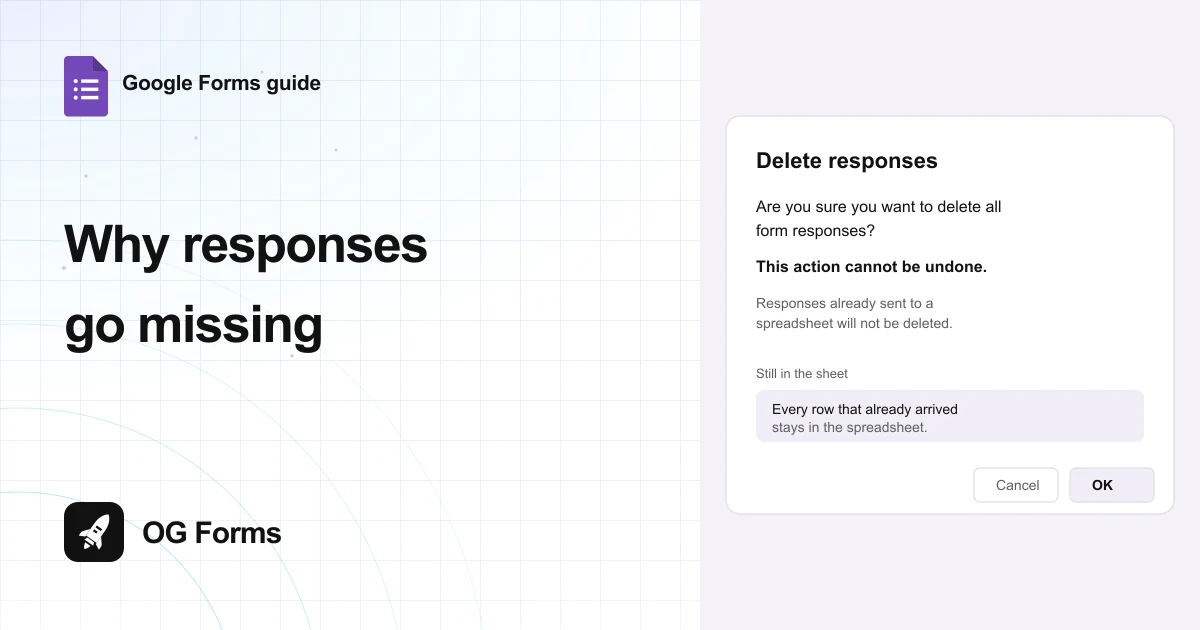
There is no third copy. Deleting responses in the Responses tab removes them there, and Google notes that deleting responses does not delete any files respondents uploaded.
Why can I not see the responses?
Five causes, in the order worth checking.
| What you see | Why | Fix |
|---|---|---|
| An empty Responses tab with no views | Nobody has answered yet, and the views appear with the first response | Check the count, then read the published link |
| No Responses tab at all | You are on a form you cannot edit | Ask the owner for editor access |
| Excel shows the timestamp as text | The CSV writes 2026/11/12 1:48:26 pm GMT+5:30 | Import the column as text, then format it as a date |
| The download will not open | It is a zip with a .csv name inside, not a CSV | Unzip it first, then open the CSV |
| You want the answers you submitted yourself | Respondents have no view of their own answers in Google Forms | Ask for a copy at submit time, which the responder copy setting covers |
What Google Forms cannot do with responses
We build OG Forms, so weigh this part with that in mind.
- No editing an answer. The Individual view says Responses cannot be edited, so a wrong answer stays wrong unless you delete it.
- No analysis. Summary counts and charts a question. Nothing compares two questions, and nothing reads the free text for you.
- One export format. CSV, wrapped in a zip. Excel and PDF are both somebody else's job.
- Hard limits. Google's help page states 1 GB of storage and 500,000 responses per form, and recommends downloading and deleting before you reach them.
If the answers are the point rather than the form, OG Forms reads them back in plain language instead of a chart. Compare what OG Forms does with responses, or start from a form template built for the job.
For a form under a few hundred answers, the CSV is fine. Start a form in OG Forms when you would rather ask a question than export a file.
FAQ
How do I see responses in Google Forms?
Open the form and click Responses. Summary shows charts, Question shows every answer to one question, and Individual shows one response at a time.
How do I download Google Forms responses as a CSV?
On the Responses tab, open the three dot menu and choose Download responses (.csv). The browser saves a zip file, and the CSV is inside it.
Can I download responses as a PDF?
There is no PDF button. Choose Print all responses from the same menu, then pick Save as PDF in your browser's print dialog.
Why did my download arrive as a zip?
The menu says CSV, but the file lands as a zip such as Untitled form.csv.zip. Unzip it and the CSV inside is named after the form.
Can I see who answered?
Only if the form collects email addresses, in which case the address is part of each response. A form that does not collect them gives you answers with no name attached.
Can a respondent see their own answers?
No. Google Forms gives respondents no view of their own submission, so the copy emailed at submit time is the only record they get.
What's next
If the answers need to be worked on rather than read, connecting the form to Google Sheets puts every response in a live spreadsheet.
If you are still collecting, how to close a Google Form shows the switch that stops the answers and the message people get.