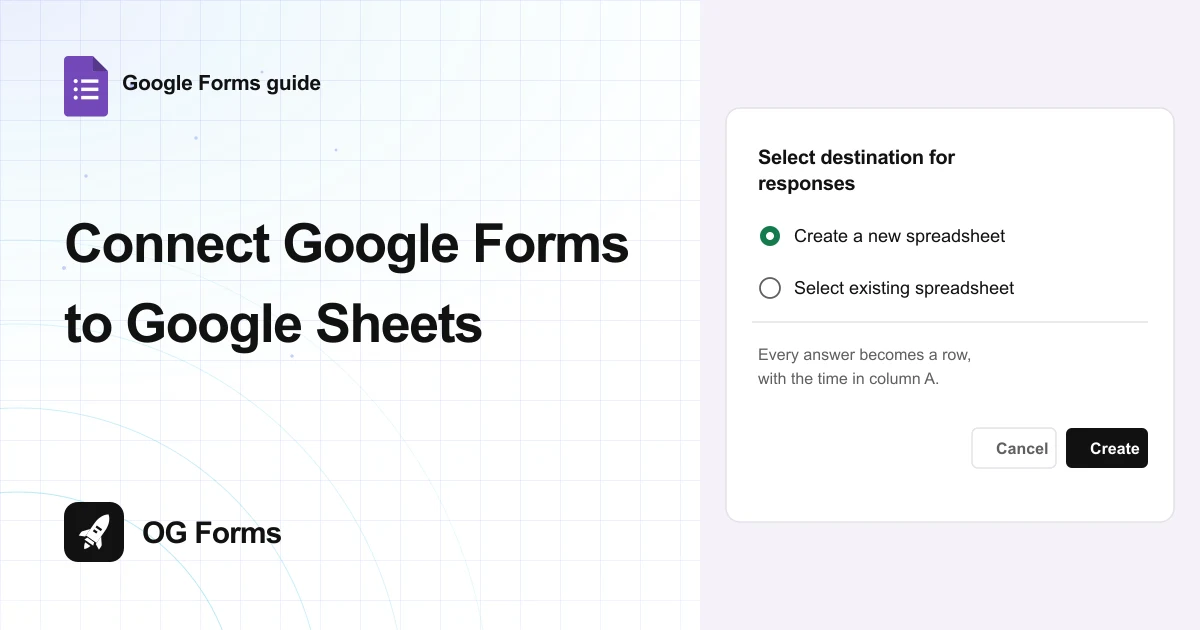
Open the Responses tab and click Link to Sheets. Choose Create a new spreadsheet or Select existing spreadsheet, then click Create. Every answer then lands in the sheet as a new row with a timestamp.
Google Forms and Google Sheets are one button apart, and the button is not where people look.
It sits on the Responses tab, inside your form, labelled Link to Sheets. There is no setting for it in Settings, and no option in the form editor.
Two things surprise people after they click it. The header row in the sheet writes itself back, and the sheet keeps every answer after you disconnect it.
I connected a fresh form to a sheet in November 2026, sent a real answer and read the cells. This is what happened.
Step 1: Open the Responses tab
The link starts from the answers, not from the questions.
- Open your form and click Responses, at the top right.
- Look for Link to Sheets, beside the three dot menu.
- Ignore the empty state. You can link before the first answer, and the sheet is ready with its headers waiting.
I linked my form while it still said No responses, and the spreadsheet came out with its column headings already in place.
You might want to link before you publish. The headers are written when you link, so the sheet is already waiting the moment the first answer arrives.
Step 2: Choose where the answers go
Clicking Link to Sheets opens one small dialog with two choices.
- Click Link to Sheets.
- Read the dialog title: Select destination for responses.
- Pick Create a new spreadsheet, or Select existing spreadsheet if the sheet already exists.
- Click Create.
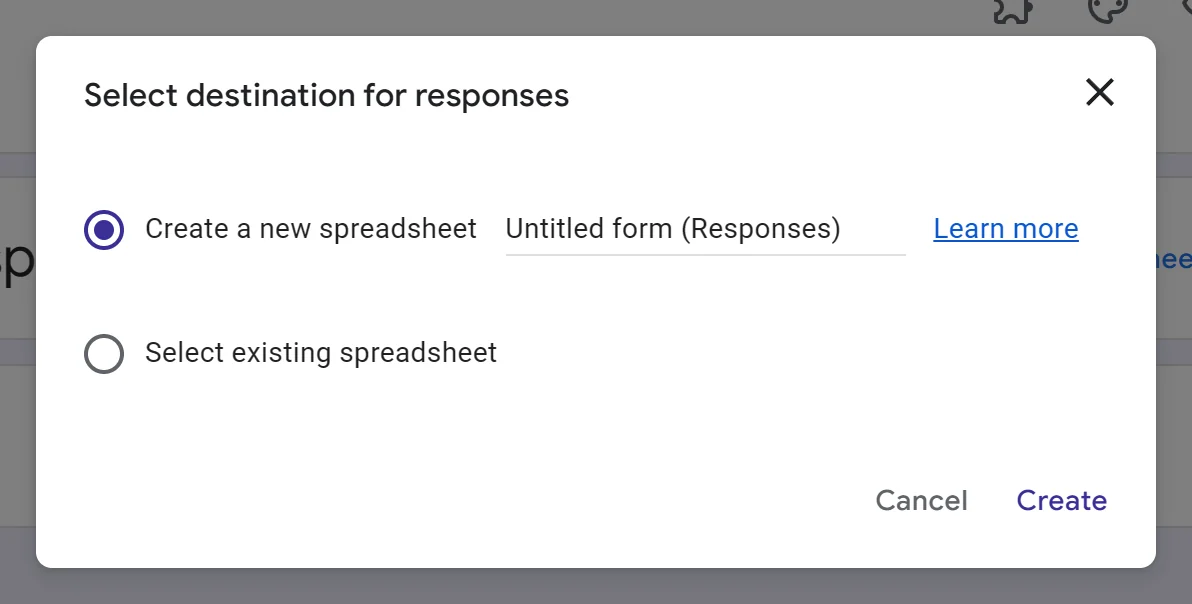
Create a new spreadsheet makes the file for you, named after your form with Responses on the end, in your Drive.
Select existing spreadsheet is the route when you already keep a tracker. The answers go into the sheet you pick rather than a new file.
Step 3: Send one answer and open the sheet
The button on the Responses tab changes the moment the link exists.
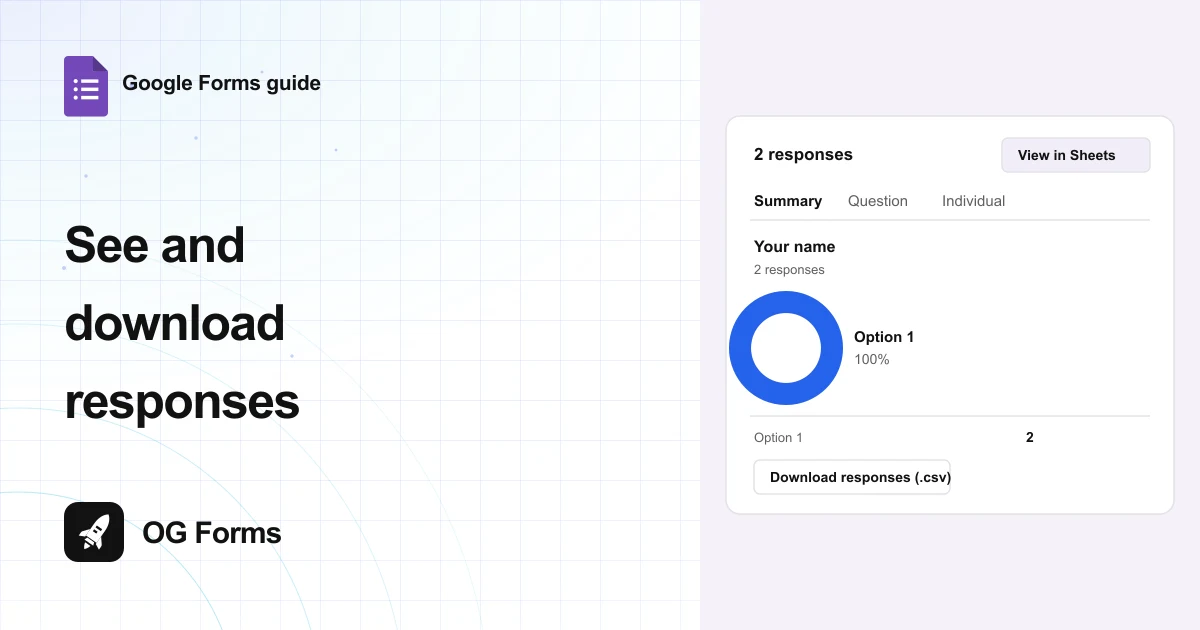
- Look at the Responses tab. Link to Sheets is now View in Sheets.
- Open the live form and answer it once.
- Click View in Sheets.
- Read row 2, which holds the first answer.

Column A is always Timestamp, then one column per question, with the question title as the header.
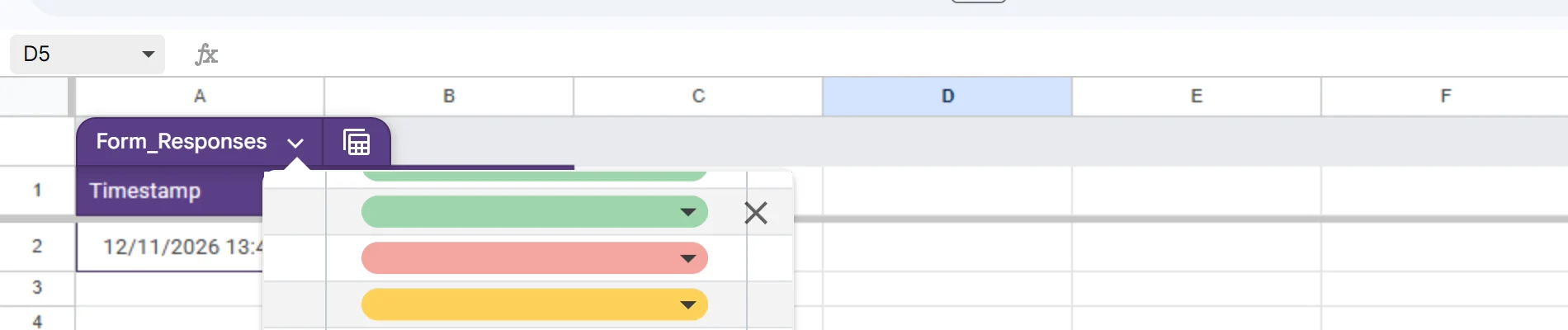
This is what my sheet held after one answer. The timestamp includes the date and the time, and the answer sits in its own column.
| Cell | What it held |
|---|---|
| A1 | Timestamp |
| B1 | Your name, which is the question title |
| A2 | 12/11/2026 13:48:27 |
| B2 | The answer that was chosen |
The row appears on its own. There is no export step, no refresh and no download between the answer and the sheet.
Step 4: Leave the first row alone
Row 1 belongs to the form, not to you. I tested both directions.
- Rename a question in the form, and the header in the sheet changes to the new title.
- Rename the header in the sheet, and the next answer writes the question title back over your text.
- Add a column to the sheet, and leave it to the right of the response columns.
I typed Name of person over B1. The header read that until the next response arrived, and then it went back to the question title.
So treat row 1 as read only. If you need a friendlier label, write a second header row further down and sort or query against that instead.
How do I disconnect a form from a sheet?
Open the Responses tab, click the three dot menu, and choose Unlink form.
The confirmation is explicit, and worth reading before you panic:
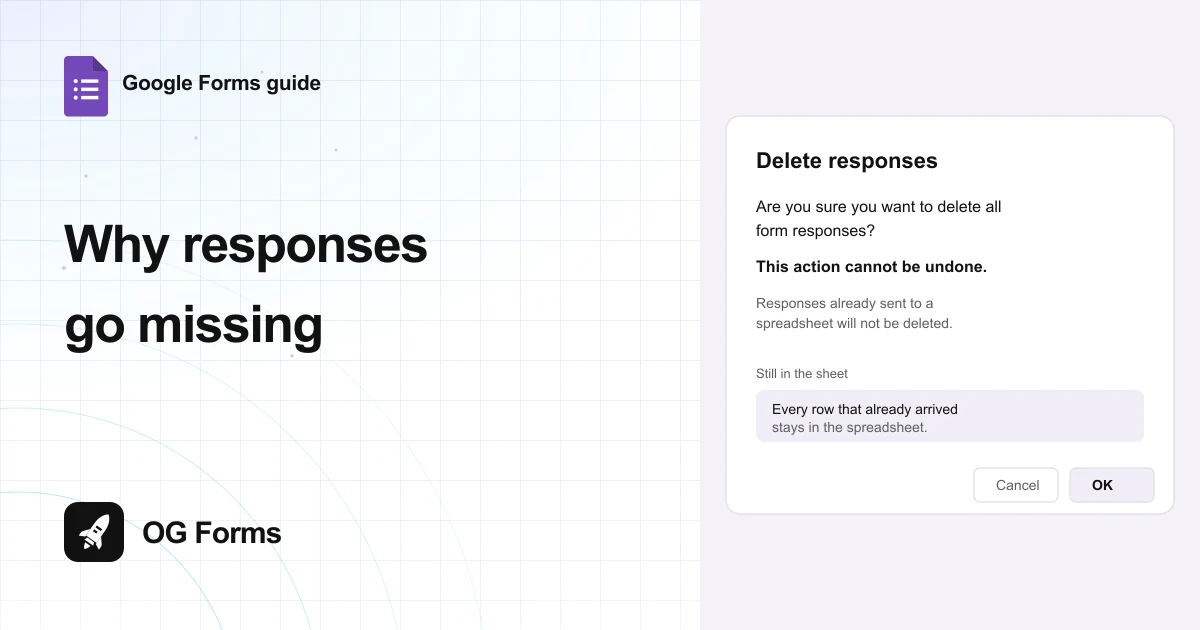
New responses to this form will no longer be sent to the spreadsheet, but existing data will not be deleted. You can set this up again under Select destination for responses.
So unlinking stops the writing. It does not empty the file, and you can link the same form again later.
Why is my Google Sheet not updating?
Four causes, in the order worth checking.
| What you see | Why | Fix |
|---|---|---|
| A new answer but no new row | The form was unlinked, or linked to a different file | Open Responses and check whether the button says View in Sheets or Link to Sheets |
| New answers land in a column you renamed | Row 1 was edited by hand | Put the question title back in row 1 and leave it alone |
| The header is there but no rows | Nobody has submitted yet, or the form is not published | Publish the form, then send yourself one answer |
| You cannot see the file | The spreadsheet lives in the Drive of whoever created it | Search Drive for the form name with Responses on the end |
What the link cannot do
We build OG Forms, so weigh this part with that in mind.
- It writes rows, not reports. The sheet is a list of answers. Totals, charts and pivots are work you build yourself on top.
- It does not sort or clean anything. An answer typed badly is stored badly, and duplicates stay until you remove them.
- It is one file per form. Two forms mean two spreadsheets, unless you unlink both and choose Select existing spreadsheet for the same file.
If you want the answers, the totals and the follow-up in one place, a ready made template skips the spreadsheet step entirely. Compare what OG Forms does with responses if that matters more than a free file in Drive.
For a list of answers you can filter, Google Forms plus a linked sheet is the fastest free option. Start a form in OG Forms when you would rather not build the reporting yourself.
FAQ
Where is the Link to Sheets button in Google Forms?
On the Responses tab, in the row above the answers, beside the three dot menu. It is not in Settings.
Can I connect a Google Form to an existing spreadsheet?
Yes. The dialog that opens from Link to Sheets offers Select existing spreadsheet as well as Create a new spreadsheet.
Does the Google Sheet update automatically?
Yes. Each answer is added as a new row with a timestamp, and the row appears without an export or a download.
What happens if I rename a question after linking?
The header in the sheet changes to match the new question title. If you rename the header in the sheet instead, the next answer puts the question title back.
Does unlinking a form delete the responses?
No. The confirmation says new responses stop being sent to the spreadsheet, and existing data is not deleted.
What's next
Once the rows are landing, the next job is usually the email that tells you they did. How to get email notifications covers the one tick that sends it.
If you want the confirmation to reach the person who answered, how to send a confirmation email covers that direction, and the sign-in it forces on respondents.