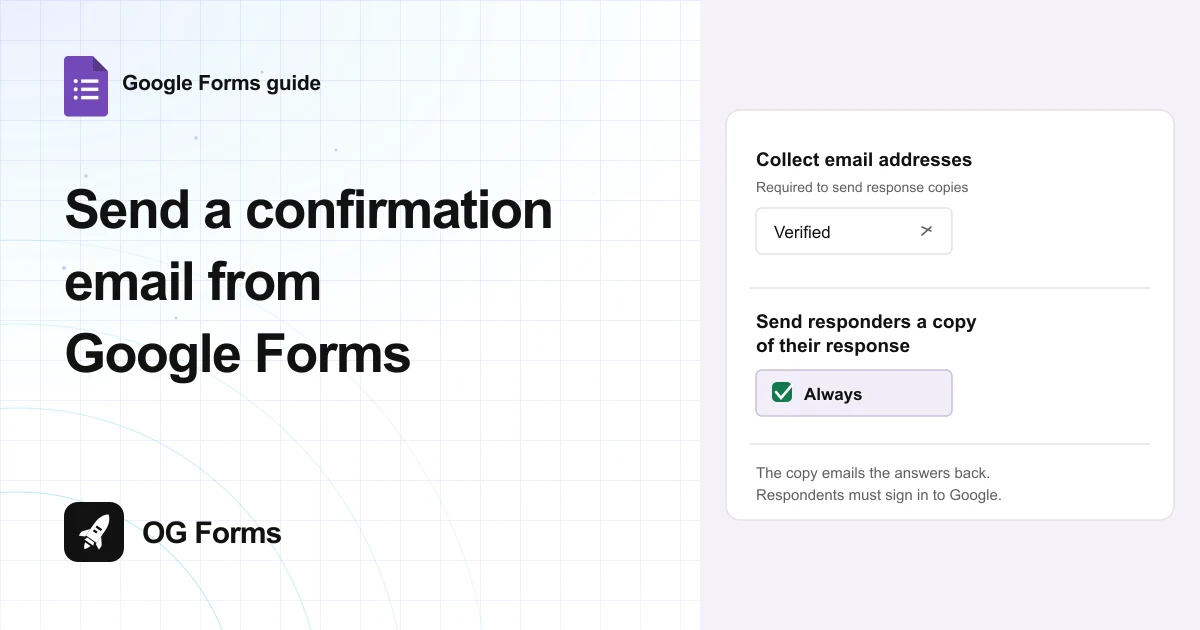
Open Settings, click Responses, and set Send responders a copy of their response to Always. Google Forms emails the answers back to the person who filled the form in, and that copy is the only confirmation email it sends.
A confirmation email does exist in Google Forms. It is one dropdown, not an add-on.
It also comes with three catches that the help pages do not lead with. Every respondent has to sign into a Google account.
Each one also has to tick a box that hands over their address, and the email itself is written by Google rather than by you.
All three are below, in the order they bite. Then the way out if you need your own wording.
I set this up in Google Forms in November 2026 and read every screen a respondent sees.
Step 1: Turn on Collect email addresses
The copy can only go somewhere, so start by collecting an address.
- Open your form and click Settings.
- Click Responses to open that section.
- Set Collect email addresses to Verified.
- Read the note that appears underneath it: Respondents will be required to sign in to Google.
Verified is the only choice that gives you an address Google has checked. Responder input asks people to type one, and nothing tests whether it belongs to them.
You might want to say so on the form itself. One line in the description about needing a Google account saves the reply from someone who cannot get past the sign-in step.
Step 2: Set Send responders a copy to Always
The setting sits in the same section, right below the one you just changed.
- Stay in Settings, then Responses.
- Find Send responders a copy of their response.
- Choose Always.
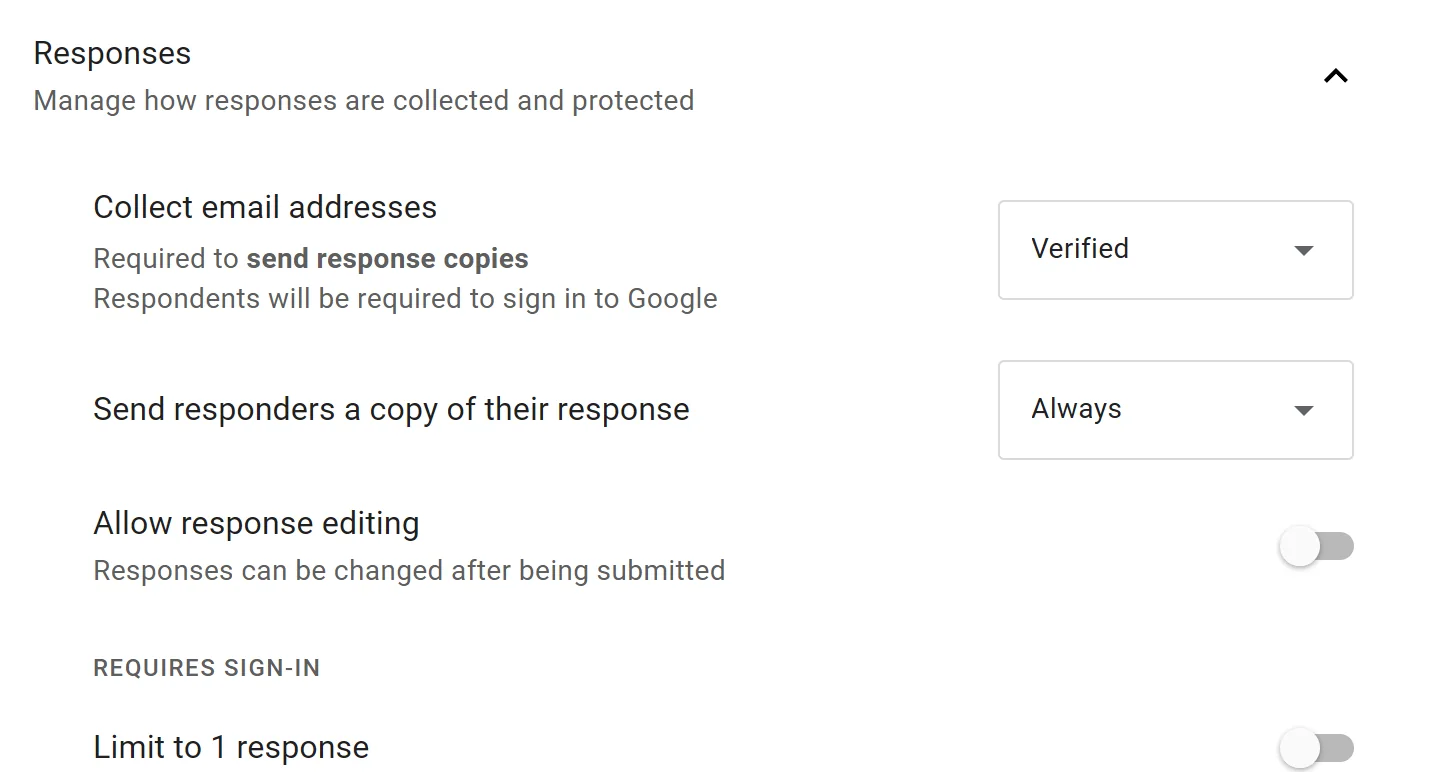
The row stays greyed out until Collect email addresses has a value. That order is the whole trick.
Always is the confirmation people expect. When requested adds a checkbox and lets them decide, and most of them skip it. Off sends nothing.
Step 3: Check what the respondent sees
Fill your own form in once before you send it to anyone.
- Open the live form.
- Look at the Email question at the top, with its tick box recording the signed-in address.
- Read the line above Submit, which names the address the copy goes to.
- Submit, then read the page you land on: Your response has been recorded.
That is the entire confirmation. The promise sits on the form, before they submit. The thank you page does not repeat it.
There is no receipt number, no logo, no subject line you chose, and no way to add a note. If your form is the start of a paid signup, that thin copy is the whole of what the respondent hears back.
Step 4: Add your own wording with a script
Google Forms has no field for the email text. Two routes around that: an add-on from the Workspace Marketplace, or a short Apps Script that runs when someone submits.
- Open your form and click the three dot menu at the top right.
- Choose Apps Script. Google Forms has no Extensions menu, which is where people look first.
- Select the sample code and paste the snippet below in its place.
- Press Ctrl and S, or Cmd and S, to save.
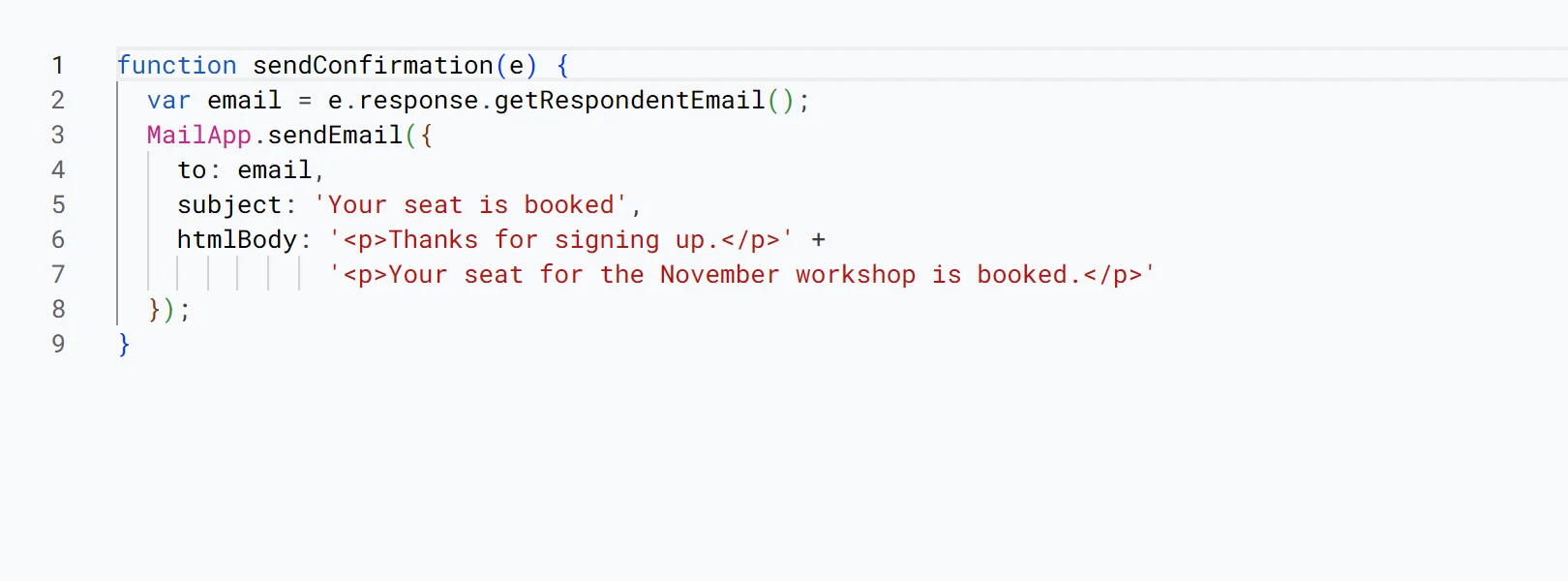
function sendConfirmation(e) {
  var email = e.response.getRespondentEmail();
  MailApp.sendEmail({
    to: email,
    subject: 'Your seat is booked',
    htmlBody: '<p>Thanks for signing up.</p>' +
              '<p>Your seat for the November workshop is booked.</p>'
  });
}
The first line reads the address the respondent signed in with. The send leaves from your own Google account, so the next screen asks for permission to send email as you.
Google warns that the project is not verified. That is expected for a script you wrote yourself, and the access stays inside your account.
Step 5: Set it to run on every submission
Pasting the code does nothing on its own. It needs a trigger.
- Click Triggers in the left rail.
- Click Add Trigger.
- Set the function to sendConfirmation.
- Set the event source to From form.
- Set the event type to On form submit.
- Save, then approve the permissions Google asks for.
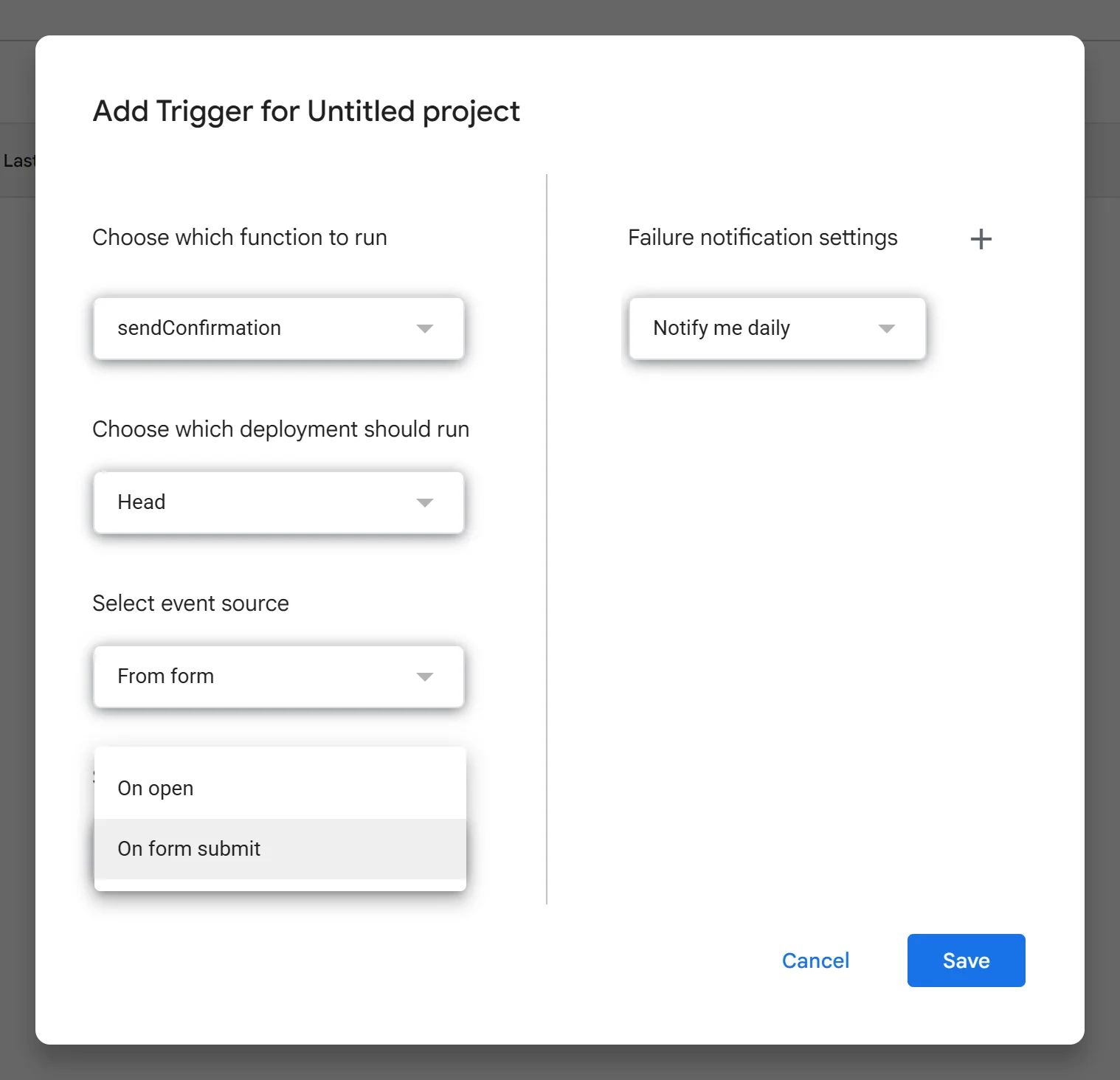
The event type arrives set to On open, which fires when someone opens the form rather than when they answer it. Leave it and no confirmation is ever sent.
If the execution log reports that you do not have permission to call MailApp.sendEmail, the permission prompt was cancelled. Run the function again and accept it.
Why am I not getting the confirmation email?
Five causes, in the order worth checking.
| What you see | Why | Fix |
|---|---|---|
| Nobody gets an email | Send responders a copy is still Off, or Collect email addresses is unset | Set both in Settings, Responses, in that order |
| The dropdown will not open | Collect email addresses has no value yet | Set Collect email addresses first |
| One person says it never arrived | They did not tick the Email box, or the copy is in their spam | Check the Email column in Responses, then ask them to search for it |
| The script sends nothing | The trigger is set to On open instead of On form submit | Open Triggers and change the event type |
| The log says no permission | The authorisation prompt was dismissed | Run the function again and accept it |
What the confirmation email cannot do
We build OG Forms, so weigh this part with that in mind.
- No wording of your own. The built-in copy is Google's text with your answers in it. Changing it means the script in step 4.
- No logo and no colours. The email looks like Google, not like you. Look at a form template to see the front end, then notice the gap at the back.
- No anonymous respondents. Collect email addresses set to Verified forces a Google sign-in on everyone, so a public form collects fewer answers than it would otherwise.
- No receipt for a refusal. If someone will not sign in, they cannot answer the form at all, and no confirmation can reach them.
If the copy needs to carry your name and your wording without a script, that is a different product. Compare what OG Forms does with responses before you build a workaround you have to maintain.
For a plain receipt on a free form, Google Forms does the job. Set the two dropdowns and stop there. If you want to write the email yourself, start a form in OG Forms instead.
FAQ
Does Google Forms send a confirmation email automatically?
Not by default. It sends one after you set Send responders a copy of their response to Always or When requested, and only when Collect email addresses is on.
Can you change the confirmation email text in Google Forms?
No. There is no field for the subject or the message. A script, as in step 4, or an add-on is the only way to change what the email says.
Why do respondents have to sign in to Google?
Because Collect email addresses set to Verified checks the address against the account they are signed into. That check is what makes the copy deliverable.
Can the confirmation go to an address the respondent types?
Yes, with Responder input in Collect email addresses. Nothing verifies the address, so a typo sends the copy nowhere.
Is the confirmation email free?
Yes. The built-in copy costs nothing, and a script send counts against the Apps Script email quota for your account.
What's next
If the email you actually want is the one that tells you someone answered, how to get email notifications covers the other direction.
If the form collects a document as well as an answer, how to add file uploads explains why that form needs email collection turned on first.