Google Forms responses usually go missing for one of four reasons: a copy, a different account, a deleted set that cannot be undone, or a spreadsheet that stopped receiving them. Only the deletion is permanent, and the sheet usually still has the data.
Google Forms keeps every answer in one place, so there is no sync to break and nothing to reconcile. When the answers look gone, the form is almost always fine and the view is wrong.
Two of the four causes are recoverable in a minute. One is not recoverable at all, and one is recoverable from a different file entirely.
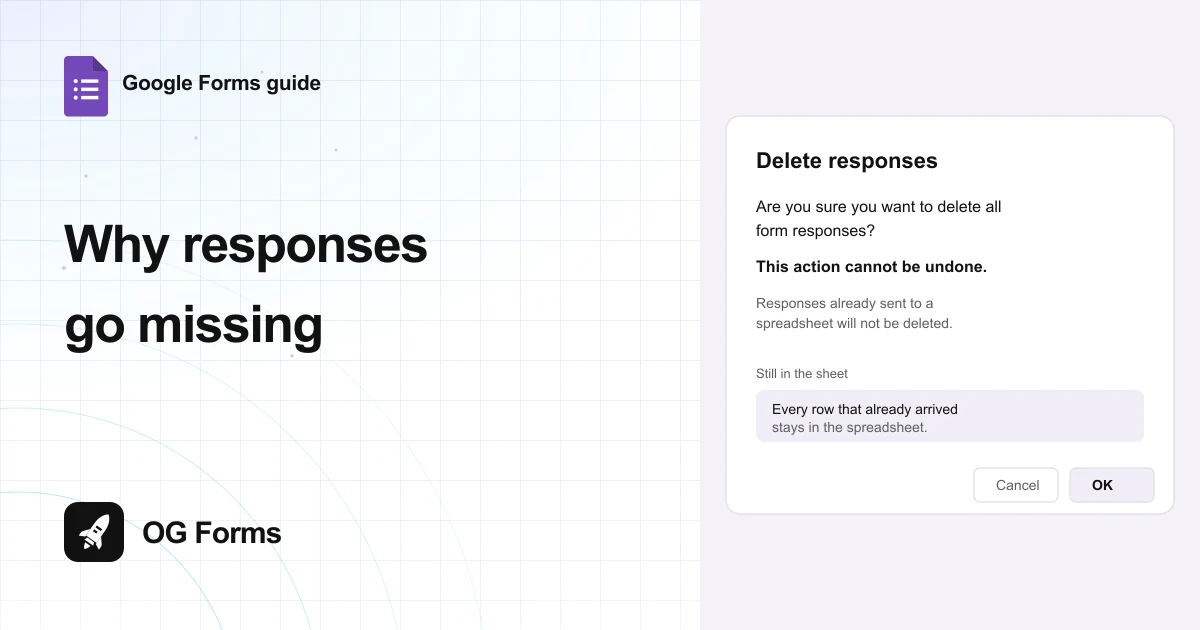
I opened the two destructive dialogs in Google Forms in November 2026 and read what they promise, without confirming either. Those promises are the answer to most of these emails.
If a lost response has ever cost you a day, a Google Forms alternative that keeps every answer recoverable is the honest route, because Google gives you no undo here.
Step 1: Check you are in the form that received them
The most common cause is a copy, and a copy looks identical to the original.
- Open the form from the Drive folder you always use, not from a search result.
- Read the title at the top of the form. A copy is called Copy of followed by the name.
- Open the Responses tab and read the count. A copy starts at zero, whatever the original holds.
- Check the link you sent. If it is not the link of the form in front of you, you are in the wrong form.
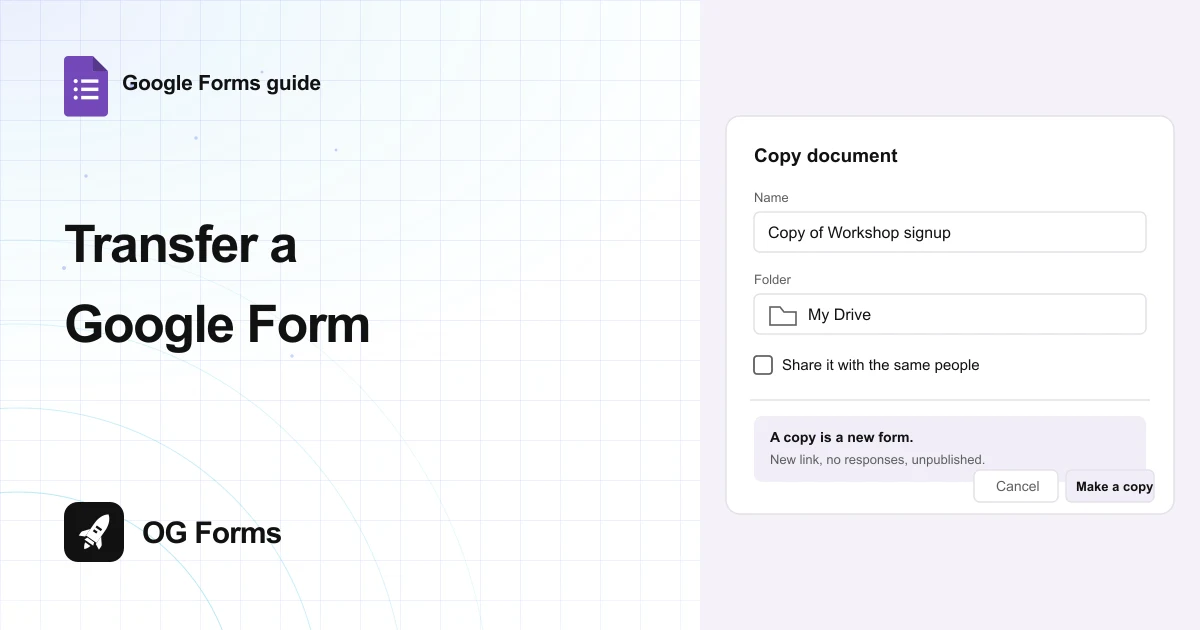
A copy carries the questions and not the answers, which is why a duplicated form looks empty right after it is made. The original keeps its responses and its link, so nothing was lost.
Step 2: Check the account you are signed in as
A form lives in one Drive, so it is only visible from the account that owns it or was given access.
- Read the account picture at the top right of the editor.
- If you have two Google accounts, open the other one and look for the form in Drive.
- Look under Shared with me in Drive if a colleague owns the form.
- Ask the owner for editor access if the form is not in your Drive at all.
Responses do not follow a share. The owner sees every answer, and a collaborator sees them only while they keep editor access on the form itself.
Step 3: Read the count before the answers
The Responses tab tells you whether there is anything to find before you start looking.
- Open the form and click Responses.
- Read the number beside the tab name and the count line under it.
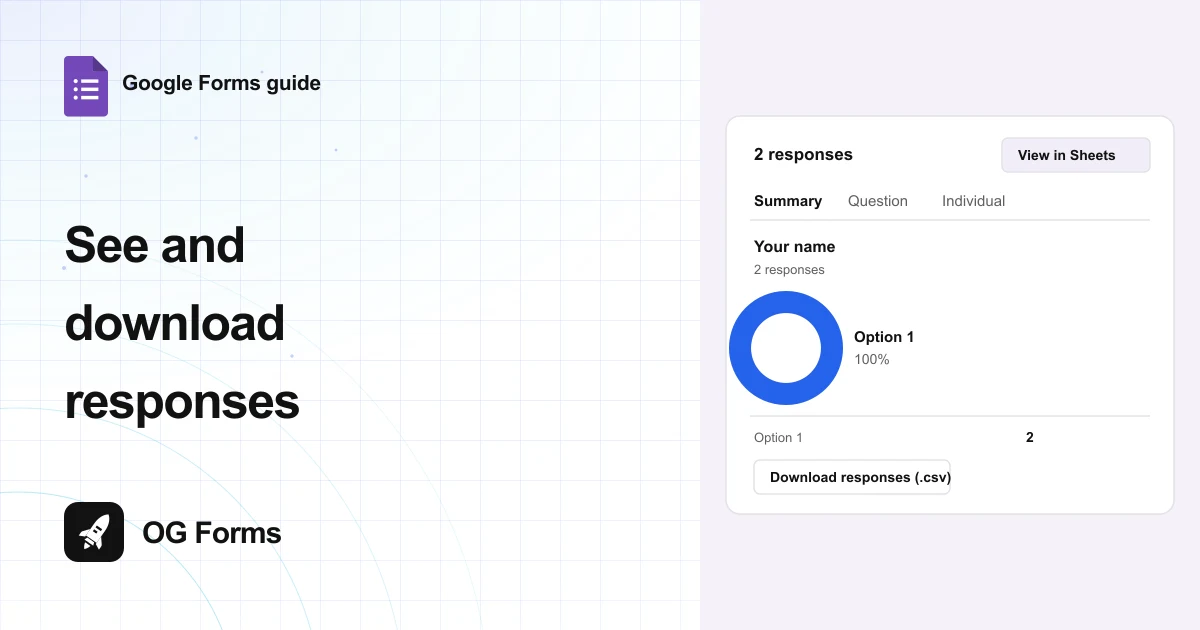
- If the panel has no Summary, Question or Individual views, there are no responses at all.
- Click Individual to read one at a time, in case only the summary looks empty.
Google states that the Summary view only appears on a form with at least one response, so an empty panel is a zero, not a bug.
Step 4: Look in the linked spreadsheet
If the form writes to a sheet, the rows are a second copy that survives almost everything.
- Open the sheet from the form, using View in Sheets, or find it in Drive.
- Read the last rows of the sheet before the newest ones in the form.
- Check whether the sheet was unlinked, which stops new rows without deleting old ones.
- Check the sheet is still in the same Drive and not in the bin.
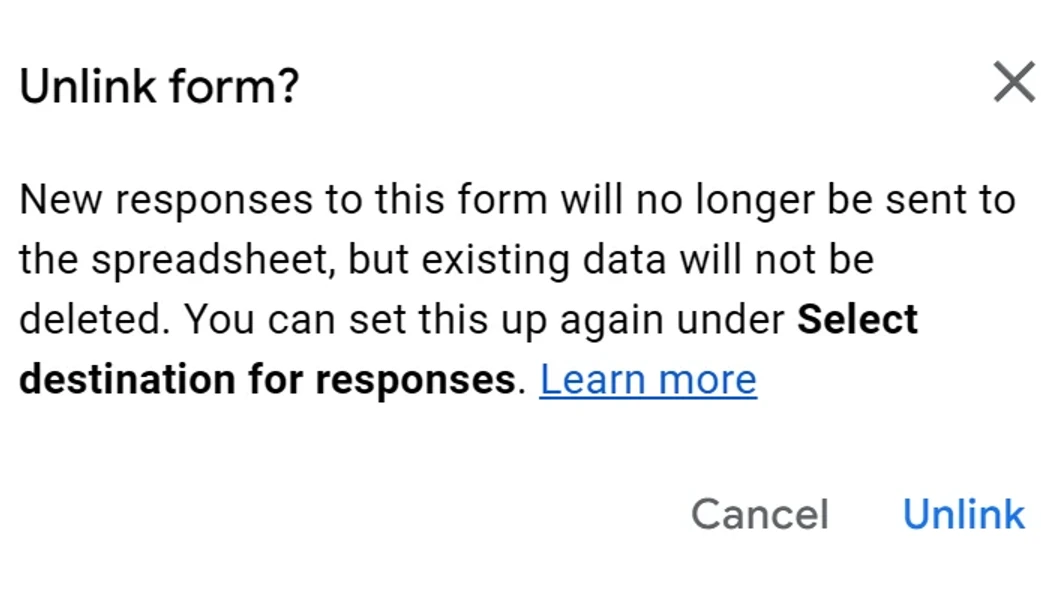
The unlink dialog says it plainly: new responses will no longer be sent to the spreadsheet, but existing data will not be deleted. Reconnect it from Select destination for responses.
Step 5: Rule out a deletion
This is the one cause you cannot undo, and it takes two clicks to do.
- On the Responses tab, open the three dot menu at the right of the panel.
- Check whether Delete all responses was used, by asking anyone else with editor access.
- Delete one response at a time from the Individual view if only some are missing.
- Restore the form from the Drive bin if the whole form was removed, then re-check its Responses tab.
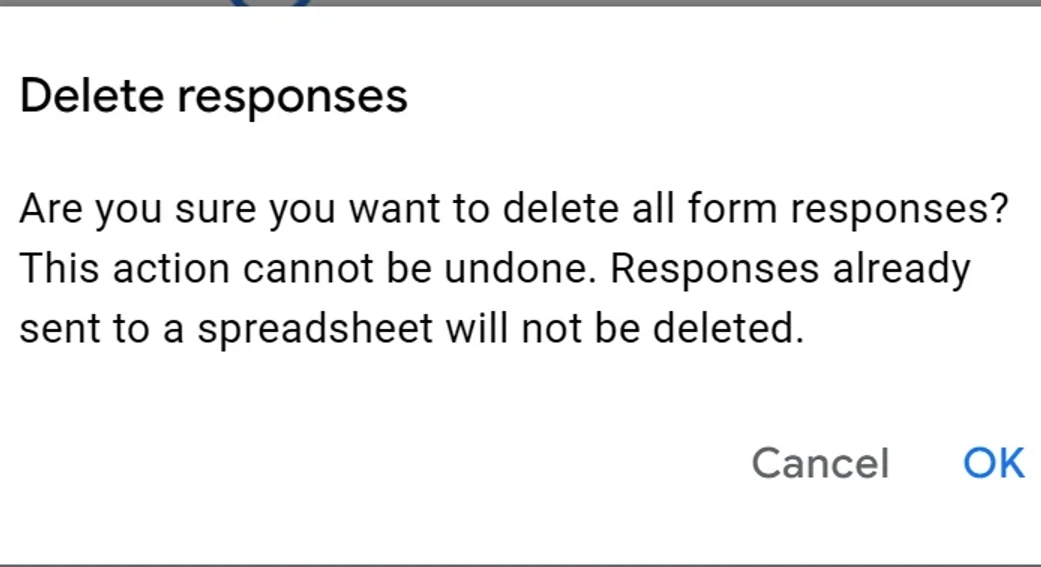
Read the second sentence again. Responses already sent to a spreadsheet will not be deleted, so a deleted form usually still has its history in the sheet, one file away.
What else makes responses look missing?
Six cases, and what each one actually is.
| What you see | What it means | What to do |
|---|---|---|
| The sheet stopped at a certain date | The form was unlinked, or a copy of the form is collecting answers | Reconnect with Select destination for responses |
| The sheet has different column names | Someone renamed a question, which rewrites the header row | Rename it back, and never type over a header |
| The form says it is not accepting responses | The form was closed, so new answers stop arriving | Reopen it from Published options |
| A respondent's draft is empty | Drafts save only for signed in respondents, for 30 days, and not offline | Ask them to sign in and submit in one sitting |
| A respondent lost one answer from a draft | You deleted that question after the draft was saved | Stop editing questions once the form is live |
| Answers stopped after a large number of responses | The form may have reached its storage or response limit | Download and delete responses, then reopen the form |
What Google Forms cannot do about a lost response
We build OG Forms, so weigh this part with that in mind.
- No undo. Google's own help page says it in one line: if you delete any responses in a form, it cannot be undone.
- No bin for responses. The Drive bin holds forms and spreadsheets. A deleted response is not in it.
- No record of who deleted what. Anyone with editor access can delete every response, and the form keeps no trail of it.
- No response history. There is no version of the Responses tab you can roll back to, so the linked sheet is the only copy that outlives a deletion.
OG Forms keeps every response recoverable, and exports a form and its answers whenever you ask. Compare what OG Forms does with responses, or start from a form template built for the job.
For a form you run yourself, download the CSV on the day you close it. Start a form in OG Forms when a lost answer would be a lost customer.
FAQ
Can I recover deleted responses in Google Forms?
No. Google's help page states that deleting responses cannot be undone. The linked spreadsheet keeps the rows it already received, so that is where to look.
Why are my Google Forms responses not showing in the spreadsheet?
The form was probably unlinked, or a copy of the form is collecting answers instead. Reconnect the sheet from Select destination for responses, and check the link you shared.
Why does the Responses tab look empty?
Either the form has no responses yet, or you are in a copy or a different account. The Summary view only appears once there is at least one response.
Did Google delete my responses?
Google does not remove responses on its own. They go when someone with editor access deletes them, when the form and its answers are deleted together, or when you are reading a copy.
Do responses disappear if I unpublish the form?
No. Unpublishing or closing a form stops new answers and leaves the ones you have untouched.
Where is the only other copy?
In the linked Google Sheet, which is a separate file with its own Drive location, and in any CSV you downloaded before the deletion.
What's next
If the responses are there and you want them out, how to see and download responses covers the three views and the CSV.
If the spreadsheet is the part you rely on, connecting the form to Google Sheets shows the link and what breaks it.