Transfer a Google Form from the Share button: give the other person editor access, open Share again, and choose Transfer ownership from the arrow beside their name. The form keeps its link and its responses, and the linked spreadsheet stays yours until you share it.
Google Forms hides the transfer in the Share dialog rather than in the three dot menu, which is why people hunt for a setting that is one click away.
Two files are involved, not one. The form holds the questions and the answers, and the spreadsheet a form writes to has its own permission list that Google does not update for you.
Google's own help page has the transfer steps, quoted in Step 2 below. I tested the copy route and the dialog behind it end to end in November 2026, and that route is in Step 4.
If you would rather move a finished form to a new account without a permission dance, a Google Forms alternative is the honest route, because this is one of the places Google keeps you in a support article.
Step 1: Give the other person editor access
A transfer only works to someone who already has access, so sharing comes first.
- Open the form and click Share at the top right, next to Copy responder link.
- Type the Google account the form should belong to.
- Set the role to Editor, not Viewer or Commenter.
- Send it, and check the name appears under People with access before you move on.
A link share is not a person, so it cannot receive a form. Google needs a named account with editor rights before the arrow beside that name offers a transfer.
Step 2: Choose Transfer ownership
Once they are an editor, the option appears in the same dialog. These are Google's steps.
- Click Share again.
- Under People with access, find the person's name.
- Click the down arrow beside the name.
- Select Transfer ownership, then Yes when Google asks you to confirm.
The confirmation is the point of no return. The form moves as one file, so its published link and every response already collected travel with it.
You might want to ask them to keep you on as an editor before you confirm. Dropping off the form means whoever owns it now has to add you back.
Step 3: Fix the linked spreadsheet separately
This is the step the transfer skips, and the reason a new owner opens the form and finds no answers.
- Open the linked response sheet from the Responses tab.
- Click its own Share button and add the new owner there.
- Transfer that file too if the sheet should belong to them.
- Remove your own access only after both are done.
Google states it plainly: further changes to the permissions of the form will not synchronise automatically, and access has to be updated on the form and the linked sheet separately.
Step 4: Copy the form when a transfer is not an option
If the other account cannot be added as an editor, a copy is the route that still works.
- Open the form and click the three dot menu at the top right.
- Choose Make a copy, the first item in the menu.
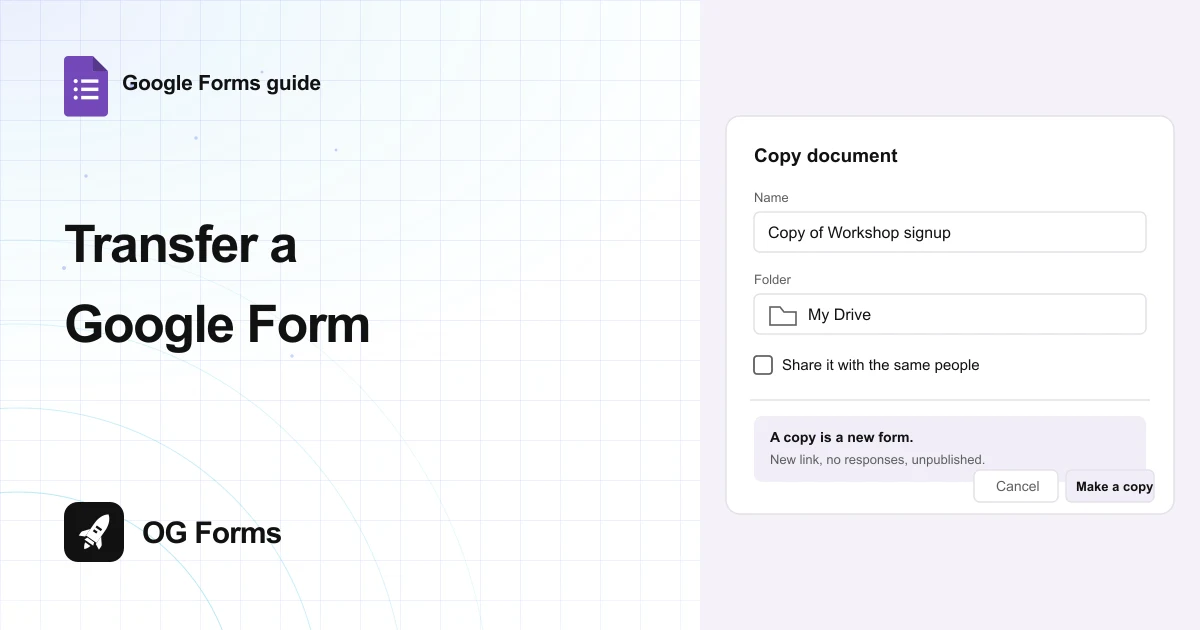
- Read the Copy document dialog: Name is filled in as Copy of and your title, and Folder is My Drive.
- Leave Share it with the same people alone unless you want the copy to carry the same collaborators.
- Click Make a copy. The copy opens in a new tab, signed in as whoever owns the copy.
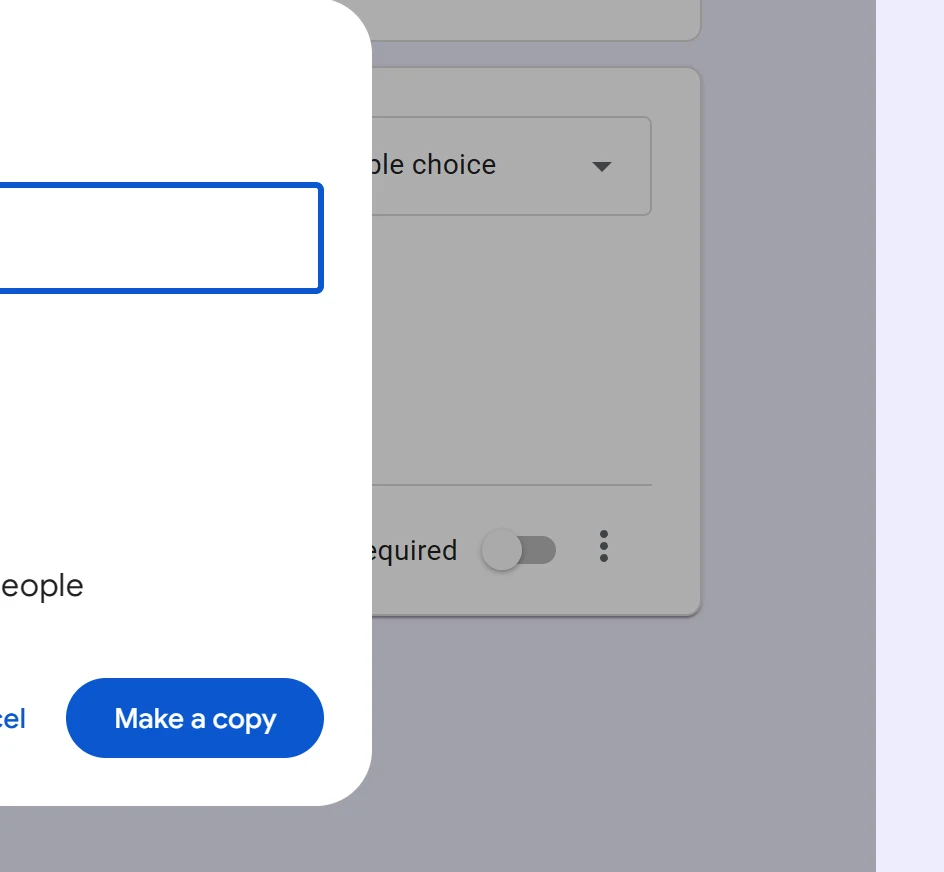
Know what the copy is before you send it. It arrives as a separate form with a new address, it is unpublished until you publish it, and it starts with no responses at all.
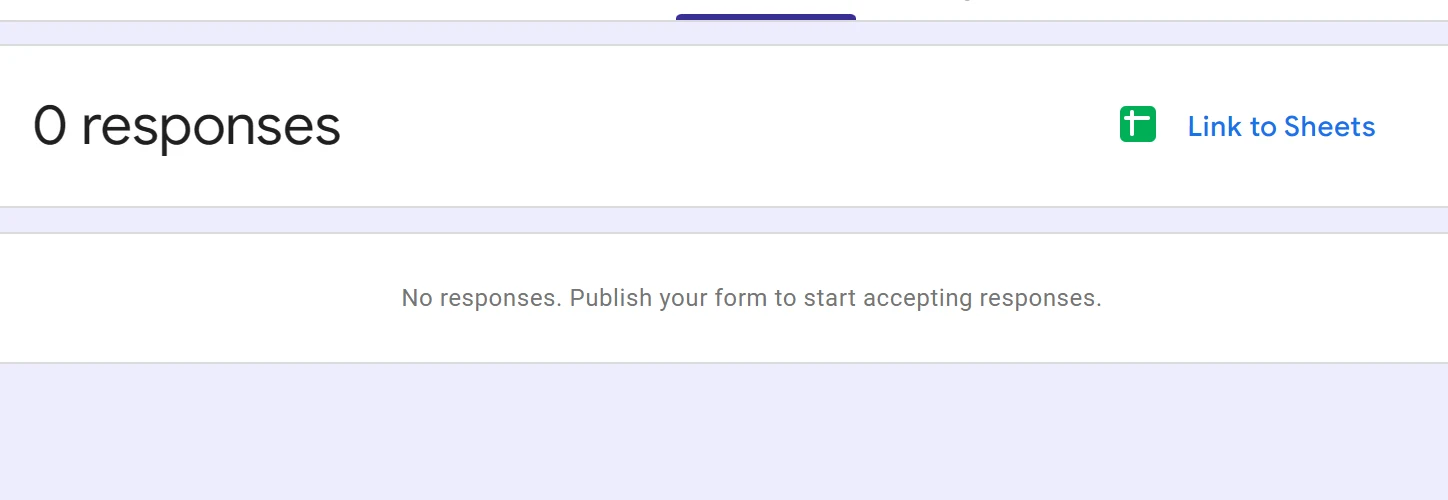
The original keeps its own link, so anyone holding the old address keeps filling in the old form. Publish the copy and share the new link, then close or unpublish the original.
Step 5: Check what moved before you delete anything
Open the form as the new owner and walk the tabs once. Three things are worth checking.
- Open Responses. The answers should be there for a transferred form and absent for a copy.
- Open the linked spreadsheet from the same tab, and check the new owner can open it.
- If the form uses Apps Script or an add-on, run it once as the new owner before the old account loses access.
Delete nothing in the old account until all three pass. A moved form with a script that no longer runs is worse than a form that never moved.
Why is there no Transfer ownership option?
Four causes, in the order worth checking.
| What you see | Why | Fix |
|---|---|---|
| Nothing about ownership in the three dot menu | The control lives in the Share dialog, not in that menu | Click Share and open the arrow beside the person |
| The person is not listed under People with access | Nobody can receive a form until they are named on it | Add their email as an Editor, then try again |
| The arrow only offers Editor or Remove | The person holds link access rather than a named invitation | Invite the email address itself, not a link |
| The new owner sees the form but no answers | The linked sheet was never shared with them | Share the spreadsheet from its own Share button |
What Google Forms cannot do about ownership
We build OG Forms, so weigh this part with that in mind.
- No bulk transfer. Ownership moves one form at a time, from the Share dialog of that form.
- No split of form and answers. The responses belong to the form, so you hand over both or you copy neither.
- No linked-sheet handover. Google says it does not sync permissions, so the spreadsheet is a second job in a second dialog.
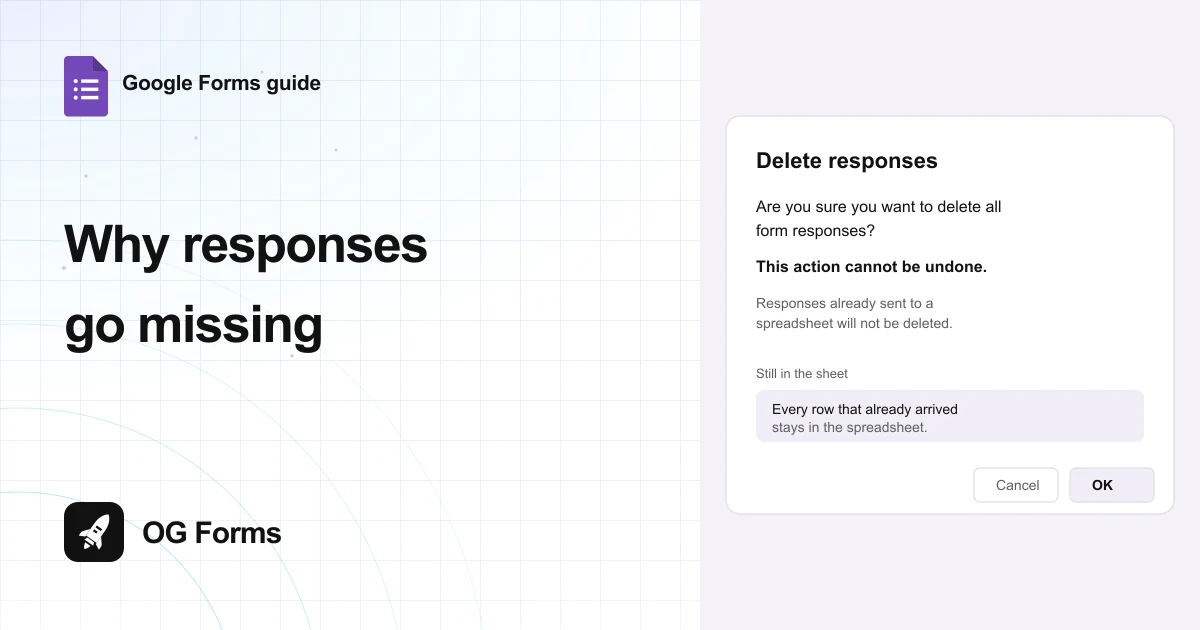
- No answers in a copy. A copy is a new form with a new link and no history, which is the whole reason to prefer a transfer when you can get one.
OG Forms lets you export or transfer a form when you need to. Compare what OG Forms does with responses, or start from a form template built for the job.
For a form you hand over once, the Share dialog does the job. Start a form in OG Forms when the form and its answers have to stay together as the team changes.
FAQ
How do I transfer ownership of a Google Form?
Give the other person editor access from Share, open Share again, click the down arrow beside their name, then choose Transfer ownership and confirm with Yes.
Can I transfer a Google Form to another Gmail account?
Yes. Add that Gmail address as an editor first, then use Transfer ownership from the arrow beside the name. Google's steps do not limit the transfer to a work domain.
Does the new owner get the responses?
Yes for a transfer, because the responses belong to the form. A copy is the opposite: the copy arrives with no responses, and the original keeps them.
What happens to the form link after a transfer?
It stays the same, because the form is the same file with a new owner. Anyone holding the link keeps reaching the same form.
Can I transfer a form without giving editor access first?
No. Google requires editor access before the transfer option appears, so the share is a required step rather than a courtesy.
What if I cannot transfer the form?
Make a copy from the three dot menu, open it in the account that should own it, then publish it. The copy has a new link and starts empty.
What's next
If the copy route is the one you are taking, how to copy a Google Form covers the dialog and what carries over.
If the new owner cannot open the form yet, how to share a Google Form explains the access levels and the sign-in Google asks for.