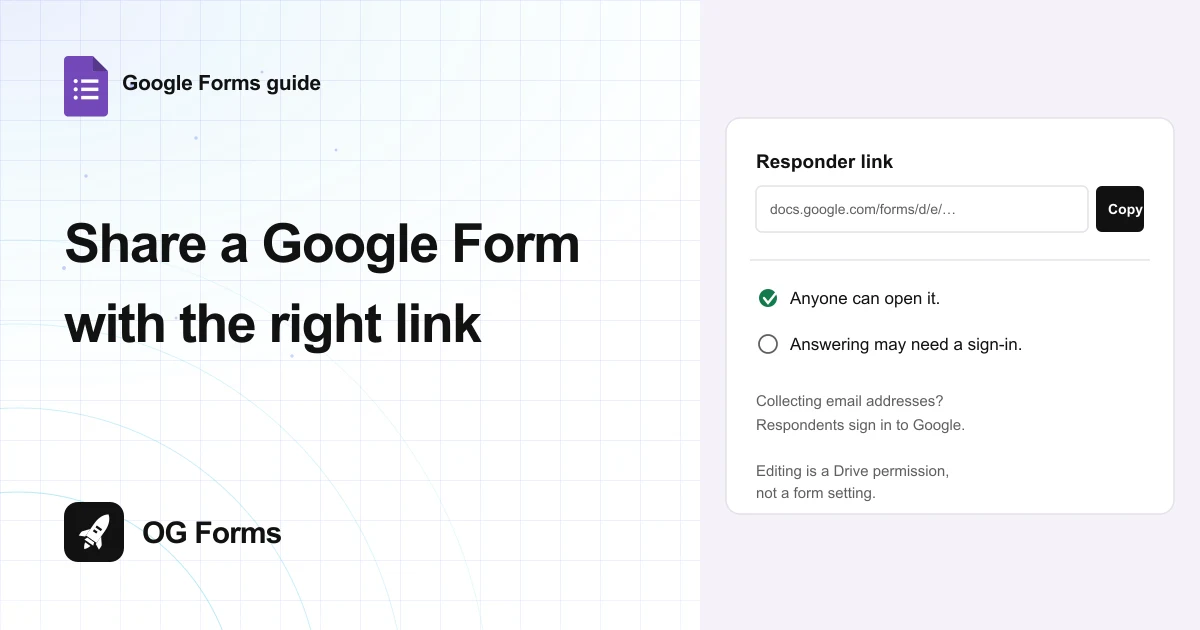
Click Copy responder link on your form, then send that link. Anyone can open it, but a form that collects email addresses asks every respondent to sign in before they can answer.
Sharing a Google Form is not one action. It is three, and they go to three different audiences.
One link lets people answer. One address lets people edit. A third place shows the answers. Send the wrong one and the person on the other end cannot do what you asked.
There is also a trap that sends people back to you saying the form does not work, and it is not a sharing problem at all.
I opened a published form in a browser with no Google account in November 2026 to see exactly what a stranger gets. Below is what happened.
Step 1: Copy the responder link
The link people answer is one button in the top bar of the form editor.
- Open your form in the editor.
- Find Copy responder link, between the redo arrow and Share.
- Click it. The link goes to your clipboard with no dialog and no settings.
- Paste it wherever you are sending people.

The address it copies looks like docs.google.com/forms/d/e/long-code/viewform. That is the published form, not the editor.
Publishing opens the same link with a shorter version offered as Shorten URL, which gives you a forms.gle address instead. Both land on the same form.
Step 2: Check what a stranger sees
Before you send the link to a hundred people, open it once without your account.
- Copy the responder link.
- Open a private or incognito window, where you are signed out of Google.
- Paste the link and press Enter.
- Answer the form and press Submit.
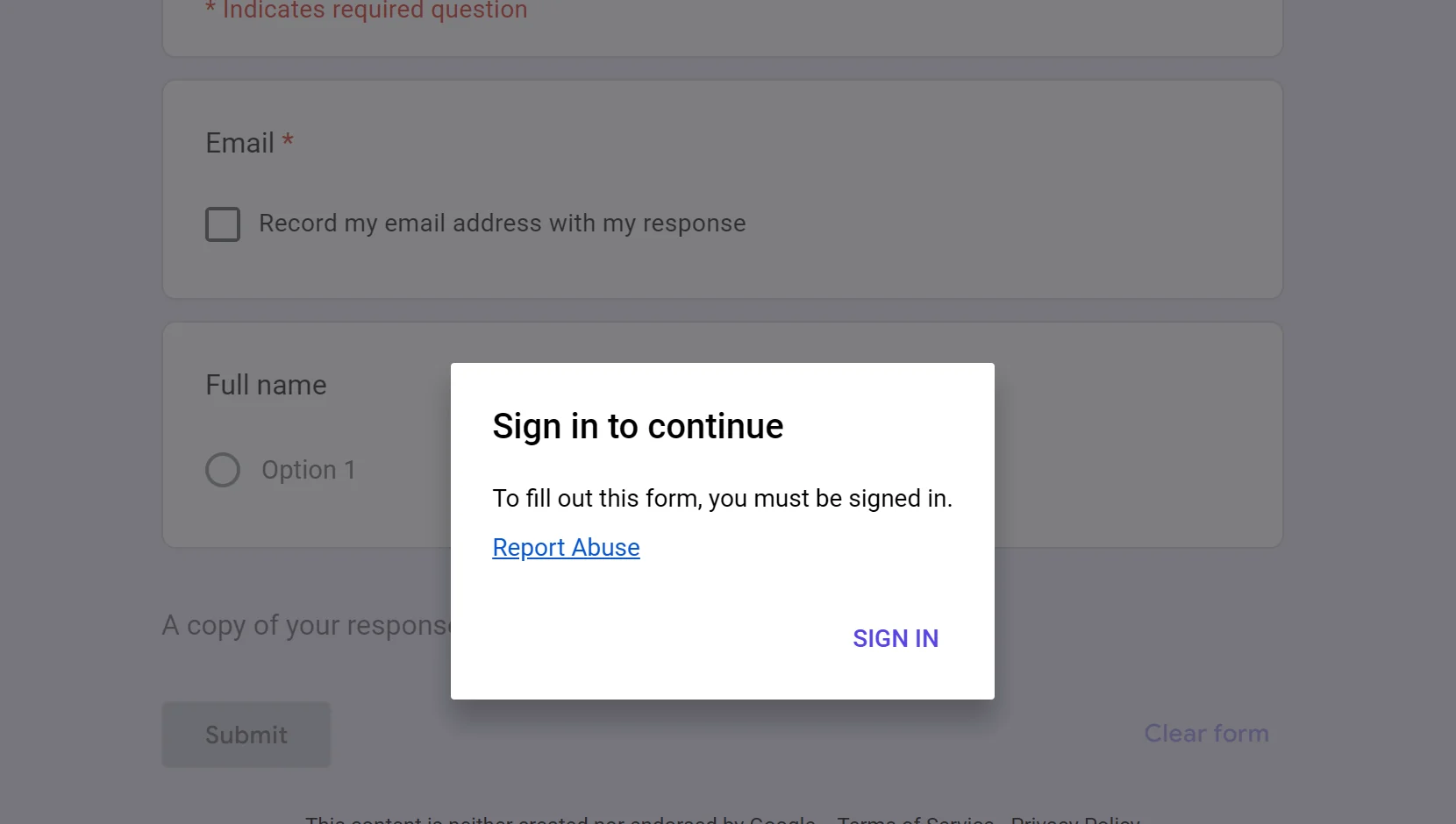
The form loads. The title, the questions and the Submit button are all there, with no account needed.
Then a form that collects email addresses blocks the answer with a dialog: Sign in to continue, and to fill out this form you must be signed in.
The same form also showed a line above Submit reading A copy of your response will be emailed to, with no address after it. Signed out, there is nothing to put there.
So a form shared with the world still needs an account to answer, as soon as it wants an email address. That is worth knowing before you print the link on a poster.
Step 3: Decide who is allowed to answer
The Publish button controls the audience, not the link.
- Click Publish in the top right.
- Read the Responders row: Anyone with the link, with Manage beside it.
- Use Manage to change who can open the published form.
- Click Publish to finish.
The dialog also says nobody is notified when you publish, which matters if you expected an email to go out. Publishing changes access; it does not announce anything.
You might want to hold the publish step until the form is finished. Nothing else depends on it, so you can build the whole thing first and share it once.
Step 4: Share the editing, which is a different thing
This is the share most people mean, and it is not a form setting at all.
- Click Share, or open the same file in Google Drive.
- Add the person by email address.
- Give them edit access to the file.
- They open the editor address, docs.google.com/forms/d/long-code/edit.
Google Drive reported the form file I tested as Share. Private only to me. That is file access, and it is a separate switch from the responder link, which was already live.
So a published form can be answered by anyone while only you can edit it. Both are true at once, and that is the point.
Step 5: Share the answers, not the form
The third audience reads what came back, and they need neither of the other two links.
- Open the Responses tab.
- Read the summary, or the individual answers.
- Link the form to a sheet if someone needs the raw rows.
Sharing the sheet with a colleague shows them every answer without giving them the editor. That is the safer share when someone only needs the data.
If the rows should land in a spreadsheet first, connecting the form to Google Sheets takes one dialog.
Step 6: Put the form inside a page instead
When the form should live on a site rather than in a message, the editor will write the code for you.
- Click the three dot menu at the top right of the editor.
- Choose Embed HTML.
- Copy the iframe it gives you into your page.
That is the menu item for putting a form on a page rather than sending a link. The same menu holds Unpublish form, which is the switch for taking a published link out of circulation.
Does Google Forms make a QR code?
No. There is no QR button anywhere in the product.
The toolbar holds Add-ons, Customise theme, Undo, Redo, Copy responder link, Share, Publish and the three dot menu.
That menu holds Make a copy, Move to bin, Pre-fill form, Embed HTML, Print, Apps Script, Get add-ons, Unpublish form and Keyboard shortcuts. None of them makes a QR code.
So the QR on a poster is a second tool. Paste the responder link into any generator and point the code at that address.
What sharing cannot do
We build OG Forms, so weigh this part with that in mind.
- No per person links. One responder link serves everyone, so you cannot tell which link brought which answer without asking inside the form.
- No expiry. A published link keeps working until you unpublish the form or close it to new answers.
- No separate editor link. The edit address is the file, so access is granted to a person in Drive rather than to a link you can pass around.
- No built-in QR. Any code you print is made somewhere else and has to be regenerated if the form moves.
If you need one form that opens for anyone without a Google account, even when it collects an address, that is a different product. Compare what OG Forms does with responses, or start from a form template and share the finished thing.
For a form you send to people you know, the responder link is free and takes one click. Start a form in OG Forms when the audience is strangers.
FAQ
How do I share a Google Form link?
Click Copy responder link in the form editor and paste the address it gives you. It is the published form, so anyone with the link can open it.
Why does Google Forms ask people to sign in?
Because the form collects email addresses. Set Collect email addresses to Do not collect in Settings, Responses, if respondents should answer without an account.
Can I share a Google Form so someone else can edit it?
Yes, but that is access to the file in Google Drive, not a form setting. Add them by email in Share, then they open the editor address.
Can I share only the responses?
Yes. Share the linked spreadsheet with them instead of the form. They see the answers without the editor or the questions.
How do I stop sharing a Google Form?
Open the three dot menu in the editor and choose Unpublish form. That takes the published link out of circulation.
What's next
If people open the link and never finish, the form is usually the problem rather than the share. Sections and conditional logic both shorten a long form without losing a question.
If the answers are the part you keep chasing, email notifications put each new response in your inbox.