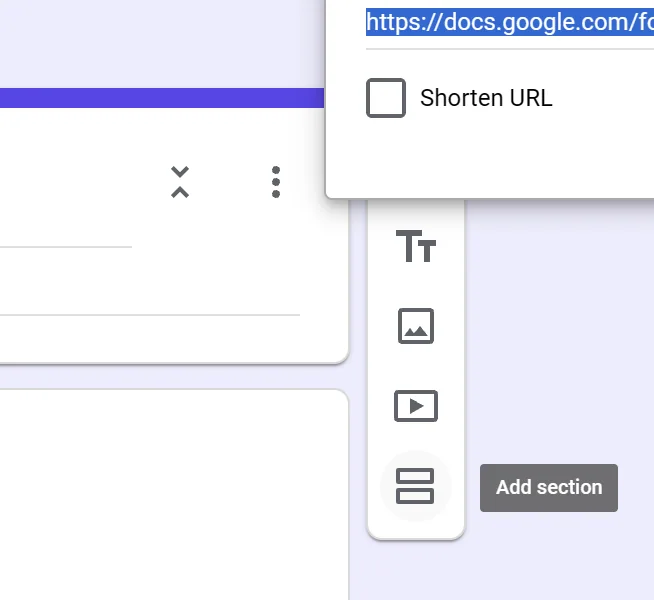
Click Add section in the toolbar on the right. Every question below the one you selected moves onto a new page.
A Google Form page is a section. Long forms lose people, so splitting the questions into sections gives each screen a few, not all of them.
I rebuilt these steps in Google Forms in November 2026, on a free account. The labels and screenshots are what the editor shows today.
Sections also give you somewhere to branch from, which is how a form starts asking different things to different people.
If you would rather not manage page breaks by hand, there is a simpler route. A Google Forms alternative gives you multi page forms, and rules that show or hide any question.
The steps below still work in Google Forms, and the last section says where that stops.
Step 1: Add a section
Sections split a form into pages. You add one from the toolbar, not from a menu at the top.
- Open your form in Google Forms.
- Click the question you want the new page to start after.
- Click Add section in the toolbar on the right of the form.
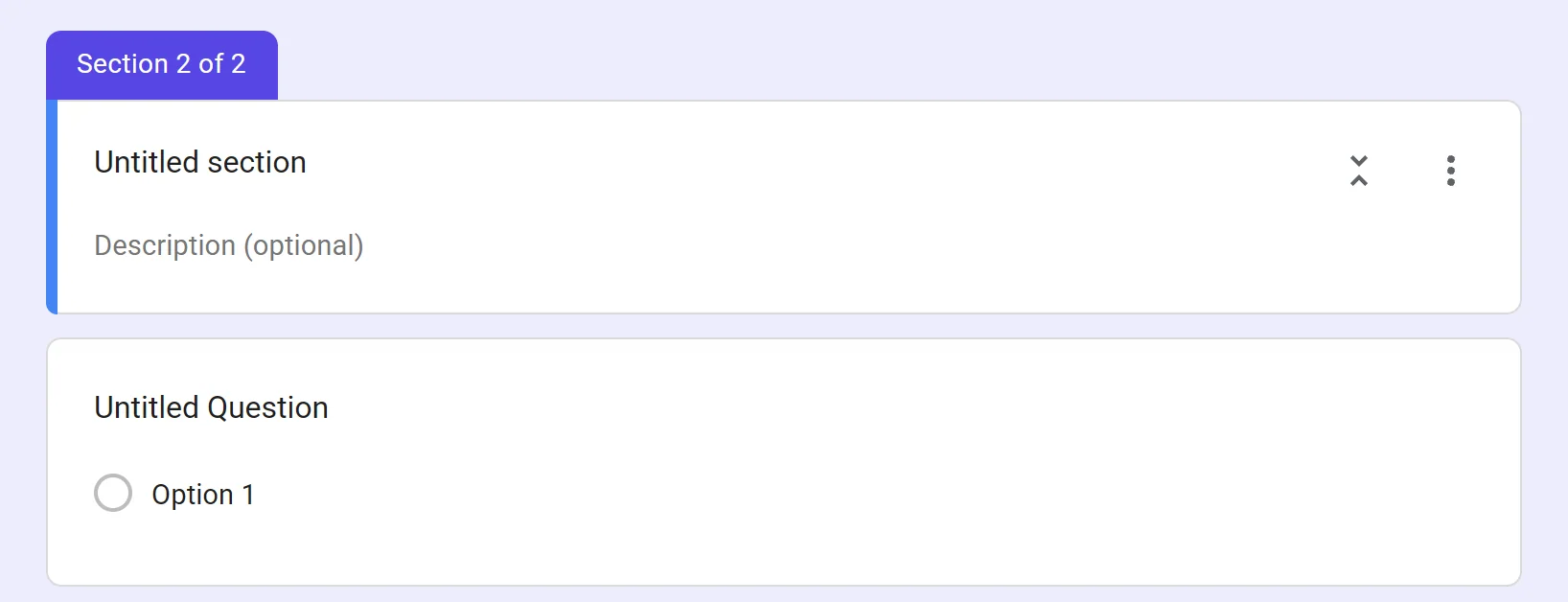
- The new section appears with its title box reading Untitled section.
Step 2 is the part people miss.
The new section lands directly below whatever is selected, and every question under it moves into the new page. Select the last question you want on page one, and the form splits exactly there. Select nothing and the section goes at the end.
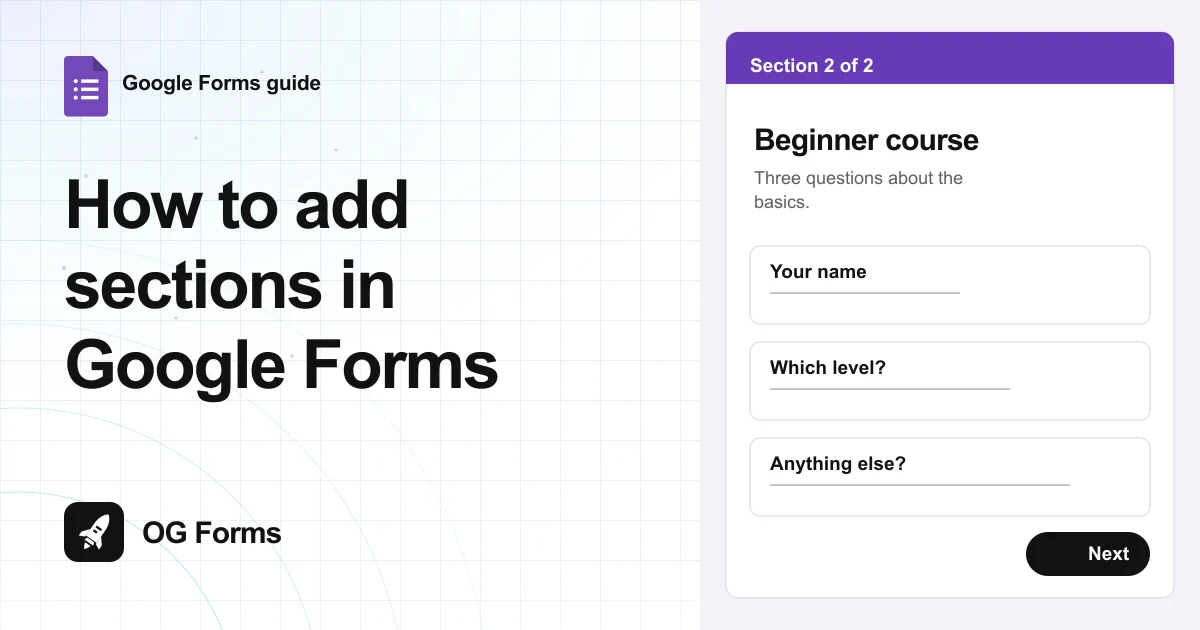
The editor counts the pages for you. The divider above each section reads Section 2 of 2, and it updates as you add or delete.
Step 2: Name the section
Give every section a name, so each page tells people where they are. The title box starts as Untitled section.
- Click Untitled section and type the name. It becomes the heading on that page.
- Click Description (optional) to add one line of context.
- Repeat for each page.
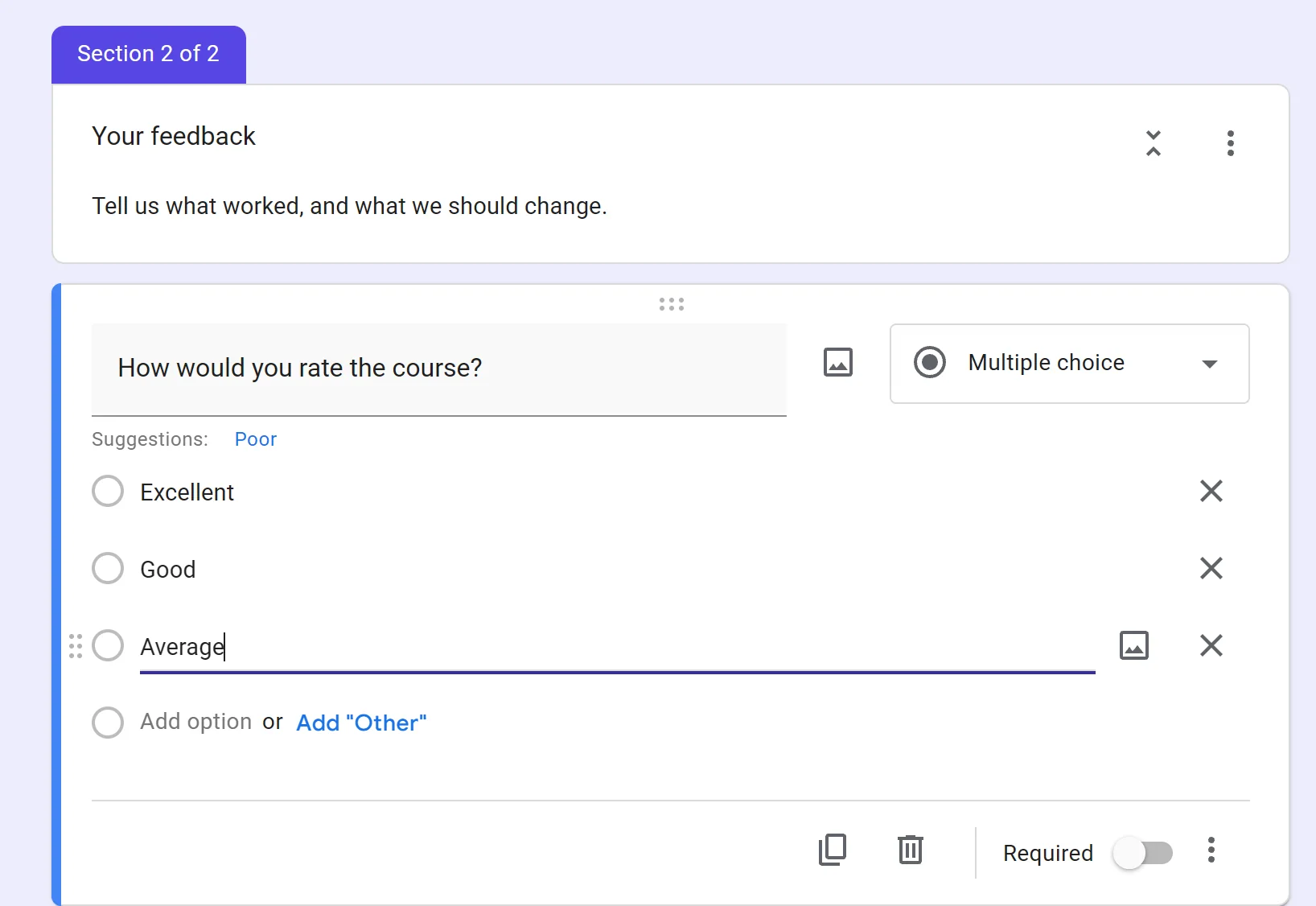
Keep names short. “Your details” and “Your feedback” tell someone where they are faster than a sentence does.
Step 3: Move, duplicate or delete a section
Open the three dot menu on the section header. It holds four actions: Duplicate section, Move section, Delete section and Merge with above.
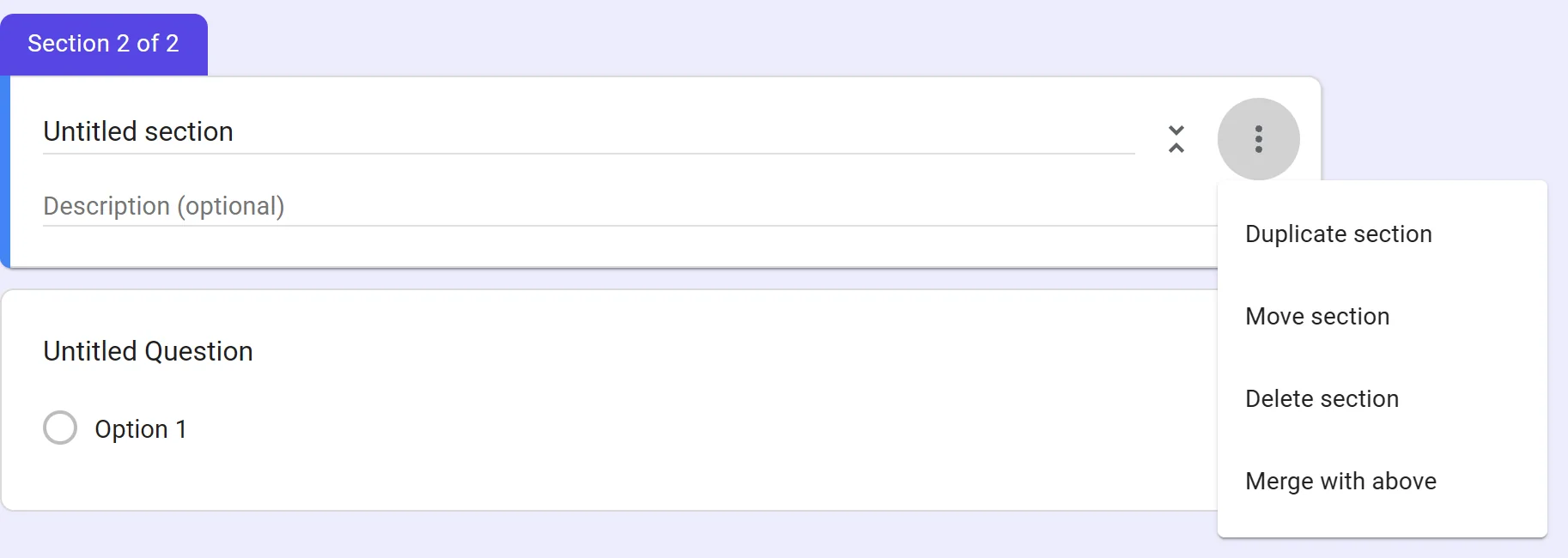
- Duplicate section copies the page and its questions, placed right below.
- Move section opens a dialog called Reorder sections, where you set the order and click Save.
- Delete section removes the page and its questions.
- Merge with above folds this section’s questions into the section above it. It keeps every question, so if both pages held the same one you now have it twice.
Merging is the one to undo. Press Ctrl+Z straight away and the sections return to how they were.
Step 4: Collapse a section while you work
Click the collapse control in a section header to hide its questions. The control turns into Expand section and the page shrinks to its title. On a twelve question form this is how you reach page four without scrolling past everything.
Step 5: Send people to a section
Google Forms can skip pages. Each section has a dropdown at its bottom that reads Continue to next section. Open it and the list is headed After section 1, with every section in the form and Submit form under it.
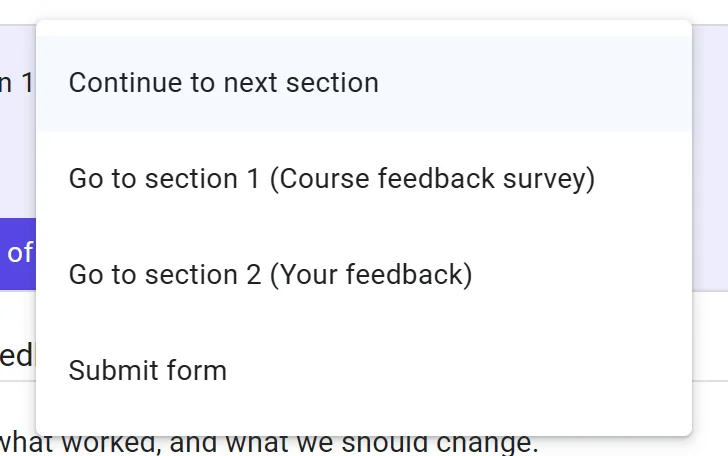
That one control covers three jobs:
- Leave it on Continue to next section and everyone sees every page in order.
- Point it at a later section and everyone skips the pages in between.
- Set it to Submit form and the form ends when that page is done.
You can also branch per answer.
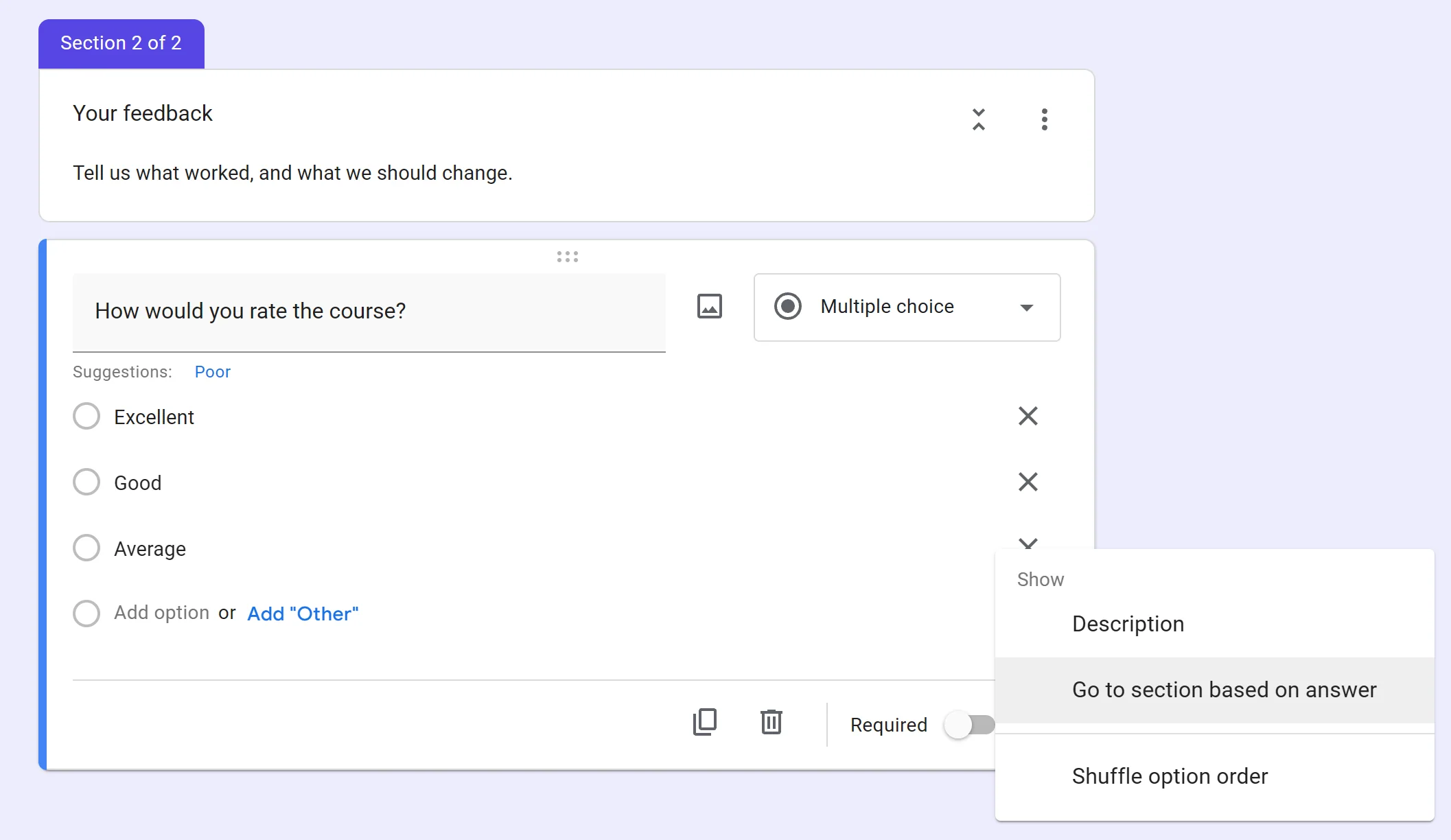
On a Multiple choice or Drop-down question, open the question’s menu and choose Go to section based on answer. Each answer then gets its own destination.
Google’s help page on showing questions based on answers walks through it. It states the limit too: those two question types only.
Step 6: Check the page people see
Each section is one page, and the person answering only sees that page.
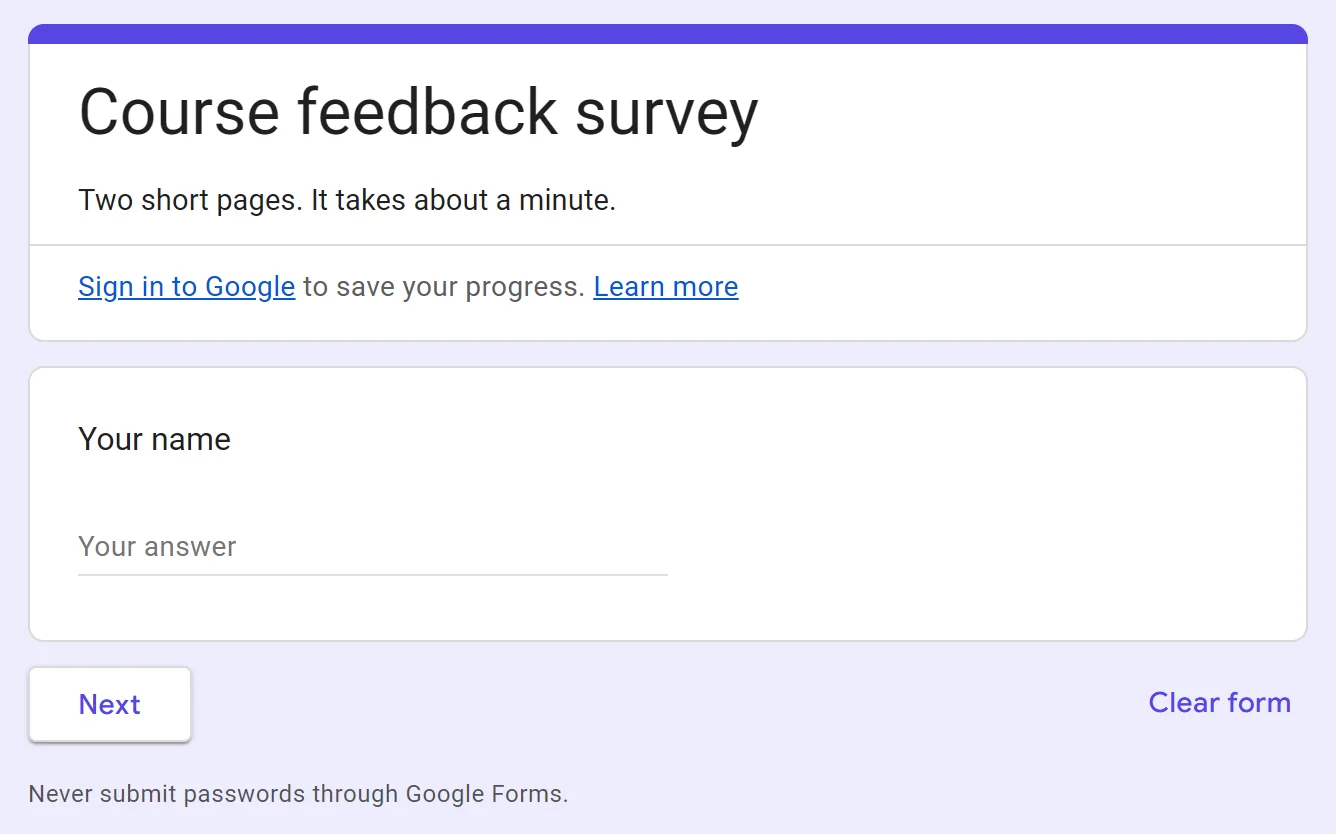
Page one carries your form title, your description and the first section’s questions, with Next under them.
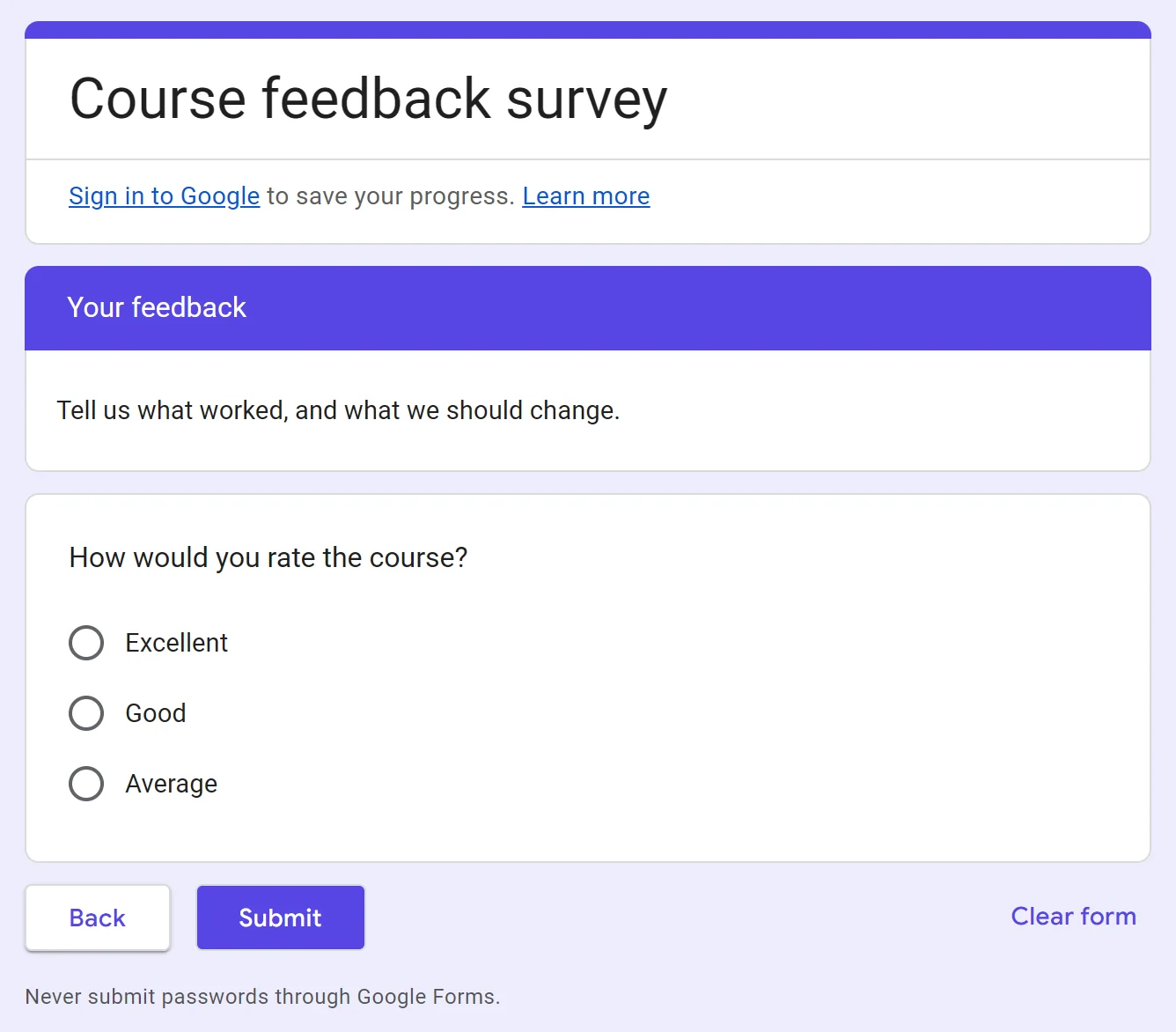
Later pages carry that section’s name and description, its questions, then Back and Submit.
Two things are worth knowing before you split a form:
- There is no page counter. On the form I built, the responder page showed no “Page 1 of 2” and no progress bar. People know there is more because there is a Next button.
- Progress is saved only for signed in people. Signed out, the form showed “Sign in to Google to save your progress. Learn more” above the first question. Someone who closes the tab loses what they typed.
Here is the form from this guide, live. Click Next and you will see the second section for yourself.
Any answer you send goes to the test account I used for this guide.
What if something goes wrong?
| What you see | Why | Fix |
|---|---|---|
| The new section landed in the wrong place | A question was selected, so the section went right below it | Press Ctrl+Z, select the right question, add the section again |
| A page has no heading | The section was never named | Click Untitled section and type a name |
| Two copies of the same question | Merge with above keeps every question | Delete the copy, or press Ctrl+Z |
| Everyone sees every page | The section’s dropdown is on Continue to next section | Open the dropdown and pick the section to jump to |
| The form ends early | A section is set to Submit form | Change that section’s dropdown |
| You cannot find Add section | It lives in the toolbar on the right, not in a top menu | Hover the toolbar icons until the tooltip reads Add section |
How many sections can a Google Form have?
Google does not publish a section limit on its help pages. The editor did not stop me at small numbers either.
I added fifteen sections to a two page form in one sitting. It took every one, reaching Section 17 of 17 with no warning.
The real limit is the person answering. Every section is another Next click, and another reason to stop.
Where Google Forms stops
A section is a page break, not a group. It changes what someone sees. It does not give a page its own rules. Branching is one question to one jump, and only from Multiple choice and Drop-down questions.
We build OG Forms, so weigh this part knowing that. Its forms are multi page by design.
Its logic shows, hides or skips any question based on any answer, not just two question types. You can check both on the features page before you move anything.
If a section break and two dropdowns solve your problem, use them. They cost nothing.
Starting from nothing? Describe the form in a sentence and the AI form builder writes the questions. Or open a template and change what you need.
FAQ
What is the difference between a section and a page in Google Forms?
Nothing. A section is a page. The editor uses the word section, and older guides say page. The button is Add section, and the editor counts them as Section 2 of 2.
How do I split an existing Google Form into sections?
Select the question you want to start the new page, then click Add section. Every question below it moves into the new section, so you never move them one at a time.
Can two sections show on the same page?
No. Each section is its own page, and the person answering sees one at a time with a Next button.
Can you move a section up or down?
Yes. Open the section menu and choose Move section. A dialog called Reorder sections lists the pages in order. Set the order and click Save.
Why did my new section go to the bottom?
Nothing was selected when you clicked Add section, so the section was added at the end. Select the question you want above it and add the section again.
What’s next
Next in this course is how to add conditional logic to Google Forms. It goes past the section jump and into rules that change as people answer.
Google Forms question types covers what belongs on each page, and how to create a Google Form covers the first build.