Close a Google Form with the Accepting responses switch in Published options, or let Google close it on a date or after a set number of responses. All three live in one dialog, and none of them are on the Responses tab.
Google Forms hides the close switch behind the Published button at the top of the editor, not on the Responses tab, where most screenshots point you.
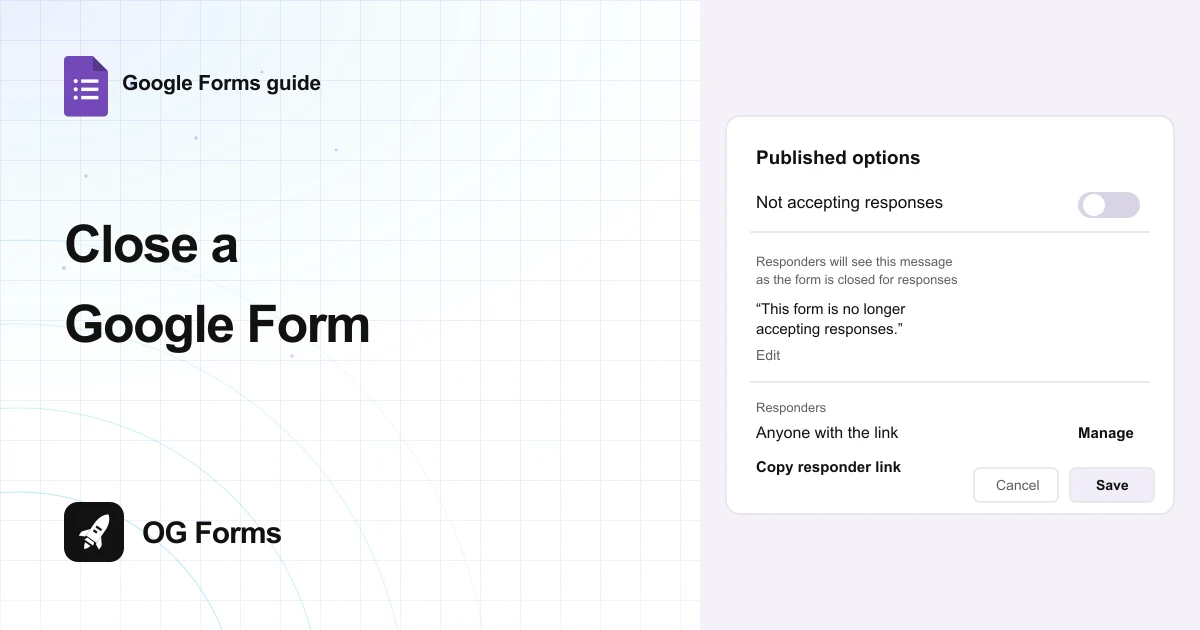
Open that dialog and you get three things: a switch that stops answers now, a rule that closes the form on a date or after a count, and the message people read once the form is shut.
I closed, scheduled and reopened a test form in Google Forms in November 2026. Every label below is copied from that session.
Every step here works in Google Forms, free, in about a minute. If the form itself is the slow part, a Google Forms alternative builds it from one sentence instead.
Step 1: Open Published options
The close switch is not on the Responses tab. It sits in the publishing dialog, next to the link.
- Open the form in the editor.
- Click Published at the top right. On a form you have never published, the same button reads Publish.
- Find the row labelled Accepting responses, then the row under it, Set close date or response limit.
- Leave the Responses tab alone. It lists answers and holds no close control.
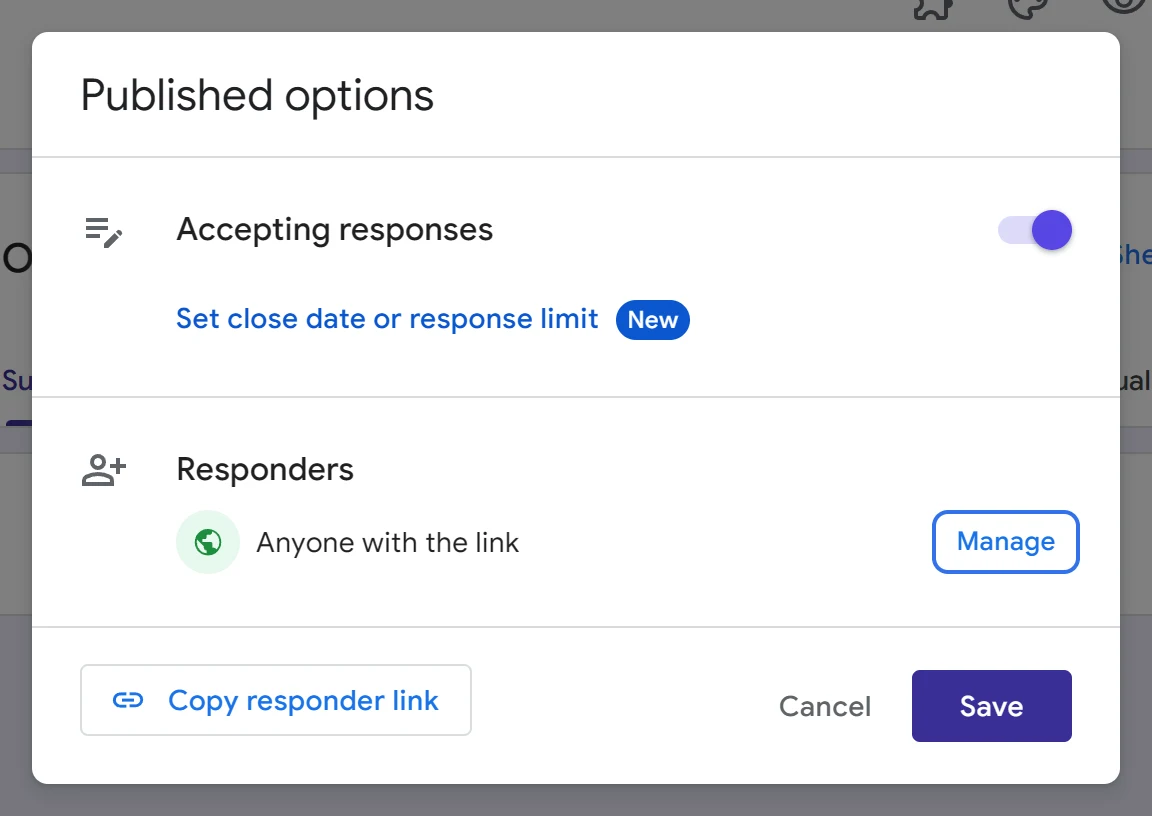
The dialog changes nothing about the answers. You can close a form and keep every response that already arrived.
Step 2: Turn off Accepting responses
This is the manual close. It takes effect the moment you save, not when you flip the switch.
- Click the Accepting responses switch to turn it off.
- If a close date or limit is already set, Google asks first: Stop accepting responses? Turning off this setting will also turn off automated closing rules that were previously set. Click Yes.
- Read the row again. It now says Not accepting responses, and the message note changes from when the form is closed to as the form is closed.
- Click Save. Cancel leaves the form open.
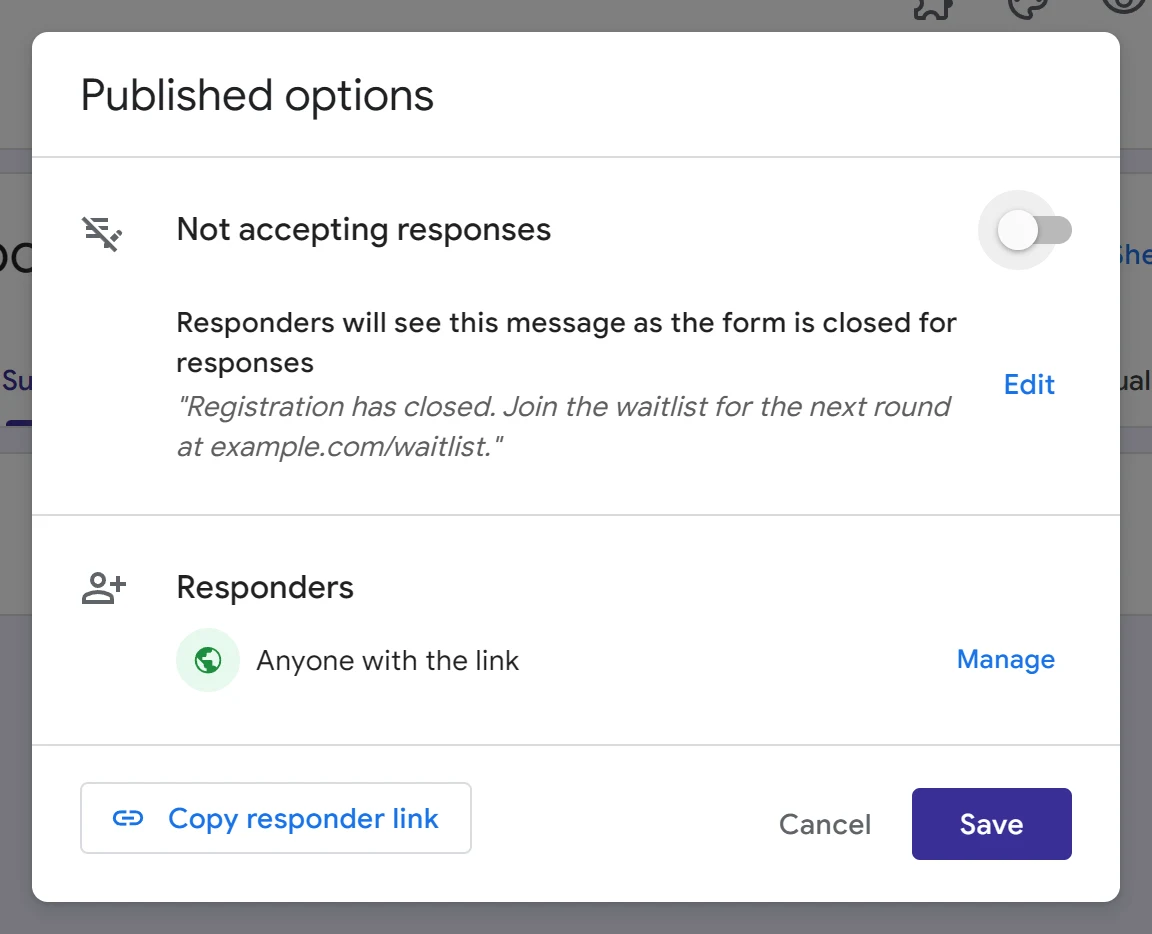
You might want to close a form at the end of the week rather than after the last answer you expect. A form left open keeps collecting whatever finds the link.
Step 3: Set a close date or a response limit
This is the part that saves you remembering. Google closes the form for you, at a time or at a count.
- Click Set close date or response limit.
- Choose On a date, then Choose date and time.
- Pick a day in the calendar. The time starts at 11:59 PM and the row shows your timezone, so the form closes at the end of that day.
- Or choose After a number of responses and type a number.
- Click Save in the small dialog, then Save in Published options.
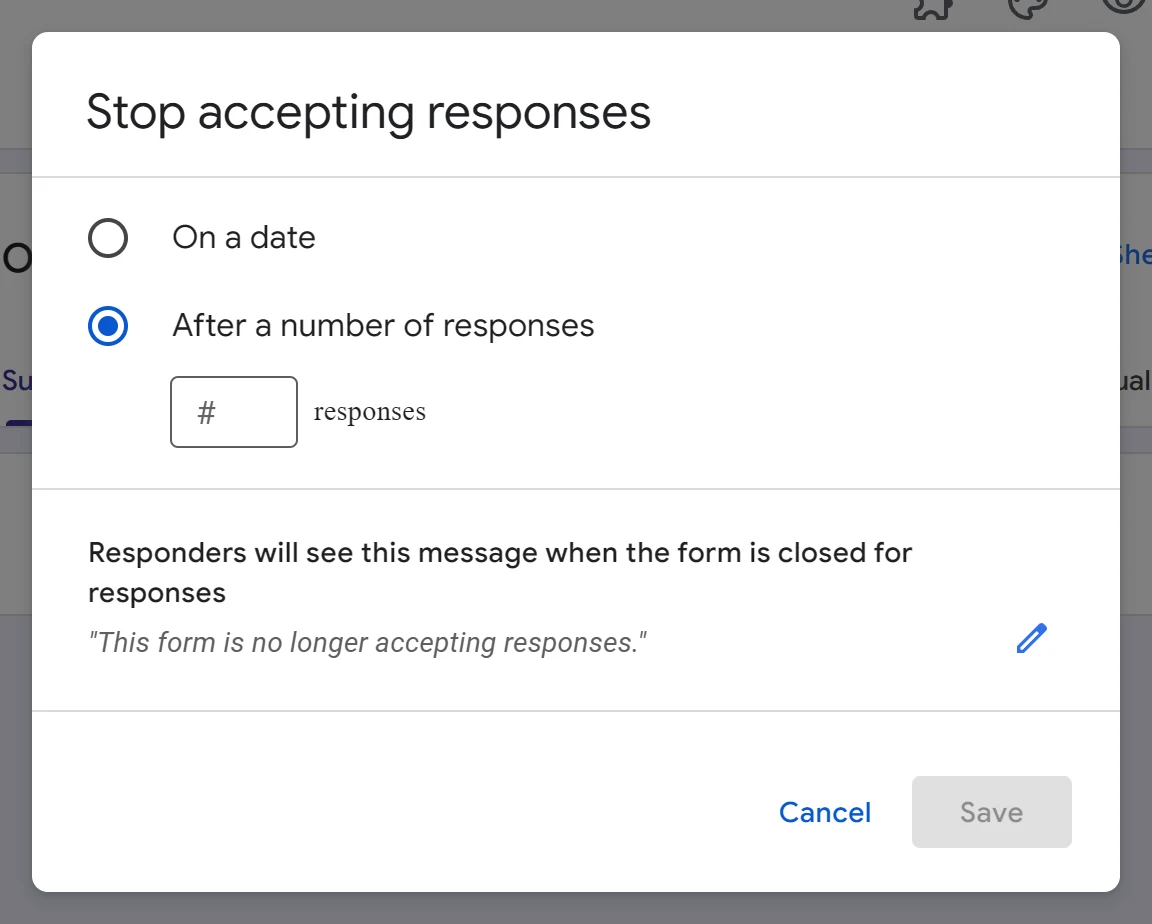
The count has to be higher than the answers you already hold. With one response in, typing 1 is refused with This form has 1 response. The limit must be greater.
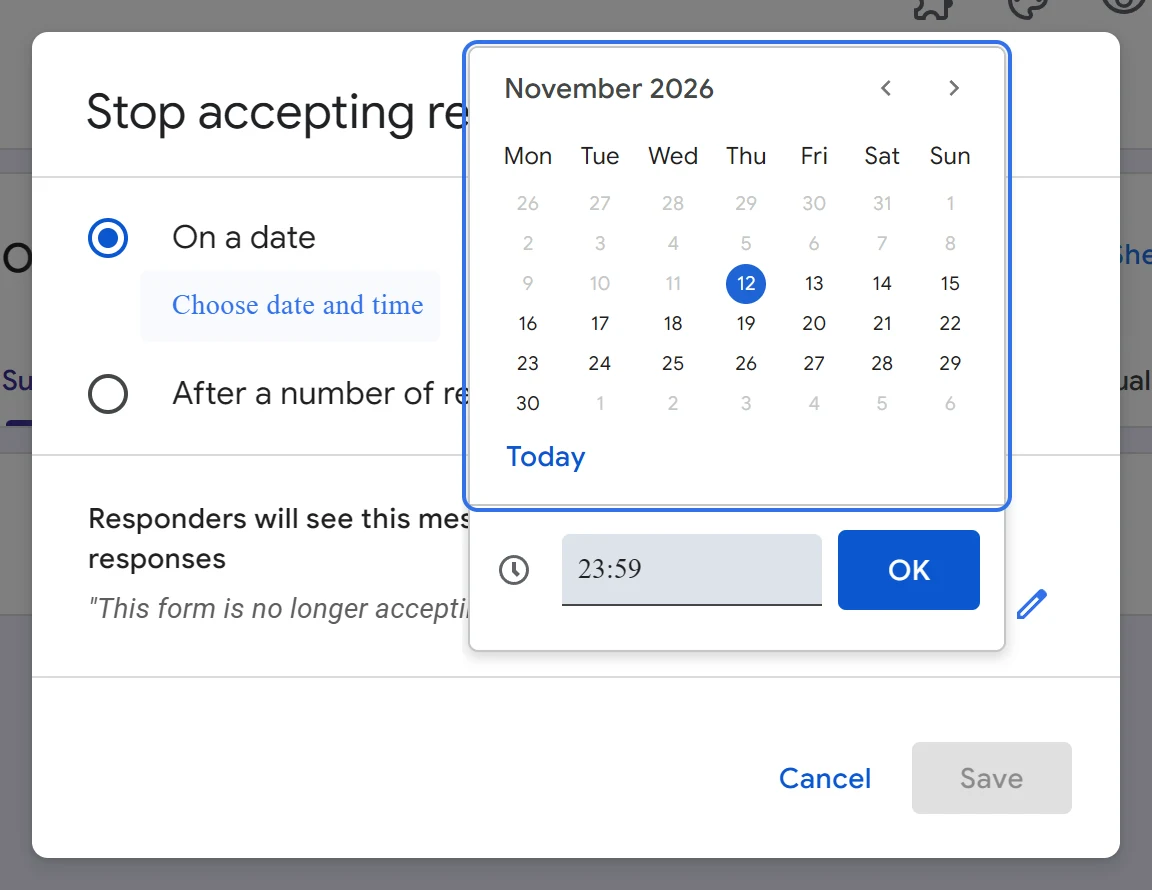
Once the rule is saved the row stops asking and reports what will happen, for example Responses accepted until 2 responses have been received, with a Manage button beside it.
Step 4: Write the message people see
Google's default message is fine, and it is also the only way anyone learns the form is shut.
- Click Edit message, under the message preview.
- Type your own sentence, or leave the box empty to keep the default.
- Click Save.
Left empty, the closed page shows the form title, then The form and your title followed by is no longer accepting responses, then Try contacting the owner of the form if you think that this is a mistake.
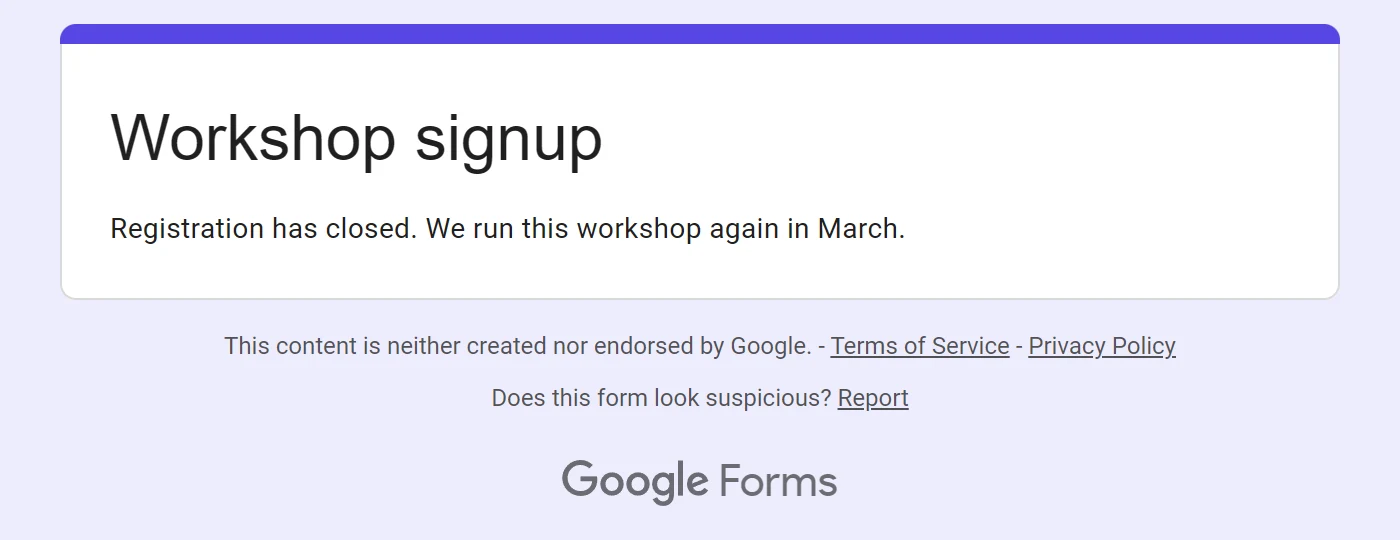
The custom line is worth writing when people will ask what happens next. Say when the form reopens, or where they should go instead.
Step 5: Reopen the form when you need it again
The same dialog opens the form, and the link does not change.
- Open Published options again.
- Turn Accepting responses back on and click Save. The form takes answers at the same link.
- Set the close date or limit again if you still need one. Turning the switch off cleared it.
- To take the published link down rather than pause it, the three dot menu in the editor has Unpublish form.
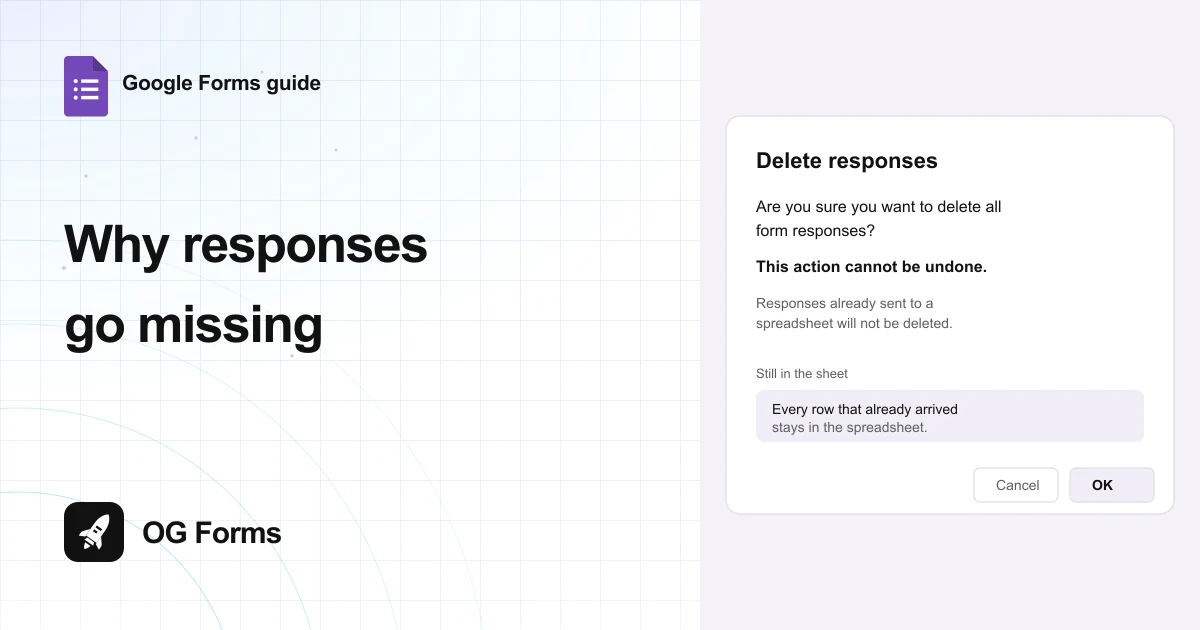
Reopening does not touch the responses you already have. Answers stay in the Responses tab and in any spreadsheet the form is linked to.
Why did my form stop accepting responses?
Five causes, in the order worth checking.
| What you see | Why | Fix |
|---|---|---|
| The link opens a page with no questions | The form is closed, so the address ends in /closedform | Turn Accepting responses back on and click Save |
| It closed before the date you chose | A response limit was reached | Open the rule with Manage and keep one rule at a time |
| Google refuses the limit you typed | The limit is not above the answers already in | Type a number higher than the current count |
| Your close date vanished | Turning the switch off also turns the automated rule off | Set the rule again after reopening |
| Respondents did not read your message | The message box was left empty, so Google's default showed | Click Edit message, write one line, then Save |
What Google Forms cannot do about closing a form
We build OG Forms, so weigh this part with that in mind.
- One rule per form. The dialog offers a date or a number of responses, not a different rule for each question or section.
- No notice to the people who missed it. The closing dialog holds a switch, a rule and a message, and nothing that emails anyone.
- The closed page is Google's. Your title and your line sit on a page with Google's footer, not on your own site.
- No waitlist behind the message. When the count is hit, the next person reads the message and that is the end of it.
If the closed page is where your signups should not end, that is a different product rather than a setting. Compare what OG Forms does with responses, or start from a form template built for the job.
For a workshop or a class list, Google Forms closes cleanly once the rule is set. Start a form in OG Forms when the page after the last answer needs to look like your site.
FAQ
How do I close a Google Form?
Click Published at the top right, turn off Accepting responses, then click Save. The form stops taking answers at that moment and keeps the ones it has.
Can I close a Google Form automatically at a certain time?
Yes. Click Set close date or response limit, choose On a date, then pick a day and time. The time starts at 11:59 PM in your form's timezone.
Can I limit the number of responses in Google Forms?
Yes. Choose After a number of responses and type a count. It has to be higher than the answers you already have, or Google refuses it with The limit must be greater.
What do respondents see when a form is closed?
The form title and your message. Left empty, the message reads The form is no longer accepting responses, followed by Try contacting the owner of the form if you think that this is a mistake.
Can I reopen a closed Google Form?
Yes. Open Published options, turn Accepting responses back on and click Save. The link is the same one, and the automatic rule is cleared, so set it again if you still need it.
Does closing a form delete the responses?
No. Closing stops new answers. The responses already collected stay in the Responses tab and in any linked spreadsheet.
What's next
If the form is still open to the whole internet, how to stop spam on Google Forms covers the two switches that slow a flood of junk answers.
If the link is the problem rather than the closing date, how to share a Google Form walks through who can reach it and the sign-in Google adds on its own.