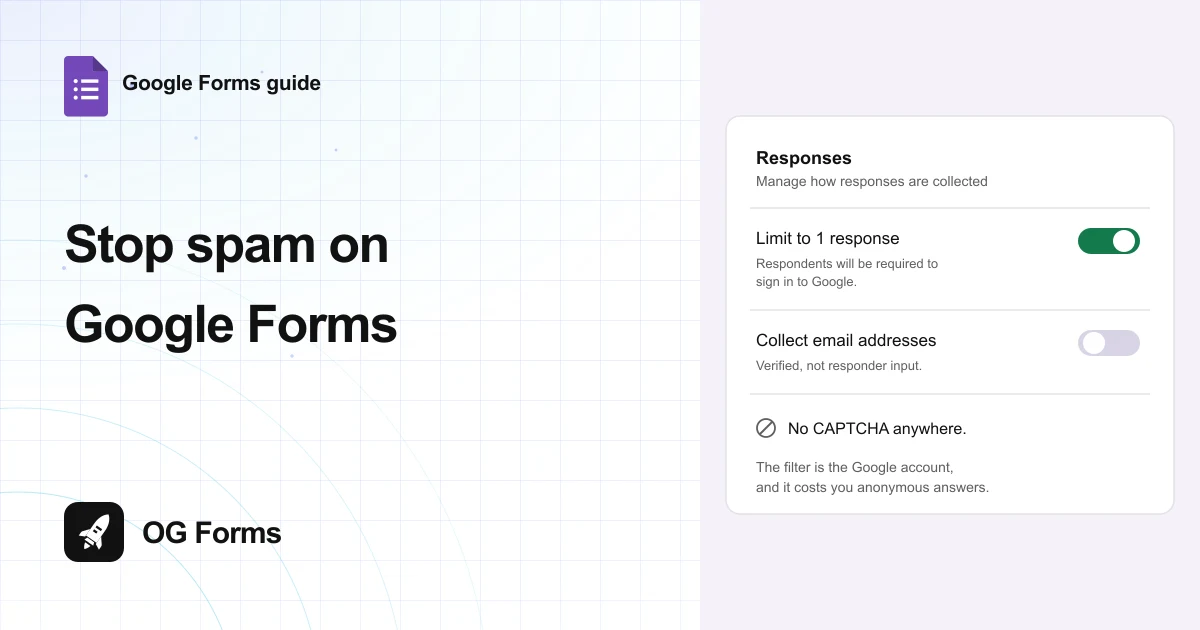
Google Forms has no CAPTCHA. The two switches that stop bots are Limit to 1 response and Collect email addresses set to Verified, and both force every respondent to sign in to a Google account.
There is no spam filter in Google Forms. No CAPTCHA, no honeypot, no blocklist, no keyword rule.
What exists instead is a trade. You can make a Google account the price of answering, or you can accept that a public link will collect junk.
That is why every list of seven ways to stop spam ends with a different form builder. The seventh way is always another product, because Google Forms stops at two.
I turned both switches on in November 2026 and read the exact note Google adds to each one.
Step 1: Turn on Limit to 1 response
This is the closest thing to a spam gate, and it costs the least if your form is not public.
- Open your form and click Settings.
- Click Responses to open that section.
- Turn on Limit to 1 response, the last row in the section.
- Read the note that appears underneath it.
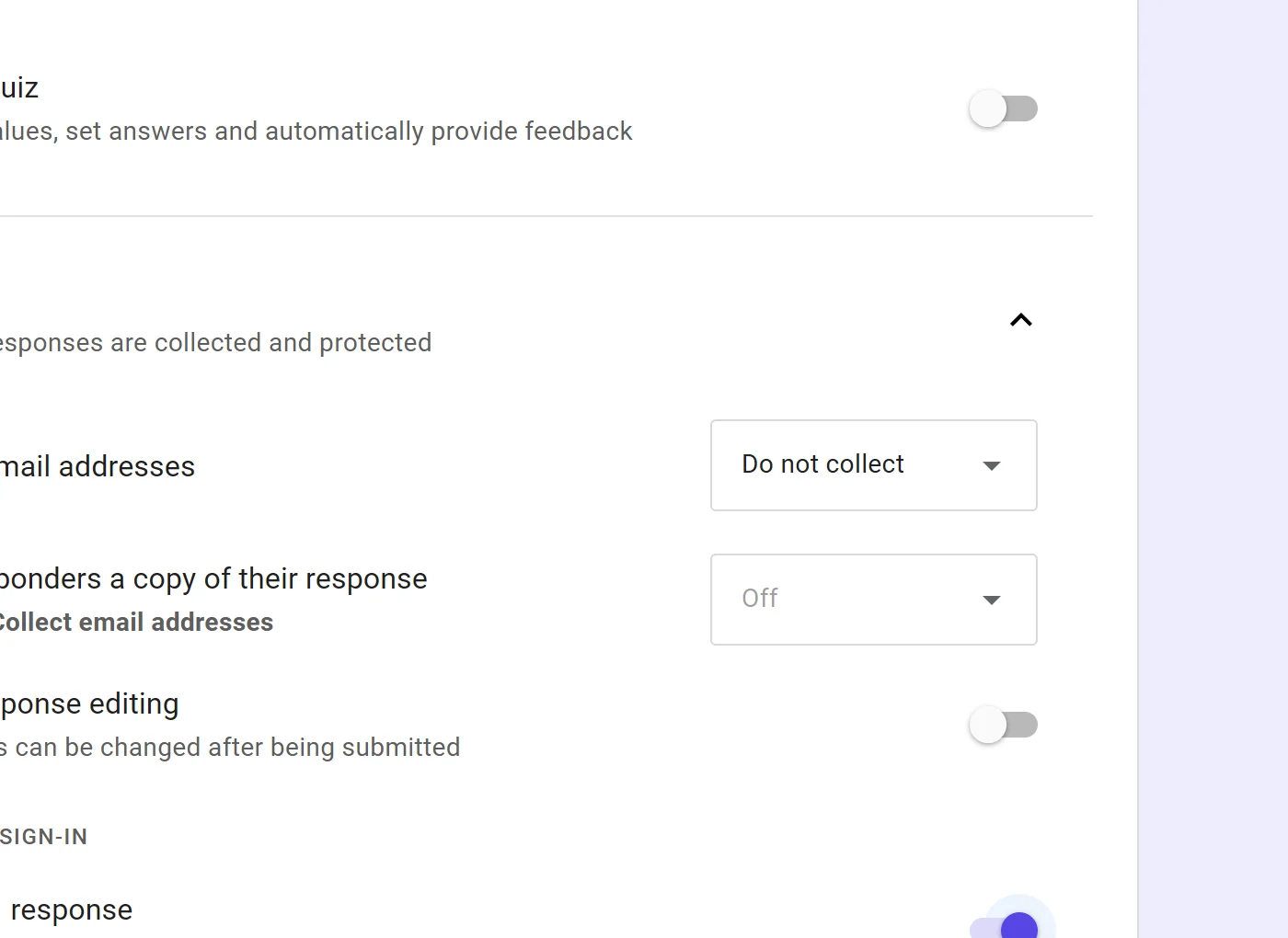
The note reads: Respondents will be required to sign in to Google.
That is what does the work. A script that posts a thousand answers does not have a thousand Google accounts, so the flood stops at one answer per account.
Step 2: Collect a verified email address as well
The second switch gives you something to look at when junk does arrive.
- Stay in Settings, then Responses.
- Set Collect email addresses to Verified.
- Read the two notes Google adds to that row.
- Leave it on Verified, not Responder input.
Verified checks the address against the account the person is signed into, so it also forces a sign-in. Responder input asks people to type an address, and a bot can type anything.
The visible difference is where the answers land. With this on, every row in Responses carries the address that sent it, so a run of junk is easy to spot and easy to remove.
Step 3: Decide whether you can pay that price
Both switches spend the same thing: anonymous answers.
- If the form is for people you know, turn both on and stop reading here.
- If it is a public survey, know that a sign-in wall cuts real respondents as well as bots.
- If you need anonymous answers, no switch in Google Forms will filter them for you.
I tested a form with email collection turned on in a browser with no Google account in November 2026. It opened, showed every question, and then blocked the answer at Submit with Sign in to continue.
That is the same wall your real respondents meet. If a one question poll should take five seconds, this turns it into a sign-in and most people leave.
Step 4: Clean up after an attack
When junk is already in, the product gives you a bin rather than a filter.
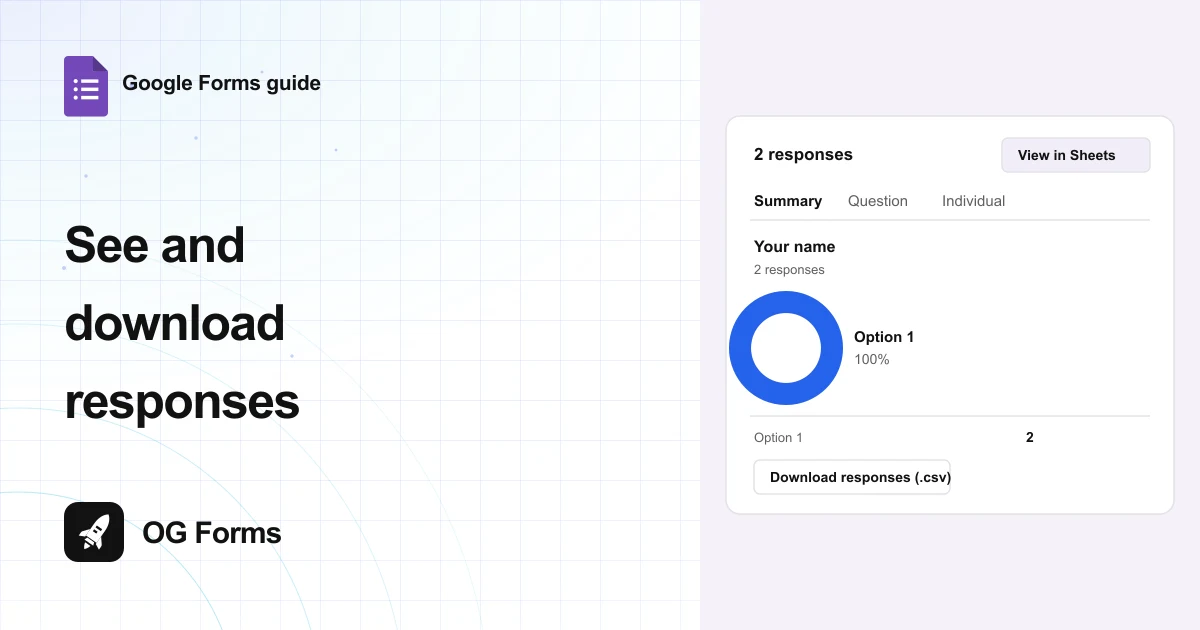
- Open the Responses tab.
- Download responses (.csv) first, in case some of it is real.
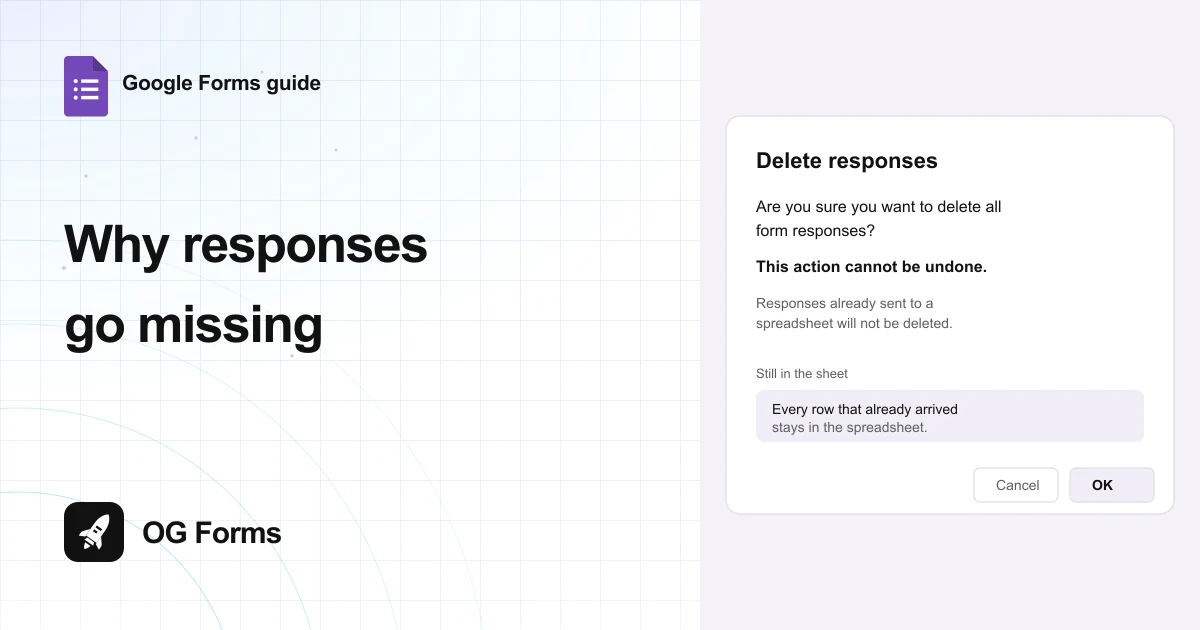
- Open the three dot menu and choose Delete all responses.
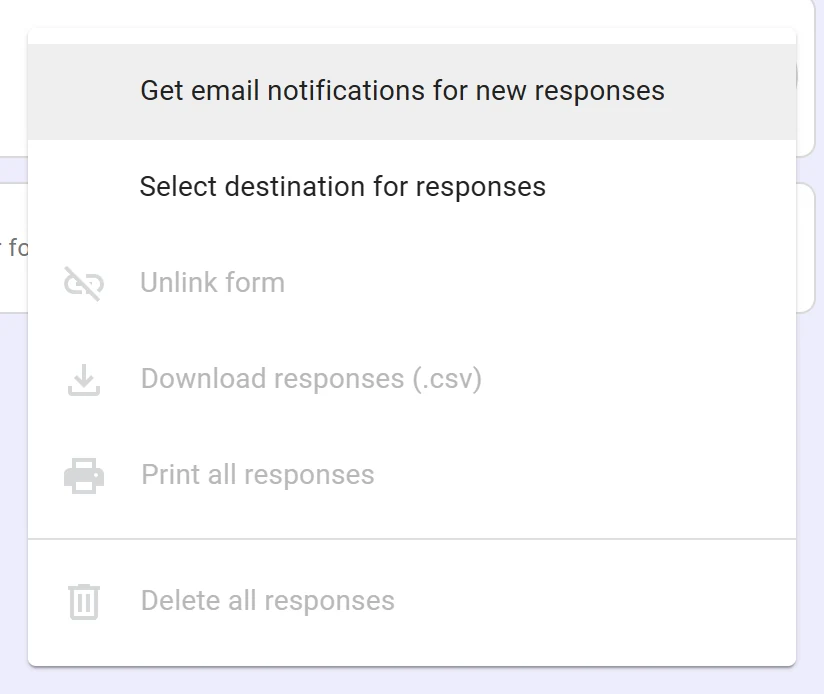
Delete all responses clears the lot, including the ones you wanted. The download is the only copy you get, so take it before you press it.
For one bad answer rather than a flood, open the Individual tab, find the response and delete it on its own.
Step 5: Take the link out of circulation
Most spam arrives because the link was still live long after the campaign ended.
- Open the three dot menu in the form editor.
- Choose Unpublish form.
- Keep the responses you already have, because the form stays in your Drive.
You might want to publish on the day you share and unpublish the day the window closes. A link that sits on an old page for a year keeps collecting whatever finds it.
Why am I still getting spam?
Four causes, in the order worth checking.
| What you see | Why | Fix |
|---|---|---|
| Dozens of answers with links in every field | The link is public and answering needs no account | Turn on Limit to 1 response, or collect verified emails |
| The same person answered twice | Nothing stops a second submission | Limit to 1 response, which asks them to sign in |
| Answers typed into a field that should be a number | Nothing checks the content of a field by default | Make the question required, and delete what is already there |
| Spam months after the event | The published link is still live | Unpublish form from the three dot menu |
What Google Forms cannot do about spam
We build OG Forms, so weigh this part with that in mind.
- No CAPTCHA. Settings holds four sections, Make this a quiz, Responses, Presentation and Defaults, and none of them mentions spam, bots or verification.
- No blocklist. There is no place to block an address, a domain or a phrase, so the same sender can come back next week.
- No anonymous filtering. Both switches require a Google account, so a form that must stay anonymous has no spam control at all.
- No undo. Delete all responses is a single item in a menu, with no recycle bin behind it.
If you need a form that stays open to strangers and still keeps the junk out, that is a different product rather than a setting. Compare what OG Forms does with responses, or start from a form template built for the job.
For a form you send to a known list, Google Forms does the job once both switches are on. Start a form in OG Forms when the audience is the open web.
FAQ
Does Google Forms have a CAPTCHA?
No. There is no CAPTCHA, honeypot or bot check anywhere in the form editor or in Settings.
How do I stop bots on Google Forms?
Turn on Limit to 1 response, or set Collect email addresses to Verified. Both require respondents to sign in to a Google account, which is what stops a script.
Can I block an email address in Google Forms?
No. There is no blocklist, so you remove the responses you have and rely on the sign-in requirement to slow the next attempt.
Why does turning on spam protection ask people to sign in?
Because the check is the Google account. Limiting answers to one and verifying an email address both rely on knowing who is answering.
Does deleting responses stop the spammer?
No. It clears what arrived. Stop the next batch with the sign-in switches, or unpublish the form.
What's next
If the form is collecting junk because it is far too easy to open, how to share a Google Form covers who can reach the link and the sign-in a form adds on its own.
If you want the responses somewhere you can sort and delete properly, connecting the form to Google Sheets puts every answer in a file you can clean up in bulk.