Select a question and click Add image or Add video in its toolbar. Images come from a URL, Google Photos, Drive, Google Images, your computer or a webcam. Video comes from YouTube.
Both buttons sit in the question toolbar, next to the duplicate and delete icons. Neither is on the Questions tab at the top.
I opened both pickers in Google Forms in November 2026 and listed every source they offer.
One limit decides most of this for you. Google Forms plays YouTube video and takes nothing else.
If you were hoping to upload a clip, a Google Forms alternative is the honest route. Images work fine here.
Step 1: Select the question and find the buttons
An image or a video attaches to a question, so start by selecting one.
- Open your form in Google Forms.
- Click the question you want the media under.
- Find the three icons on the right of the card: Add image, Add video, Add inline image.
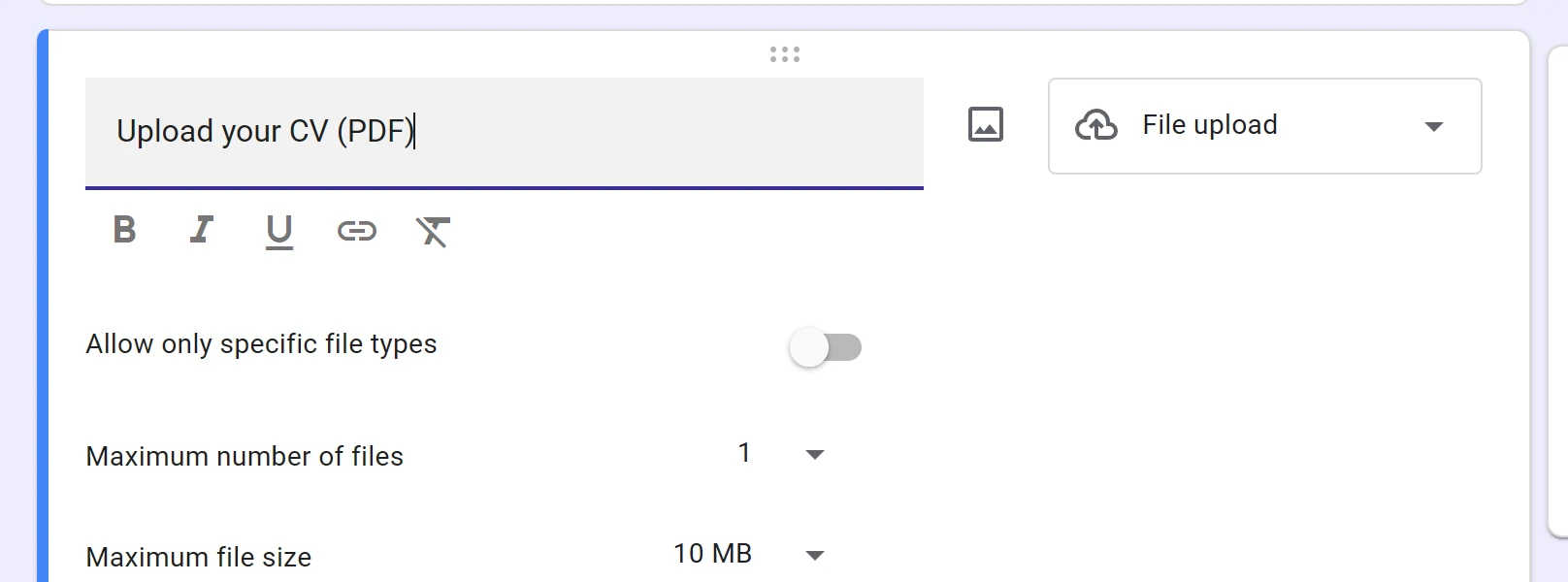
Add inline image is the odd one out. It puts a picture inside the question text, so it can sit between two sentences.
Step 2: Choose where the image comes from
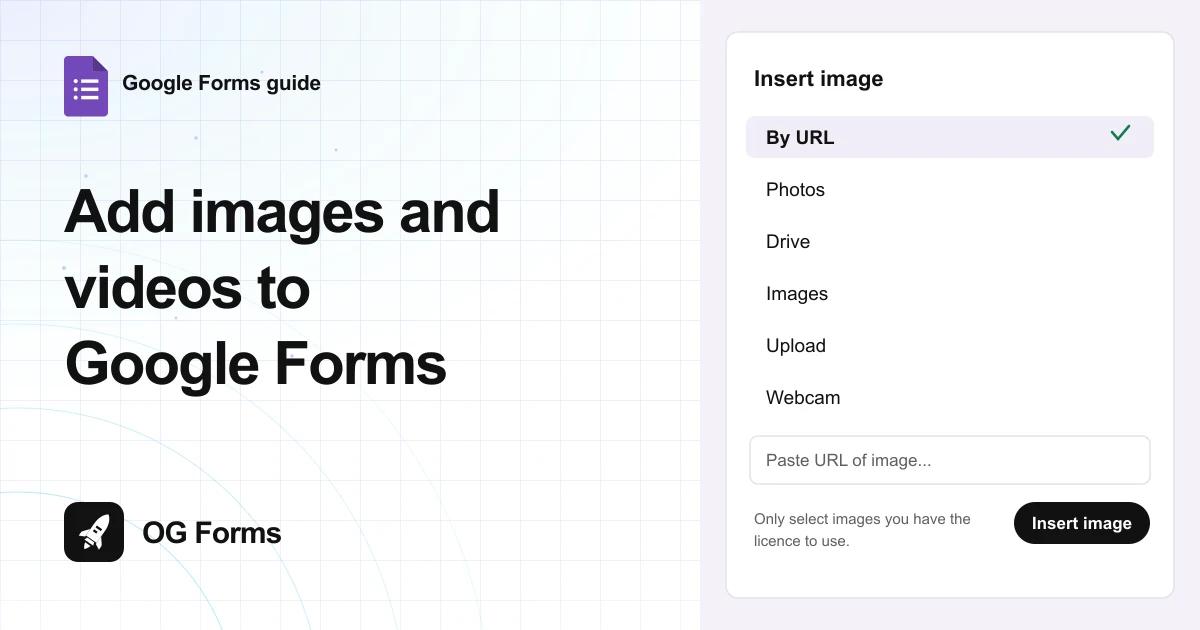
Add image opens a picker called Insert image with six sources across the top.
- By URL to paste a link to an image already online.
- Photos for your Google Photos library.
- Google Drive for a file you own.
- Google Images to search without leaving the form.
- Upload to pick a file from your computer.
- Webcam to take the picture now.
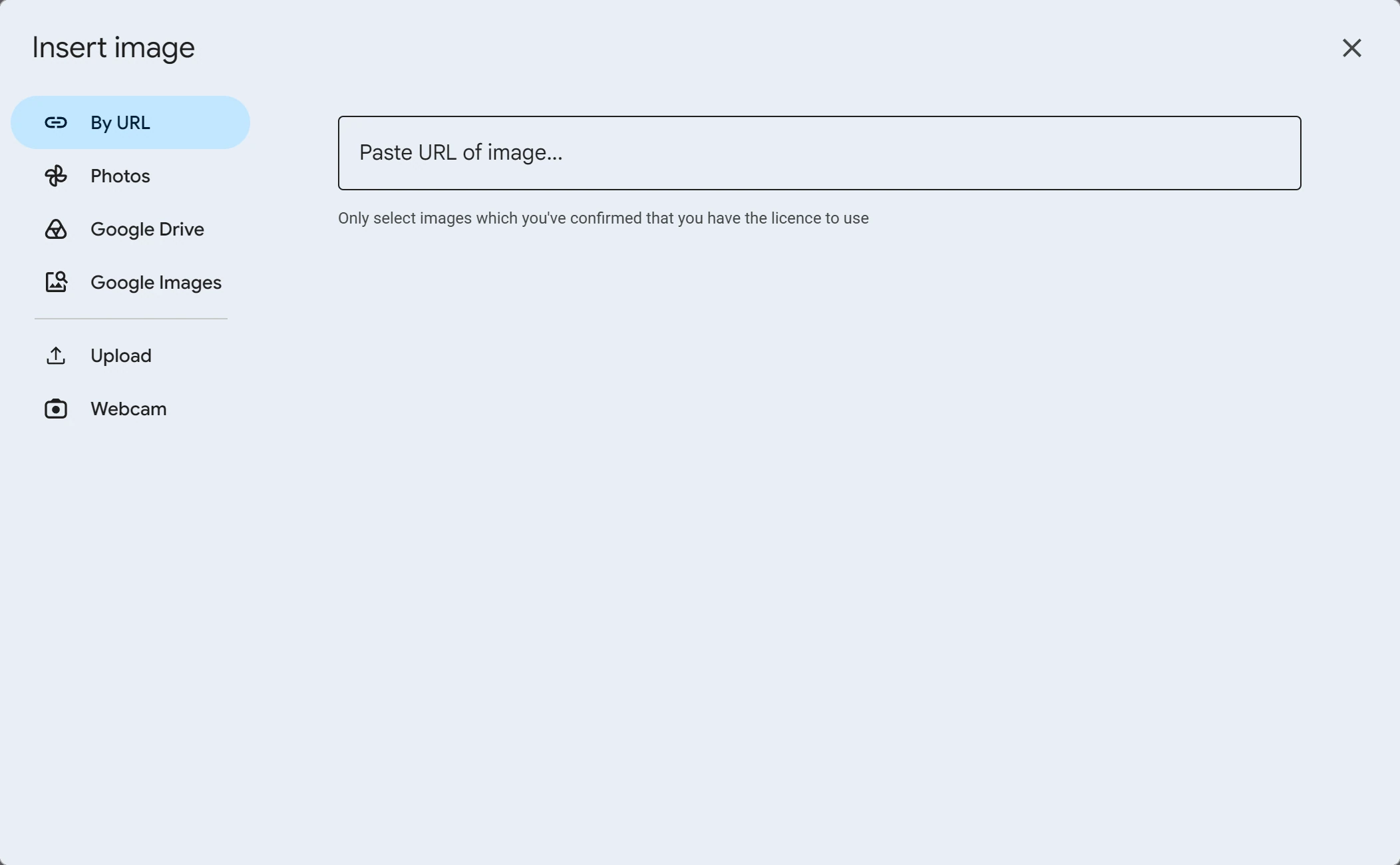
The dialog carries a line worth reading: only select images you have confirmed you have the licence to use. Google puts that there for a reason.
Step 3: Add a video from YouTube
Add video opens a dialog called Select video. It does not take a file.
- Search all of YouTube inside the dialog, or
- Paste a YouTube URL into the same box.
- Pick the result and it drops into the question.
You might want to paste a URL rather than search, even when you know the video. Search results change, and a pasted link is the one you checked.
Why is my image or video not appearing?
Three causes, and Google names the first two for you.
| What you see | Why | Fix |
|---|---|---|
| We can’t find or access the image at that URL | The link is wrong, private, or blocks Google | Open the link in a private window and check it loads |
| The URL is not valid | It does not start with http:// or https:// | Paste the full address, including the start |
| No video results at all | The dialog searches YouTube, not your Drive | Upload the clip to YouTube first, or use a link |
| The image is there in the editor but not on the form | The change was made after the last publish | Click Publish again |
What media in Google Forms cannot do
- No video upload. The picker searches YouTube and takes a URL. There is no Upload tab.
- No image behind the questions. A picture belongs to a question, or to the header band.
- No captions on every source. Alt text is not asked for when you paste a URL, so a screen reader gets the file name at best.
We build OG Forms, so weigh this part with that in mind.
If media is central to what you are collecting, compare the two before you commit. The features page is the place to do that.
For a logo at the top of a form and one explanatory picture, Google Forms is enough, and it is free.
FAQ
Can you upload a video to Google Forms?
No. The Select video dialog searches YouTube and accepts a YouTube URL, and it has no upload tab.
Put the clip on YouTube first if you need it in the form.
Can I add an image without a file on my computer?
Yes. Use By URL and paste a public image link, or pick from Google Drive or Photos.
A private link fails, which is what the can’t find or access error means.
Does the image show on the published form?
Yes, once you publish. Adding media after the last publish needs another Publish before respondents see it.
What’s next
If the picture is meant to be your branding rather than an illustration, how to change the theme in Google Forms covers the header band.
If you want people to send you files the other way, how to add file uploads covers that question type.