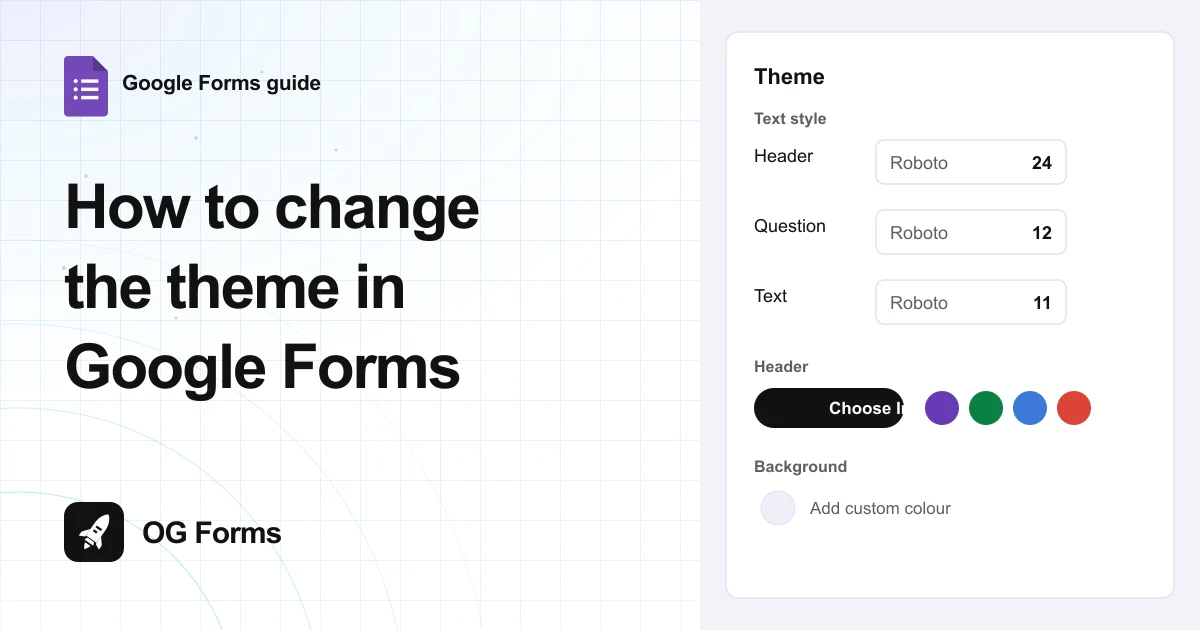
Click the palette button at the top right of the editor and the Theme panel opens. It holds a font and size for each text style, a header image or colour, and a background colour.
The theme panel is the only place Google Forms lets you change how a form looks. There is no Design tab.
I opened it in Google Forms in November 2026 and read every control. It is a short list, and two things people ask for are not on it.
There is no dark mode and no background image. You get fonts, sizes, a header and colours.
If your brand is the reason you are here, a Google Forms alternative is the honest route. Everything below works in Google Forms today.
Step 1: Open the theme panel
The button is a palette icon at the top right, next to the preview eye.
- Open your form in Google Forms.
- Click the palette button. Its label reads Customise theme, or Customize theme in US English.
- Leave the panel open while you work, because every change applies live.
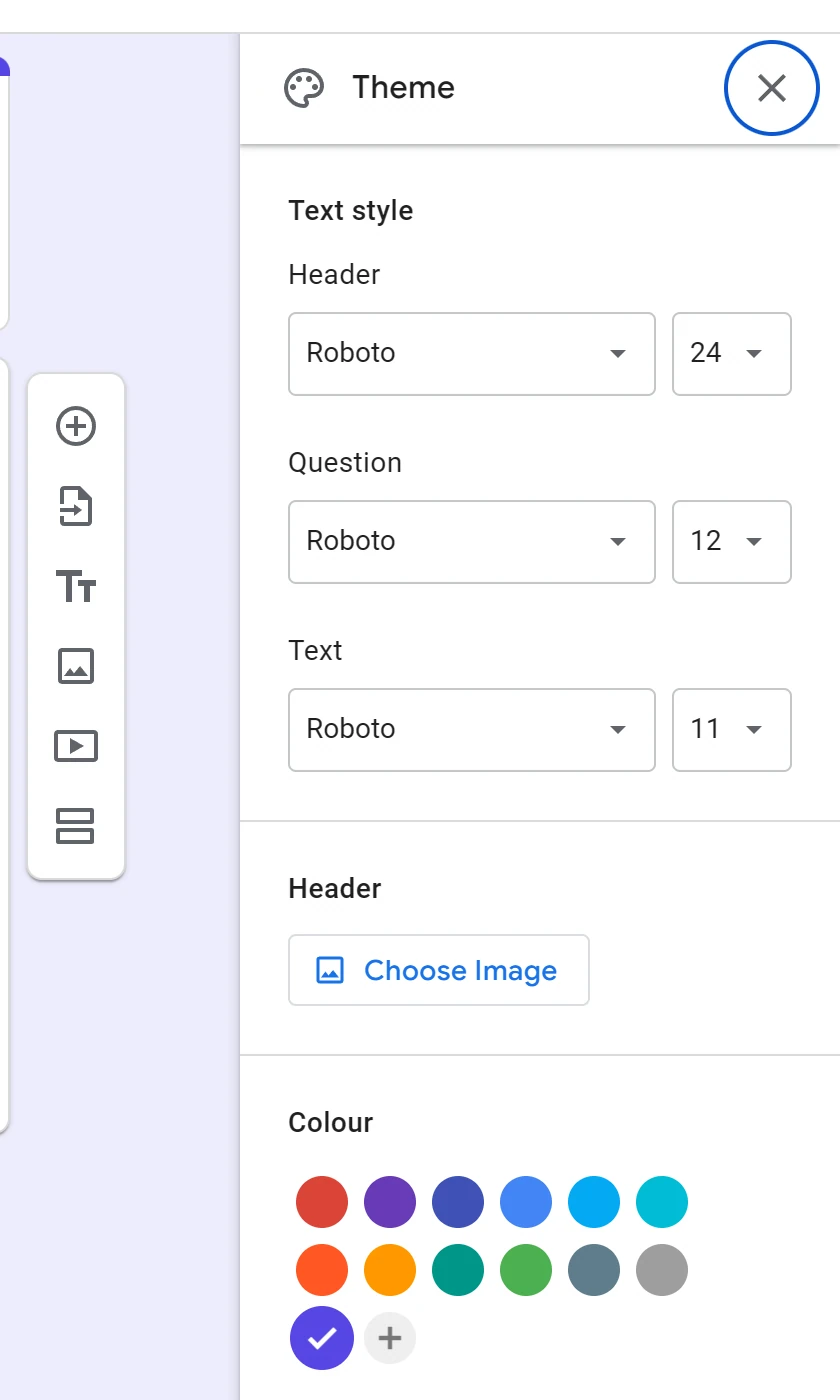
The panel edits the whole form. There is no way to style one question differently from the rest.
Step 2: Pick a font and size for each text style
Three rows under Text style control every word on the form: Header, Question and Text.
- Click the font name to open the family list.
- Click the number beside it to change the size.
- Do the same for all three rows.
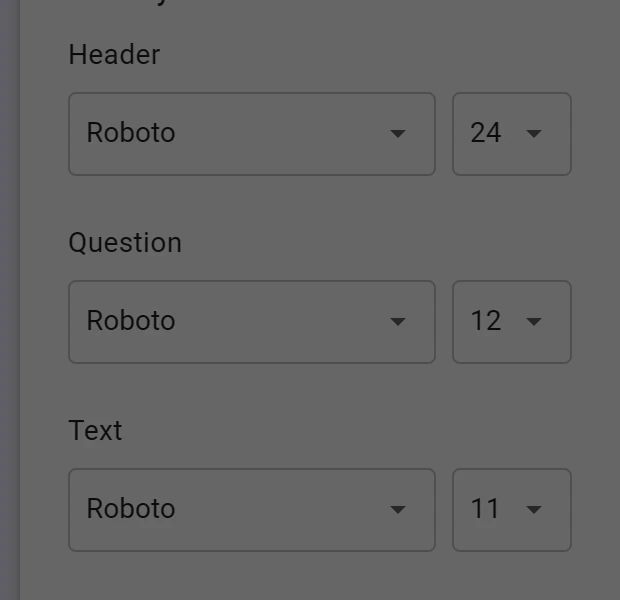
The defaults are Roboto at 24 for the header, 12 for questions and 11 for text.
You might want to leave the header font alone and change only the body. It is the cheaper change, and it keeps the title readable when someone opens the form on a phone.
Step 3: Set the header and the background
Two colours decide the look of the page before anyone reads a word.
- Under Header, click Colour to recolour the band at the top.
- Click Choose Image to replace that band with a picture.
- Under Background, open the swatch, then Add custom colour to type a hex value.
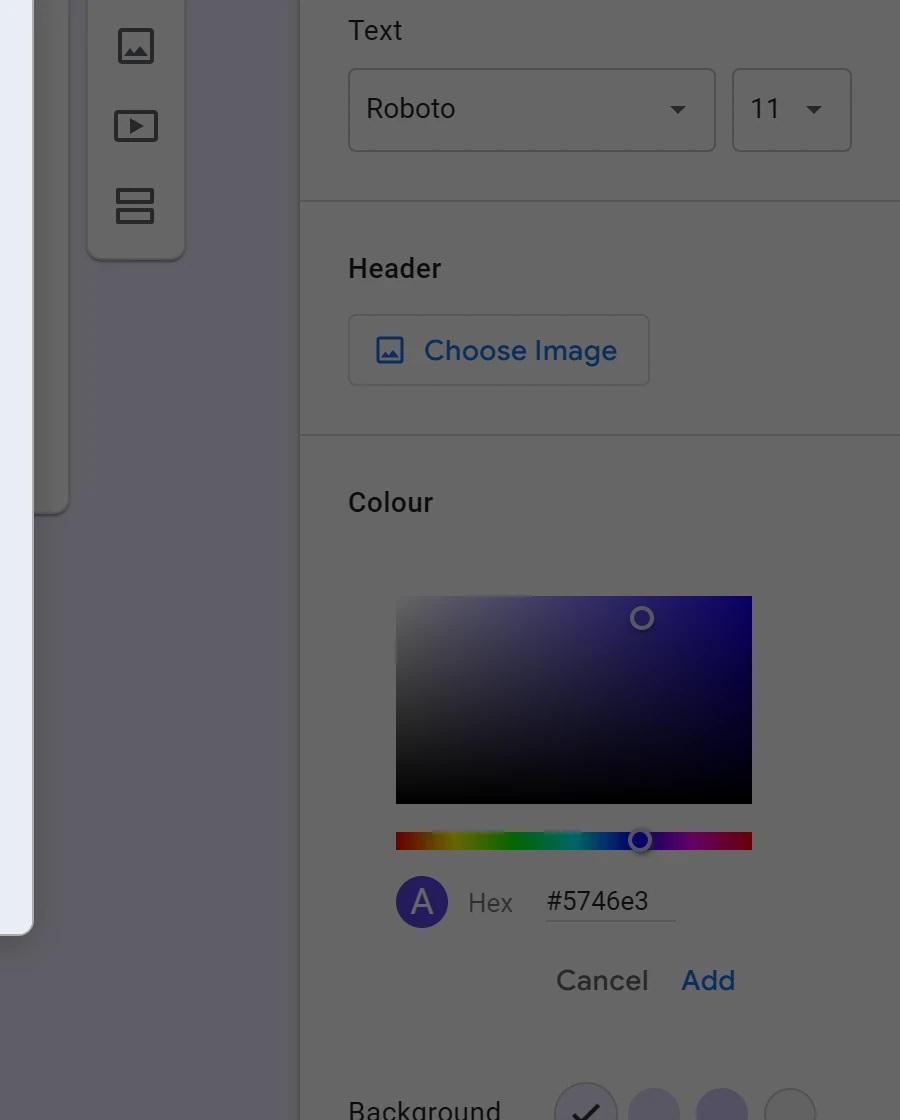
Paste a hex code into the Hex field and click Add. That is how you get an exact brand colour rather than the nearest swatch.
Why is the theme not doing what I want?
Four things people expect from a theme that Google Forms does not offer.
| What you want | What happens | Way round it |
|---|---|---|
| Dark mode | There is no setting for it in the panel | Set a dark background colour and light text instead |
| A photo behind the questions | Background takes a colour only | Use the image in the header band instead |
| One question styled differently | The panel edits the whole form | Use a section break to separate the part visually |
| The theme in the email or the spreadsheet | Both are plain by design | Build the look into the form, not the notification |
What the theme cannot do
- No dark mode. Nothing in the panel flips the form to dark; you fake it with colours.
- No background image. Background is a colour field, and the header holds the picture.
- No custom CSS. Fonts, sizes and two colours are the whole list.
We build OG Forms, so weigh this part with that in mind.
Per-form themes, fonts and colours are free there, and a workspace brand kit sits on Pro. The features page covers the rest.
If you want a form that looks tidy rather than on-brand, the Google Forms theme is enough, and it is free.
FAQ
Does Google Forms have a dark mode?
No. The theme panel has no dark setting, and the form follows its own colours rather than your device.
To get close, set a dark background colour and pick light text.
Can I add a background image?
No. Background takes a colour, and the picture goes in the header band above the title.
What size should the header image be?
The panel does not print a recommended size. The header is a wide band, so a tall photograph loses its top and bottom.
Start with a wide crop and check it on a phone before you send the link.
What’s next
If you are adding pictures to the questions themselves, how to add file uploads covers the other kind of image a form can take.
If you are copying a form to reuse the look, how to copy a Google Form keeps the theme with it.