Open the three dot menu in the form editor and choose Embed HTML. Google hands you a finished iframe with the width and height already filled in. Copy it, paste it into your page HTML, and the form appears inside the page.
The embed code is in the form editor, and it is not behind the Share button.
It sits under the three dot menu, as Embed HTML. One dialog, one block of code, two numbers to check.
Those two numbers are what decide whether the embed looks right. Google works out the height for you, and it does not work out the width at all.
I opened the dialog on a three question quiz in November 2026, changed the width, and dropped the code into a page to see it render.
Step 1: Open the embed dialog
Start in the form, not in your website builder.
- Open your form in the editor.
- Click the three dot menu at the top right.
- Choose Embed HTML, sixth item down.
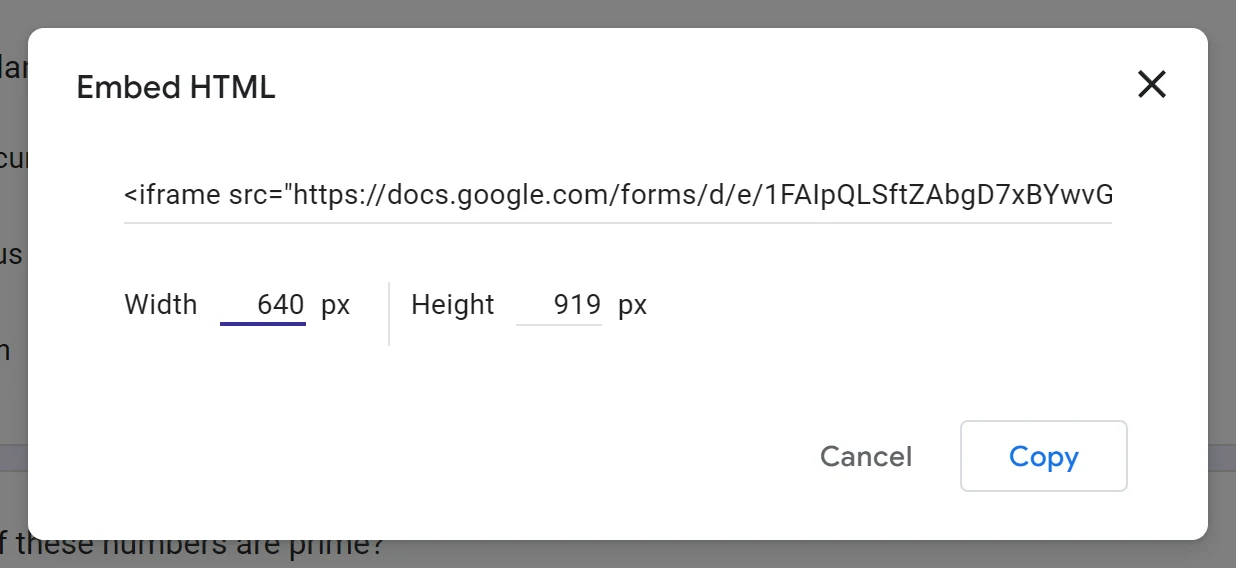
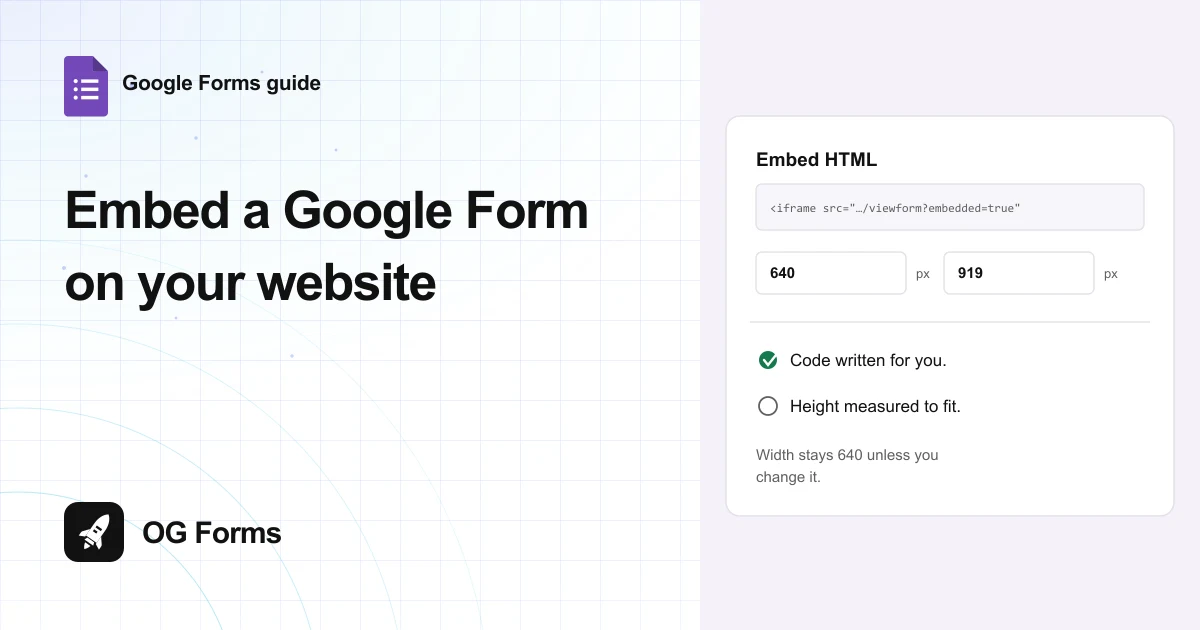
The dialog holds the whole iframe, a Width in pixels field, a Height in pixels field and a Copy button.
You might want to note the height before you change anything. That number is the form measured at that width, and it is the difference between a clean embed and a form with its Submit button hidden.
Step 2: Read the code before you copy it
The field is one line, so the code scrolls. Here is what mine held, with the long id shortened:
src="https://docs.google.com/forms/d/e/…/viewform?embedded=true"
width="640" height="919" frameborder="0"
marginheight="0" marginwidth="0"
Four parts matter, and only one of them is yours to change.
- The address ends in viewform?embedded=true. That flag is what strips the Google header and fits the form to a frame.
- width was 640 on my form. That is a fixed pixel width, not a percentage.
- height was 919, measured for the quiz I opened.
- frameborder, marginheight and marginwidth are all zero, so the iframe draws no border of its own.
The height is the useful part. A three question quiz needed 919 pixels, because the questions, the options and the Submit button all sit inside the frame.
Step 3: Change the width if your page is narrower
The width field rewrites the code as you type, so you can fit the column before you copy.
- Click the Width in pixels field.
- Type the width of the column the form will sit in.
- Watch the code field change to match.
- Copy once the number is right.
I changed 640 to 480 and the code came back with width="480" in the same iframe. The height stayed at 919, so the frame simply got taller relative to its width.
That is why the height is worth keeping. Changing the width does not re-measure the form.
Step 4: Paste it into the page and check it renders
The code goes into the HTML of your page, not into a text block or a caption field.
- Copy the iframe from the dialog.
- Paste it where the form should appear in your page source.
- Open the page in a browser, not in the editor preview.
- Check the questions and the Submit button are both inside the frame.
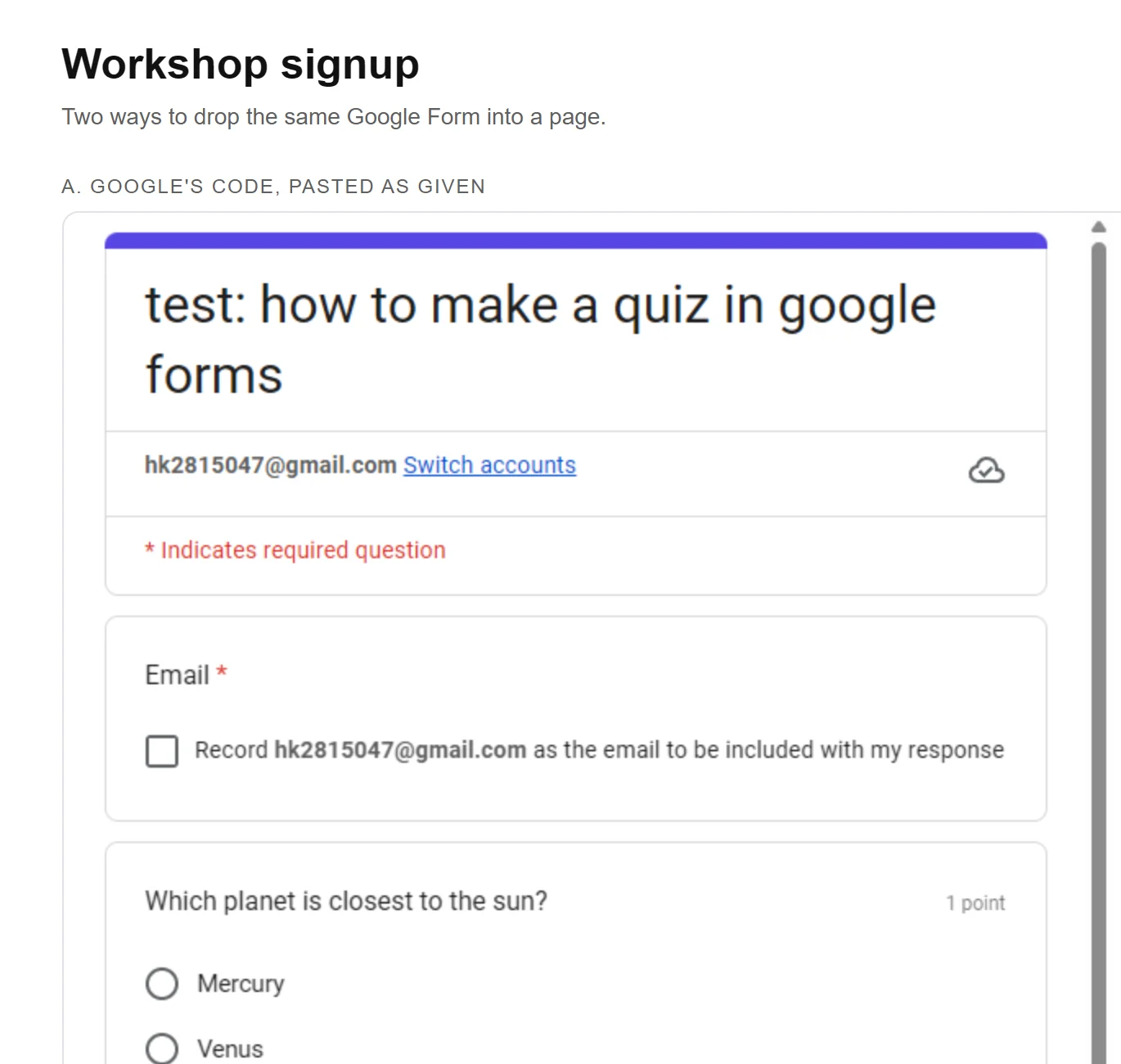
I pasted the snippet into a plain page with a heading and a bordered box around it. The form loaded inside the frame and looked like the form, not like a Google page.
The visible gap to the right of the form is the fixed width doing its job. 640 pixels is 640 pixels, whichever column you put it in.
Step 5: Make it fit a phone
A 640 pixel frame on a 390 pixel phone is wider than the screen, so the form gets clipped or the page scrolls sideways.
- Keep the iframe exactly as Google gives it.
- Add a rule in your stylesheet that targets that iframe.
- Set width to 100%, display to block and border to none.
- Leave the height in place, so the form still has room.
iframe[src*="docs.google.com/forms"] {
  width: 100%;
  display: block;
  border: 0;
}
That rule overrides the width attribute without touching the code Google gave you, so you can paste a fresh snippet later and the fit still works.
The height stays fixed on purpose. A form is a fixed stack of questions, and a percentage height would collapse to nothing in most layouts.
Why is my embedded form not showing?
Five causes, in the order worth checking.
| What you see | Why | Fix |
|---|---|---|
| An empty box, or the word Loading | The form is not published, so the address inside the code goes nowhere | Publish the form, then open Embed HTML again for a fresh snippet |
| The form shows but Submit is cut off | The height was trimmed below the form's real height | Put the height back to the number Google filled in |
| A Google page inside your page | The ?embedded=true flag was removed from the address | Paste the code again from the dialog instead of editing the address |
| The form is clipped on a phone | The width is fixed at 640 pixels | Set the iframe width to 100% in your stylesheet |
| Two scrollbars beside the form | The frame is taller than the space you gave it | Increase the height, or place the embed in a wider column |
What the embed cannot do
We build OG Forms, so weigh this part with that in mind.
- No autosizing. The frame keeps the height you gave it, so a form that grows on a small screen needs a taller number than the one that shipped.
- No styling inside the frame. Your fonts and colours stop at the edge of the iframe. The form carries its own, which you set in the form editor.
- No tracking on the page. The frame is a separate document, so your page analytics see the embed load and nothing after it.
If the form has to look like the page around it, an iframe will always show a seam. Compare what OG Forms does with brand and layout, or start from a ready made template so the design is decided before the embed.
For a form on a page you own, the iframe Google gives you is fine and free. Start a form in OG Forms when the seam matters more than the shortcut.
FAQ
Where is the embed code in Google Forms?
Under the three dot menu at the top right of the form editor, as Embed HTML. It is not in the Share dialog or in Settings.
What size should the embedded form be?
Use the height Google fills in, because it measured your form. Set the width to the column the form will sit in, or override it to 100% in your stylesheet.
Why is my embedded Google Form cut off at the bottom?
The iframe height is shorter than the form. Put the height back to the number the dialog gave you, or increase it until the Submit button sits inside the frame.
Can I change the width after copying the code?
Yes, in the width attribute. Changing the width in the dialog rewrites the code for you, but it does not change the height.
Does the embedded form collect answers the same way?
Yes. It is the published form inside a frame, so answers land in Responses exactly as they do from the link.
What's next
If the form is going on a page rather than into a message, how to share a Google Form explains the link, who can open it, and the sign-in a form adds when it collects emails.
If the form looks flat inside the frame, changing the theme is the fix, because the iframe inherits the form's own colours and nothing from your site.