Turn on quiz mode in Settings, then give every question a correct answer and a point value. Google marks every response, and each person can open their own score.
Google Forms will mark a quiz for you. The switch is in Settings, which is the last place most people look.
I built and tested everything below in Google Forms in November 2026, on a free account. The labels and screenshots are what the editor shows today.
The one thing it will not do is time a quiz. There is no countdown and no auto-submit.
If a timer is the reason you are here, a Google Forms alternative is the honest answer. Everything below works in Google Forms today.
Step 1: Turn on quiz mode
Quiz mode is one switch in the settings tab. Turn it on first, because until you do there is nowhere to write a correct answer.
- Open your form in Google Forms.
- Click Settings at the top.
- Find Make this a quiz and switch it on.
A total points badge appears next to the tabs, so you can see what the quiz is worth at a glance. Settings also grows Release marks, Respondent settings and Global quiz defaults.
You might want to set the default point value first. Put 2 in Global quiz defaults and every new question is worth 2 until you change it.
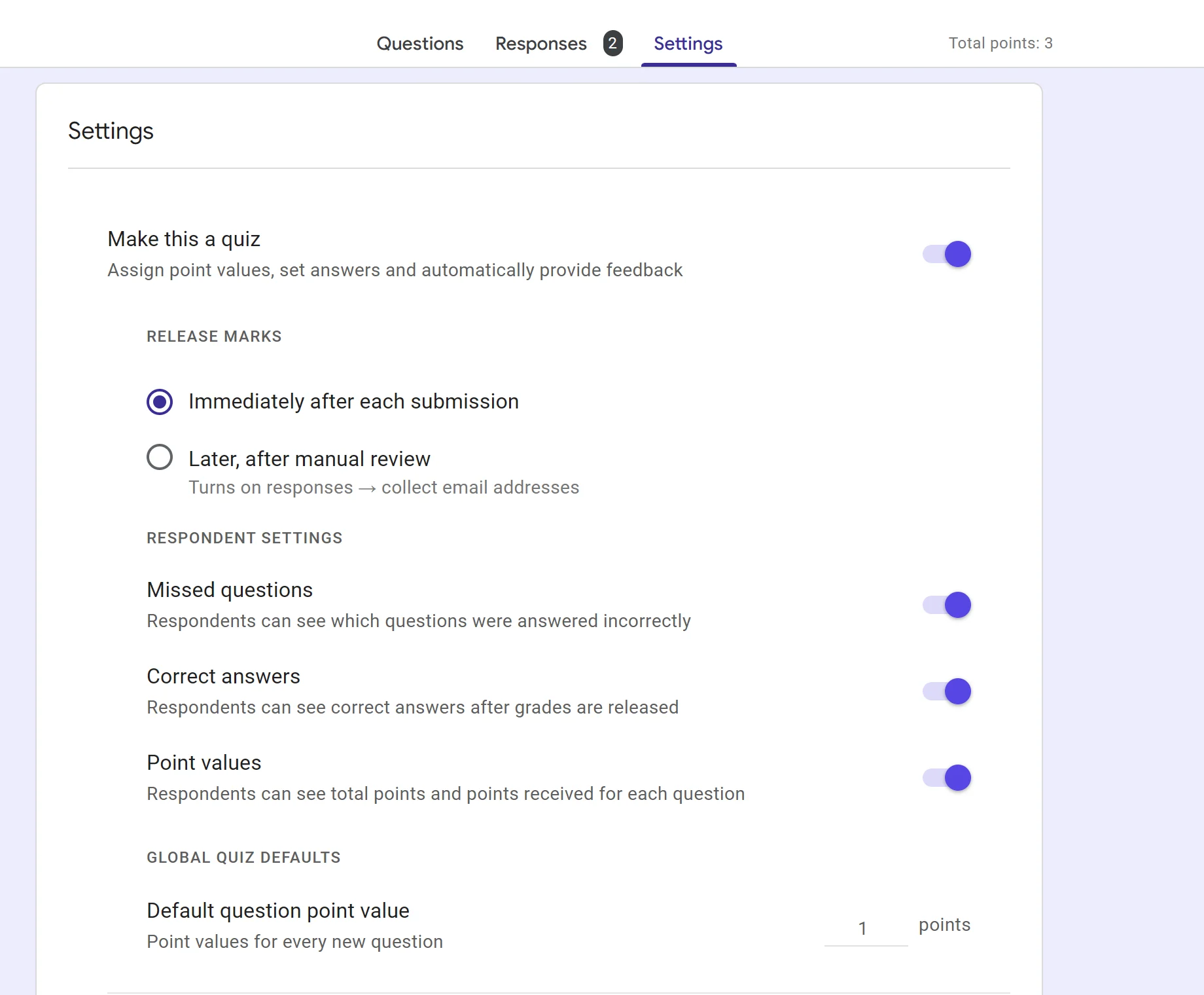
Already have a form full of answers? Turn the same switch on. Nothing you collected changes, but those questions have no answer key yet, so you add one to each.
Step 2: Give each question a correct answer
Every question needs its own answer key. The answer key lives on the question card, not in Settings.
- Open the Questions tab.
- Click Answer key at the bottom left of the question.
- Tick the right answer. Radios for multiple choice, checkboxes for checkboxes.
- Change the points box if the question is worth more than one.
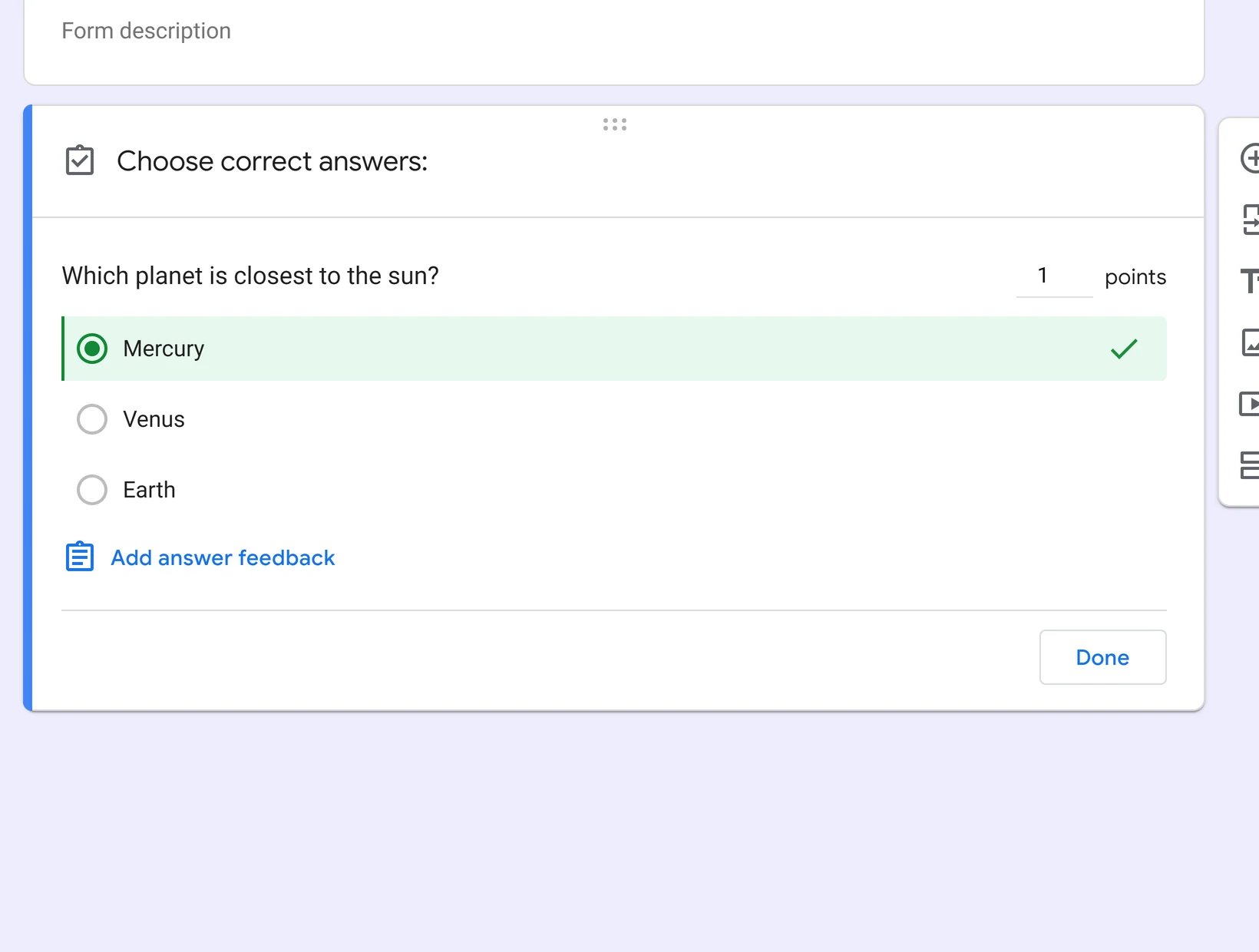
Click Done and the card keeps a small note with the correct answer.
On a 20 question quiz, that note is how you spot the questions you never finished.
You might want to check the checkboxes questions twice. They are marked all or nothing: tick one of two correct answers and the score is zero. Google’s guide to grading quizzes confirms the same behaviour.
Step 3: Add feedback for wrong answers
Feedback is optional and worth ten minutes. It is the difference between a mark and a lesson.
- Open Answer key again.
- Click Add answer feedback.
- Write the wrong-answer message on the Incorrect answers tab, then switch to Correct answers.
- Save, then Done.
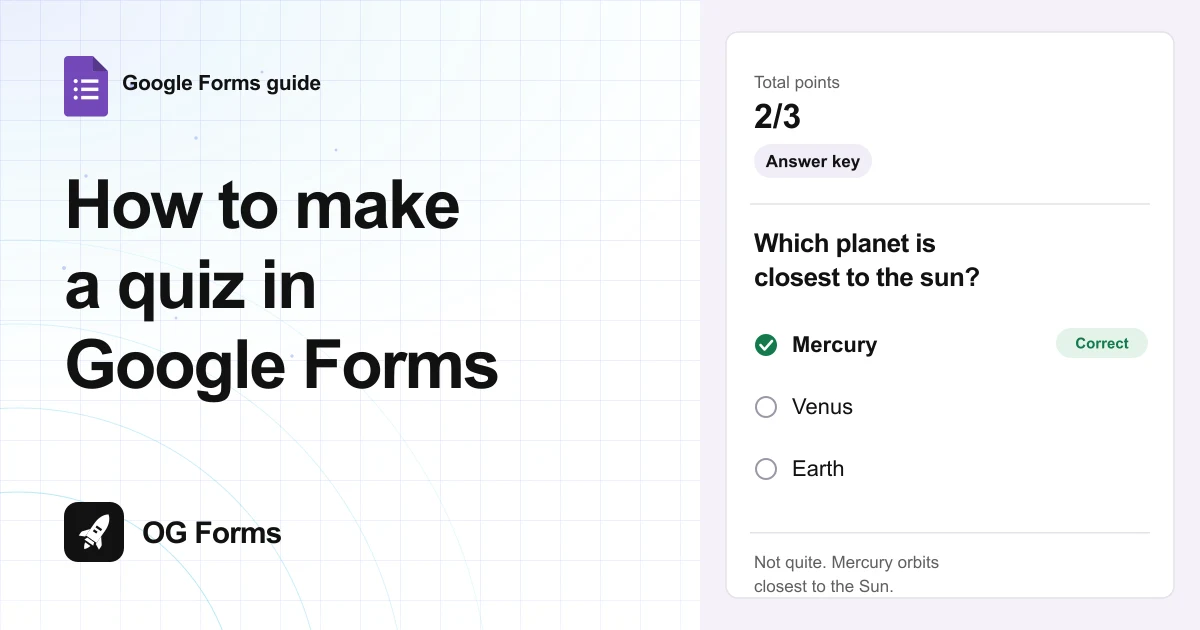
One sentence is enough. “Not quite. Mercury orbits closest to the Sun, then Venus, then Earth” earns its place.
“Wrong” teaches nobody anything.
Step 4: Take the quiz yourself
Preview it before you send it. You will catch a wrong answer key faster than any student will.
- Click Preview at the top right.
- Answer as a respondent would. Each question shows its point value under the text.
- Submit, then click View score.
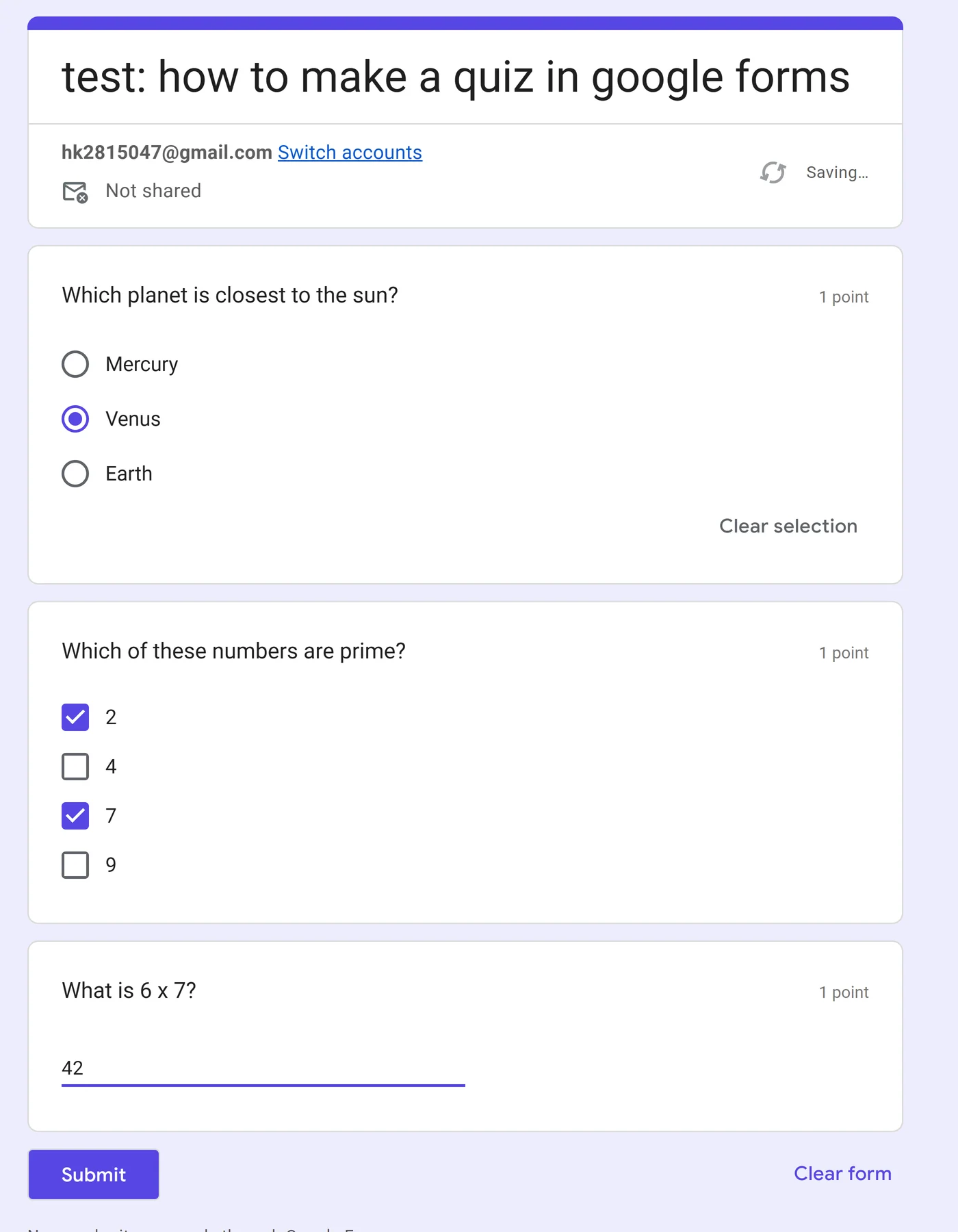
View score opens the score page in a new browser tab. On a phone it looks like nothing happened, which is the most common complaint about Forms quizzes.
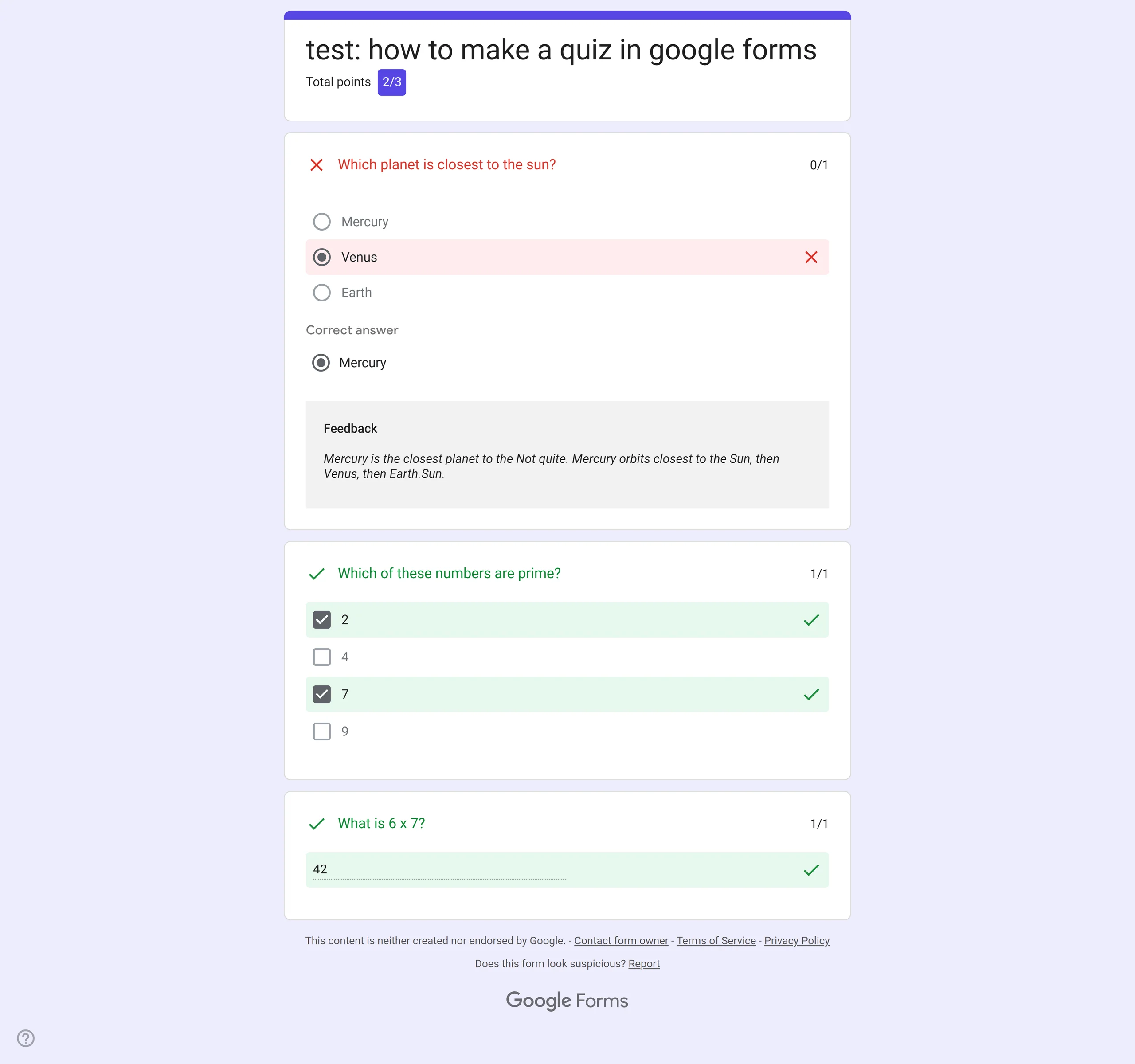
Questions they got right do not show a correct answer line. Only the ones they missed.
Step 5: Read the class scores
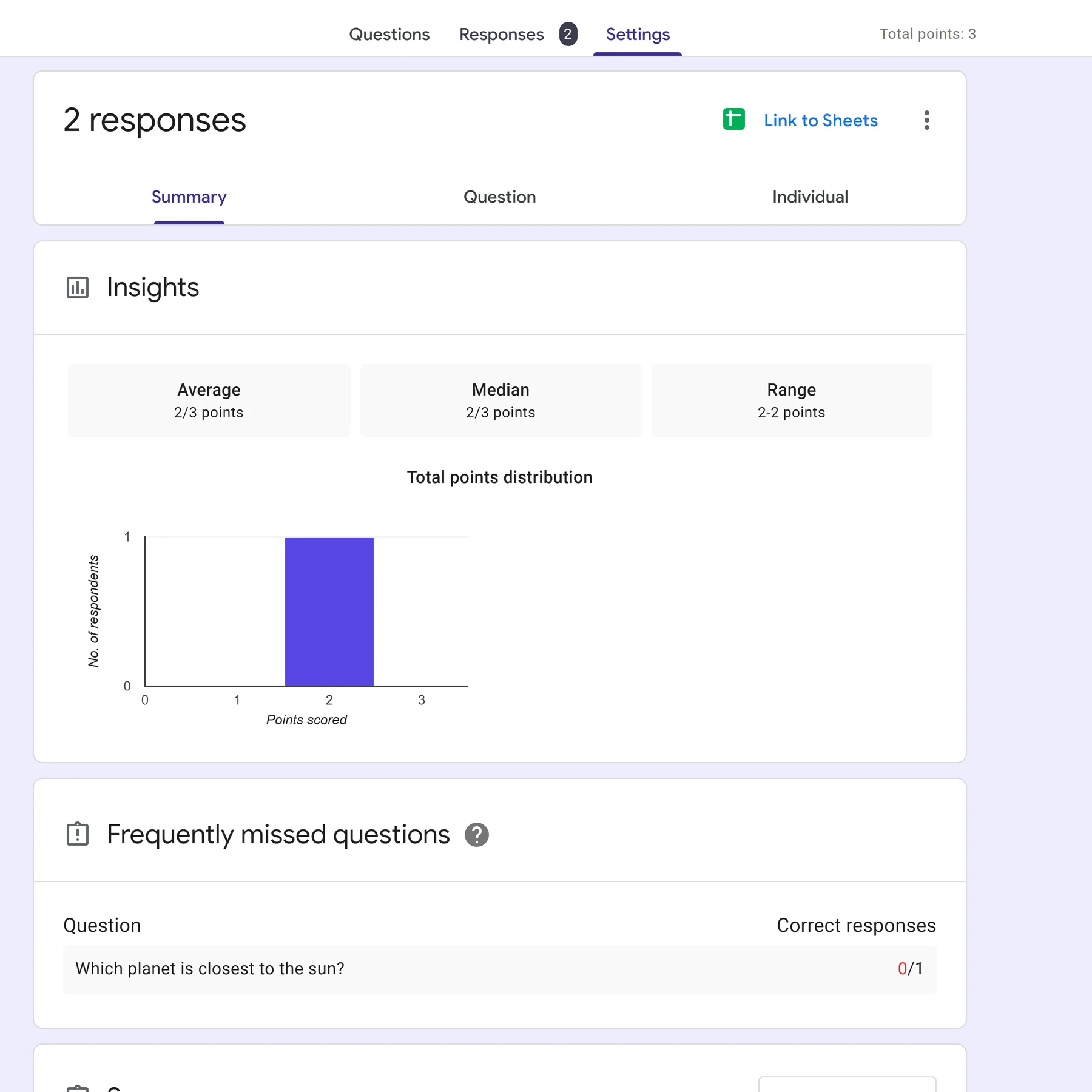
Open Responses and stay on Summary. That is where the marks land once people start answering.
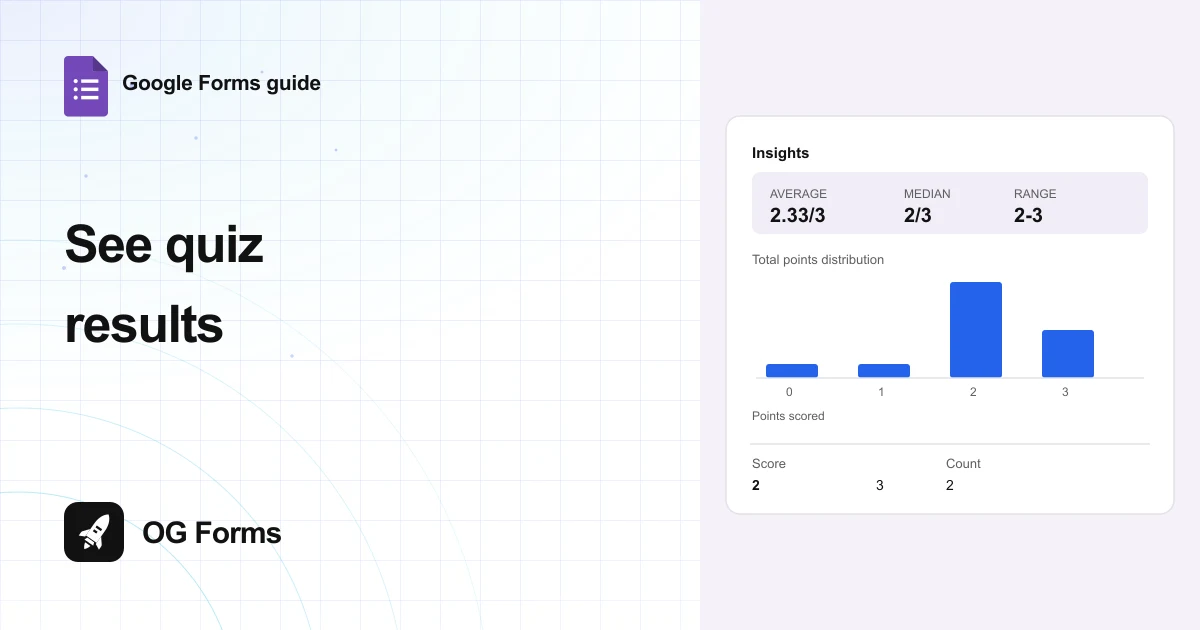
- Read the Insights block for the average, the median and the range.
- Check Total points distribution to see how many people landed on each score.
- Open Frequently missed questions to find the topic worth reteaching.
Step 6: Release marks later, if you want to
Sometimes you want to read the answers before anyone sees a mark. Choose Later, after manual review in Release marks.
Two things change, and neither is obvious from that dropdown.
- The form starts collecting email addresses, and respondents get a required Email question.
- Responses grows a Scores section with a Release scores button above the table.
Press Release scores and everyone in that table gets their mark.
Switch back to immediate release later and the email question stays. You have to turn email collection off yourself.
Why is my quiz marked wrong?
| What you see | Why | Fix |
|---|---|---|
| A question is scored out of 0 | It has no answer key | Open Answer key and set the correct answer |
| A right written answer is marked wrong | The wording differs from your accepted list | Add that phrasing as another correct answer |
| Every written answer is marked wrong | Mark all other answers as incorrect is off | Tick it in the answer key |
| Someone ticked one of two right answers and scored zero | Checkboxes are marked all or nothing | Split the answers into separate questions |
| The total is higher than you expected | A question is worth more than one point | Check the points box on each answer key |
| Nobody can see a mark | Release marks is set to manual review | Responses, then Scores, then Release scores |
| Respondents see the point values | Point values is on in Respondent settings | Turn it off in Settings |
How do you grade a written answer?
Short answer questions have nothing to tick, so you list the answers you will accept instead.
- Click Answer key on the short answer question.
- Type the answer into Add a correct answer.
- Press Enter and add any other spelling you want to accept, so 42 and forty two both count.
- Tick Mark all other answers as incorrect.
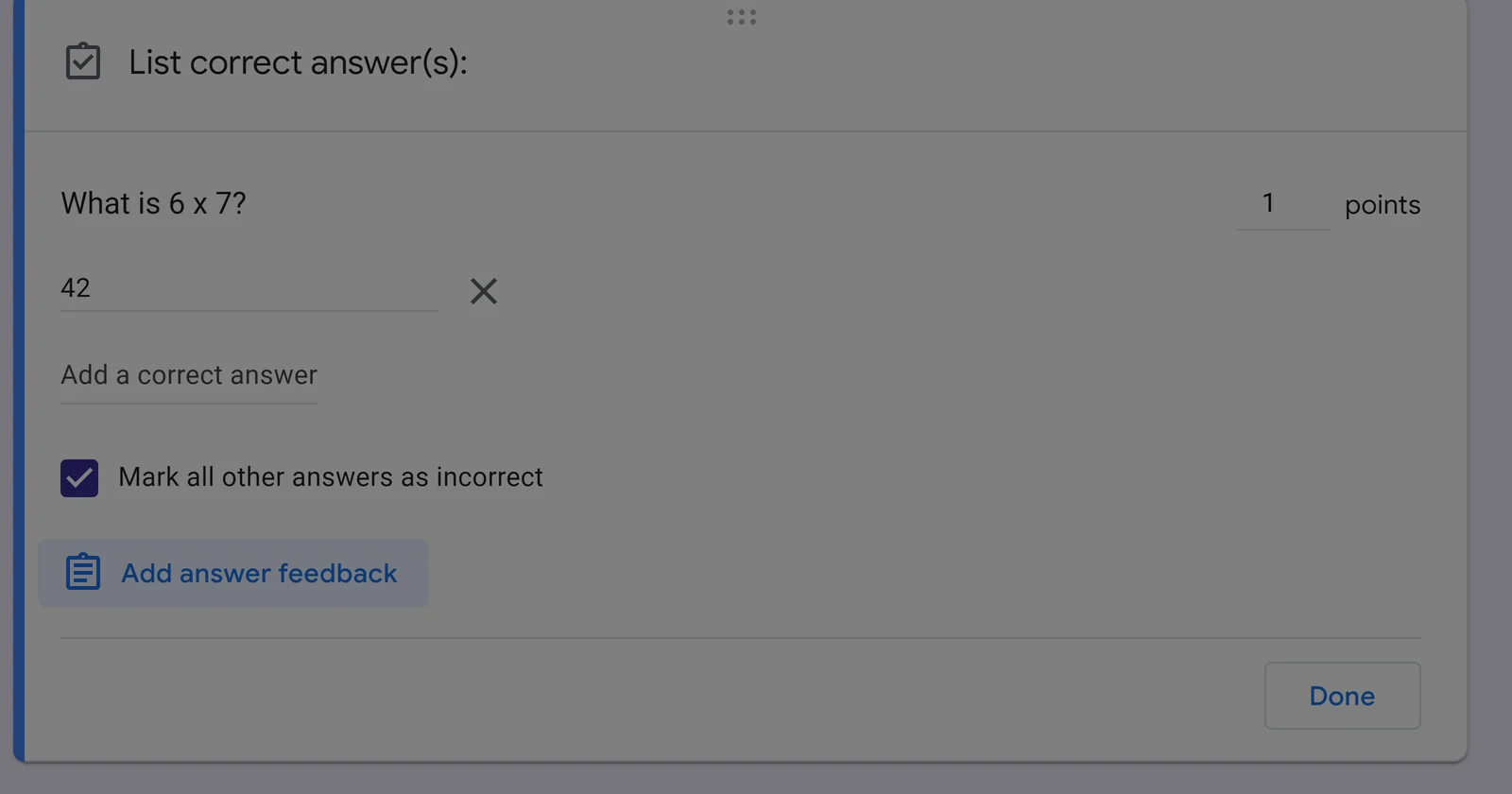
That last tick matters. Leave it off and Google will not score the question at all.
Google compares what someone typed against your list, so add the variations you expect. One accepted answer means every other phrasing scores zero.
What can’t you do with a Google Forms quiz?
- No timer. There is no countdown, no auto-submit and nothing that watches for a second tab.
- No partial credit. A checkboxes question is marked as a whole. Tick one of two correct answers and you score zero. I tested that one and got 0 out of 1.
- No question bank. Two versions of the same quiz means duplicating the form and editing it.
We build OG Forms, so weigh this part with that in mind. A timed quiz is a setting there rather than something you bolt on.
Quizzes are not behind a paid plan either. The features page covers the rest.
If a plain quiz with marks is all you need, Google Forms does that fine. It is free and already in your account.
FAQ
Do respondents see their score straight away?
Only if Release marks is set to Immediately after each submission.
Even then they have to click View score on the confirmation page, and that opens in a new tab.
Can you set a time limit in Google Forms?
No. There is no timer, no countdown and no automatic submit.
Can one form be used by a whole class?
Yes. Send the one link. Every submission is marked on its own.
What’s next
If your quiz has two levels, how to add conditional logic to Google Forms sends people to the questions that fit them.
If you are still deciding what to ask, Google Forms question types covers which type takes an answer key.