
Email notifications
Every form can email the person who answered and the people on your team, with any answer copied into the message.
Updated
Open Email in the builder. The tab has two sides, To respondents and To admins, and each side keeps its own list of emails.
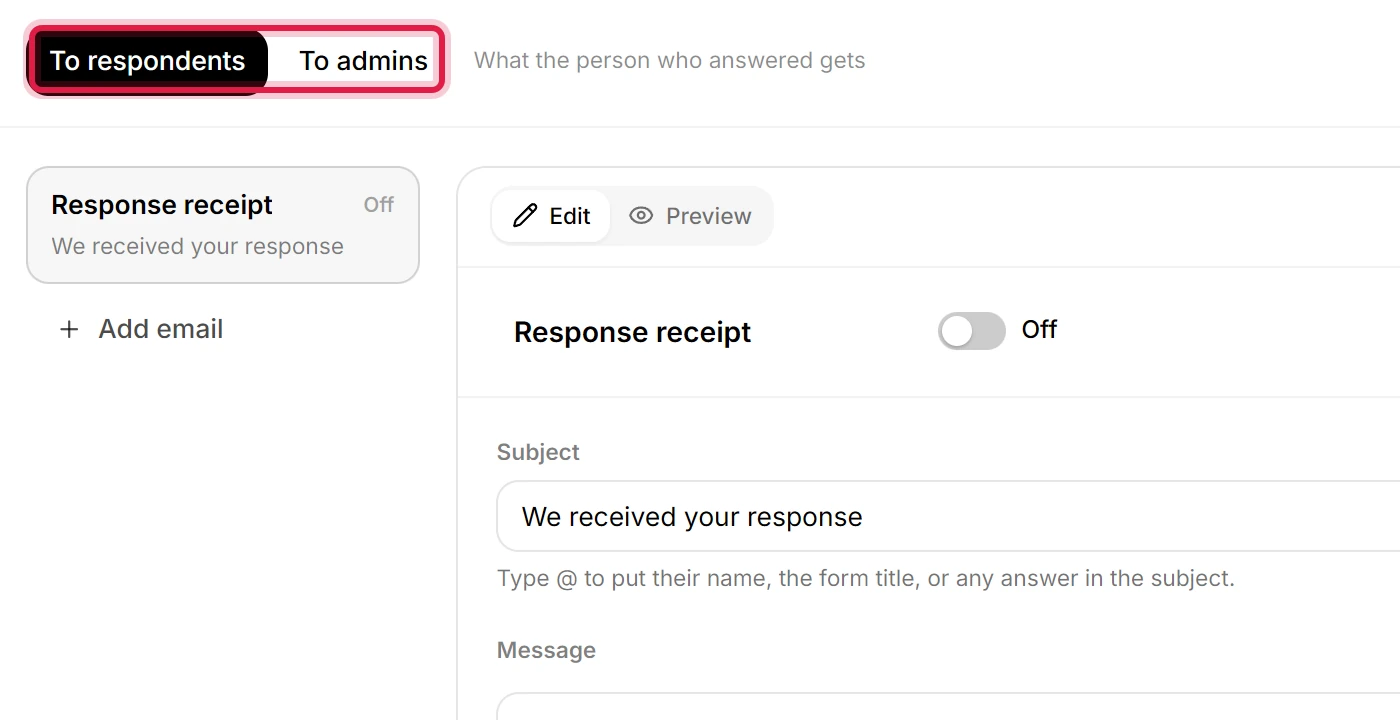
Write an email that sends on every answer
- Click Email in the builder.
- Pick To respondents or To admins.
- Click Add email. Each side holds more than one.
- Write the subject and the message, and drop in merge tags where an answer should go.
- Choose who receives it: the respondent, a fixed address, or named people in the workspace.
- Click Preview, then Send test.
- To respondents is what the person who answered gets. A receipt with their answers means they stop emailing you to ask what they sent.
- To admins is what you and your team get, so an answer reaches the person who has to act on it without anyone forwarding anything.
- Pause all email for this form stops sending without deleting what you wrote.
- The AI in the side panel rewrites one email at a time, as one undo step, and warns you when a rewrite drops a reference to an answer.
Send a test before anyone answers
- Open the email you want to check.
- Click Send test. It goes to you, filled with sample answers.
- Read the result under the toolbar before you turn the form on.
Tests are capped per hour, so a run of them will eventually wait rather than send.
Switch per-form email for a digest
Separately from per-form email, Settings then General holds Email digest: realtime, daily, weekly or none.
Use the digest instead of an email per answer when the volume is high and nobody needs each one on its own. What arrives is visible in responses, and a failure to send shows up in the delivery log covered in webhook deliveries.