

Share a form
A form takes no answers until it is published. The Share panel holds the link, the QR code and the embed snippet.
Updated
Open Share from the builder. Before publishing, the page shows one card and a Publish form button. Publishing fills the panel with everything else.
Publish the form to take answers
- Open the form in the builder.
- Click Publish in the top bar, or open Share and press Publish form.
- Wait for the status to read Published. The link starts working now and not before.
Publishing changes the state of the form, not the questions. You can keep editing after it is live, and every edit reaches the same link.
Copy the link and set its slug
The first card is the share link. It resolves only while the form is live.
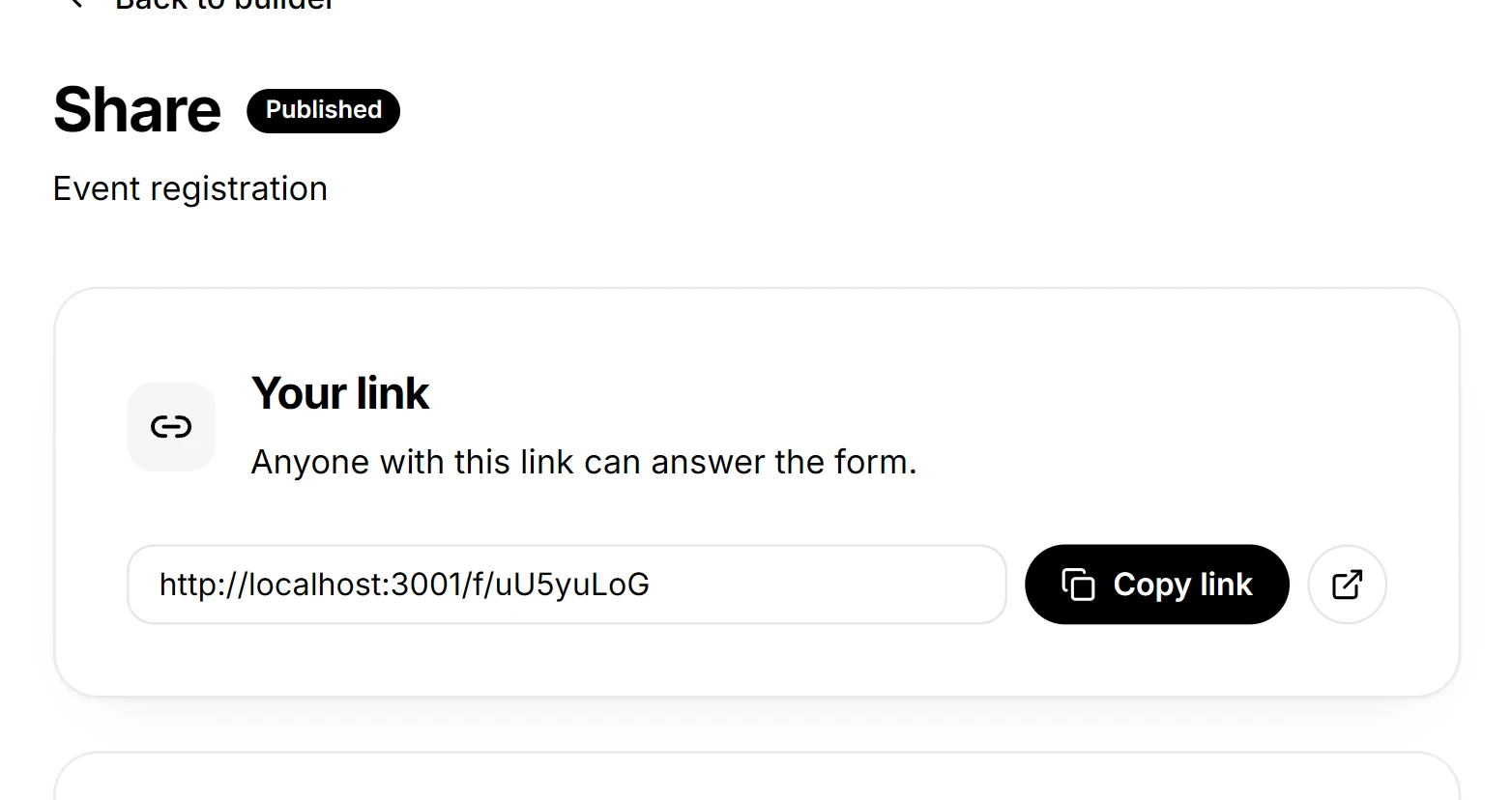
- Copy the link as it is, or set a custom slug so it reads like the form.
- Changing the slug changes the link, and anything pointing at the old one stops working.
- The link card and the QR code always carry the same address, so a printed poster and a message take people to the same place.
Print the QR code and post the link
- The QR card renders the link as a code you can download, named after the slug.
- The form logo goes on the code when the theme has one, so a scanned poster carries your mark.
- The social row posts the same link to the usual networks.
Use the QR code where people are already standing: a table, a door, a printed handout. Use the link where they will tap it.
Embed the form on your site
The Integrations page gives you one snippet, in an inline layout and a chat bubble layout. Click Copy code and paste it where the form should appear.

- The frame follows the height of the form, so a long form is not cut off and a short one leaves no gap.
- Chat bubble keeps the form one click away on a page where it is not the point.
- The embed loads the same live form, so edits and the close date apply to it too.
Pause a form or cap the answers
- Unpublish form pauses responses without changing the link, so a form you reopen keeps its address and the posters stay valid.
- The response limit card closes the form at a number of answers you set, which is how a first-come signup list stays first-come.
- The theme, logo and colours are set in the builder design drawer, and one question can override them: question settings.
Once answers start arriving they land in responses, and you can email the people who sent them with email notifications.